Processing Meter Readings and Charges
Last modified on:
Overview
This document provides instructions on how to process and charge meter readings/usage for all meters.
Prerequisites
- Access to the Admin tab in the system.
- Ability to print documents if needed.
Steps
Location
- Click on the Menu button.
- Select the Admin tab.
- Click on Process Meter Readings.
Meter Walk Sheet
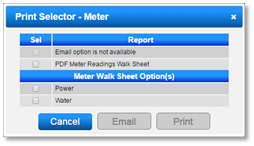
- To print a Meter Walk Sheet for staff to record meter readings:
- Click Print.
- Select the required meter(s).
- Choose Meter Reading Walk Sheet.
Entering Readings
- Select the type of Meter from the Meter dropdown.
- Enter the Closing Readings for all meters used by guests.
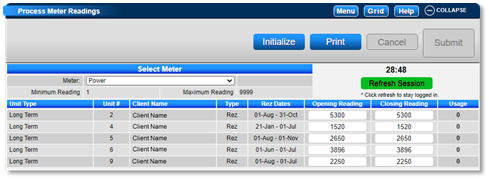
- Usage will automatically be calculated from the reading values entered.
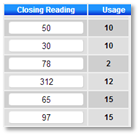
- NOTE: If additional time is required when entering the Closing Readings, click on the Refresh Session button at the top of the panel to restart the timer.
- After entering all readings, enter a comment into the Change Control box (e.g., Electricity) and press Submit.
- A confirmation message will appear; click Yes.
- A Utility charge will be added to each reservation balance (or AR Account).
Printing Off Meter Invoices and/or Listing Report
- After processing all resident meters, you can print all meter invoices.
- Scroll down and expand the Batch Review panel.
- Select the displayed batch.
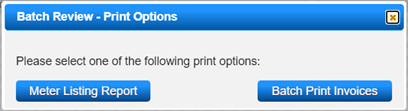
- Click Print and select Batch Print Invoices.
- Select all and click Submit.
- The Meter Batch Print will display; click on the printer to print all meter invoices.
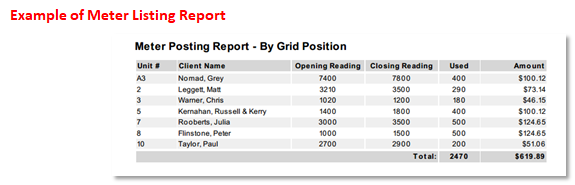
- To print the Meter Listing Report, click Print and select Meter Listing Report.
Single Guest Processing
- To process a meter reading for a single guest:
- Click on the guest’s reservation on the Availability Grid to access the Guest Folio.
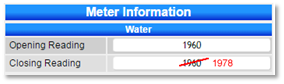
- In the Guest Folio, find the Meter Information within the Booking Details section.
- Enter the Closing Reading value and press Submit.
- A confirmation message will appear stating the Reservation Meter bill has been applied to the reservation.
Troubleshooting
For additional help, refer to the Help Document.