Resort Web Setup Configuration Guide
Last modified on:
Overview
Sets up your online booking interfaces for clients to be used to make online reservations.
Prerequisites
- Access to the system with necessary permissions to configure the Resort Web Setup.
Steps
Location
- Click any Menu button.
- Click on the Setup tab.
- Select Resort Web Setup in the Business Setup section.
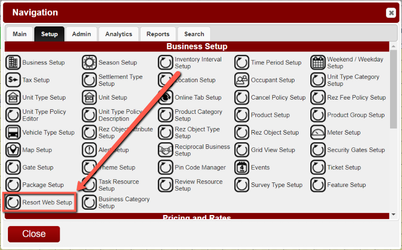
- This loads the Resort Web Setup panel.
- The Setup is split into General and Availability tabs.
General Tab
- The page loads to the General Setup by default.
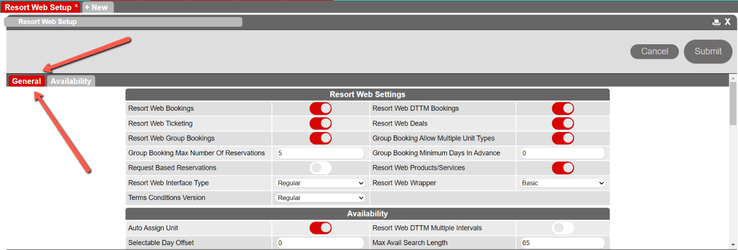
- The General tab contains configurations for your overall online bookings settings.
- It's broken down into multiple sections:
- Resort Web Settings
- Availability
- Booking Details
- Reservation Services (If you have the Resort Web Rez Processes module turned on)
- Admin
- Confirmation
Resort Web Settings
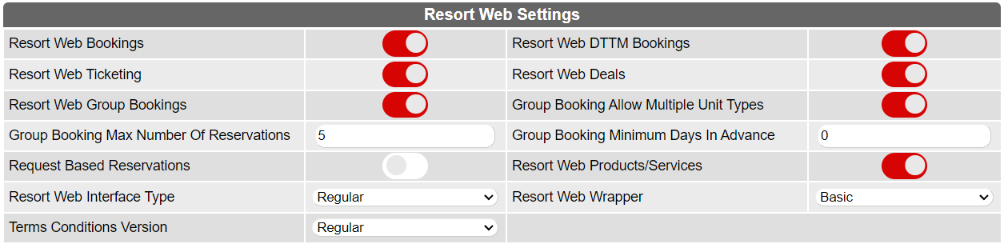
- This section contains configurations for the different key components regarding the main functionality of the online interfaces.
- Resort Web Bookings activates the online booking page.
- Resort Web DTTM Bookings activates the online Down To The Minute bookings.
- Resort Web Ticketing activates the ability to buy tickets online.
- Resort Web Deals activates any deals that are available online.
- Resort Web Group Bookings allow online group bookings.
- Group Booking Allow Multiple Unit Types allows unit type diversity in group bookings.
- Group Booking Max Number Of Reservations sets the max number of reservations in a group.
- Group Booking Minimum Days In Advance sets the minimum amount of days ahead customers can book group reservations.
- Request Based Reservations determines whether or not staff members will confirm made reservations.
- Resort Web Products/Services allows products or services to be sold online.
- Resort Web Interface Type selects the look and feel of the booking interfaces.
- Resort Web Wrapper selects the look and feel of the website.
- Terms Conditions Version selects the look and feel of the online terms and conditions.
Availability

- This section holds the online availability configurations.
- Auto Assign Unit activates the functionality that automatically assigns a site when the booking is made.
- Resort Web DTTM Multiple Intervals allows for multiple intervals to be available.
- Selectable Day Offset determines the minimum days in the future that can be selected.
- Max Avail Search Length determines the maximum amount of items that can be visible on an interface.
Booking Details
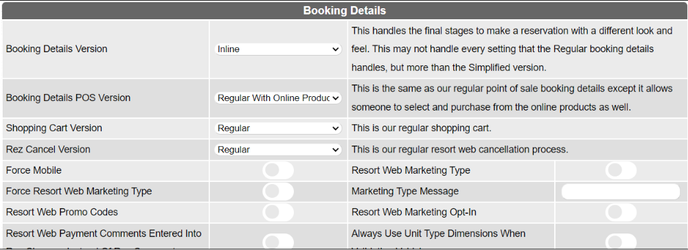
- This section configures the components involved in the booking process.
- Booking Details Version allows you to select which booking details layout you want your customers to use.
- Booking Details POS Version allows you to select which POS booking details layout you want your customers to use.
- Shopping Cart Version allows you to select the style of shopping cart the customers will see.
- Rez Cancel Version allows you to select the process by which customers can cancel reservations if allowed.
- Force Mobile forces the mobile interface to be used.
- Resort Web Marketing Type activates marketing types to be selected during bookings.
- Force Resort Web Marketing Type makes marketing type selection mandatory.
- Resort Web Promo Codes activates the ability to input Promo Codes while booking.
- Resort Web Marketing Opt-In.
- Resort Web Payment Comments Entered Into Rez Changes Instead Of Rez Comments.
- Always Use Unit Type Dimensions When Validating Vehicles makes vehicle dimensions mandatory when booking sites.
Reservation Services
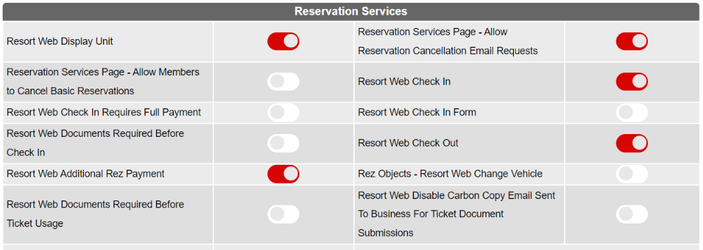
- This section is for configuring certain miscellaneous reservation services that can make the online experience more comfortable.
- Resort Web Display Unit displays unit numbers when making bookings.
- Reservation Services Page - Allow Reservation Cancellation Email Requests allows customers to submit a cancellation request.
- Reservation Services Page - Allow Members to Cancel Basic Reservations allows member customers to cancel certain reservations.
- Resort Web Check In allows online check-ins.
- Resort Web Check In Requires Full Payment ensures that payments are fully made before online check-in.
- Resort Web Check In Form loads a check-in form to be signed before check-in.
- Resort Web Documents Required Before Check In ensures that customers submit any and all documents before checking in.
- Resort Web Check Out allows online check-outs.
- Resort Web Additional Rez Payment allows the ability to make additional online payments.
- Rez Objects - Resort Web Change Vehicle allows users to change vehicle information online.
- Resort Web Documents Required Before Ticket Usage ensures that any documents are submitted before tickets can be bought.
- Resort Web Disable Carbon Copy Email Sent To Business For Ticket Document Submissions disables the emails sent to the business when ticket documents are submitted.
- Resort Web Disable Carbon Copy Email Sent To Business For Reservation Document Submissions disables the emails sent to the business when reservation documents are submitted.
Admin

- This section configures certain administrative features.
- Resort Web Admin - Change Email allows users to change their email address.
- Resort Web Admin - Show Member Rules.
- Accept Messages From Client allows customers to send messages to the business from the online portal.
- Accept Message From Client Email allows customers to send emails from the online portal.
Confirmation

- This section is for configuring the PDF version of the confirmation email.
- Disable Resort Web Rez PDF Confirmation disables the printable rez confirmation report.
Availability Tab
- The Availability tab is where you can set up your online booking interfaces.
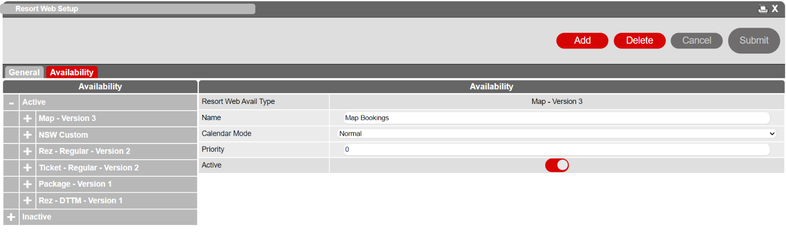
- The left panel shows the list of made interfaces, and the right panel shows the configurations of the selected panel.
Adding an Interface
- To add an interface, click the Add button.

- Add Availability window pops up.
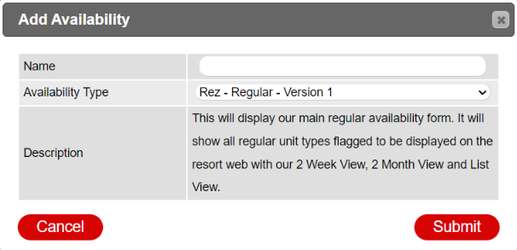
- Input the Name of your interface.
- Choose an interface from the Availability Type drop-down.
- Click Submit.
- The interfaces available to choose from are:
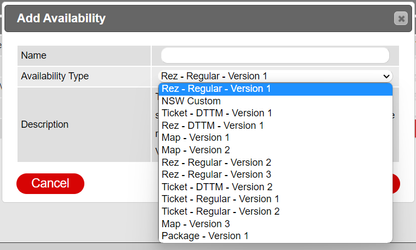
- Rez - Regular - Version 1
- Rez - Regular - Version 2
- Rez - Regular - Version 3
- Rez - Regular - Version 4
- NSW Custom
- Rez - DTTM - Version 1
- Ticket - DTTM - Version 1
- Ticket - DTTM - Version 2
- Map - Version 1
- Map - Version 2
- Map - Version 3
- Ticket - Regular - Version 1
- Ticket - Regular - Version 2
- Package - Version 1
Configuring an Interface
- To configure an interface:
- Change the values that are presented to you in the interface you have added.
- The booking interfaces allow configuring:
- Bookable unit types
- Calendar modes (single, double, single-day)
- Unit dimensions (length, width, etc.)
- Unit modes (Unit list, Map)
- Default Rate Group
Troubleshooting
- Ensure all required fields are filled when adding or configuring an interface.
- Verify permissions if unable to access certain settings or tabs.
- Check for any error messages or alerts that provide guidance on resolving issues.