Enable AR Accounts in Client Editor Panel
Last modified on:
Overview
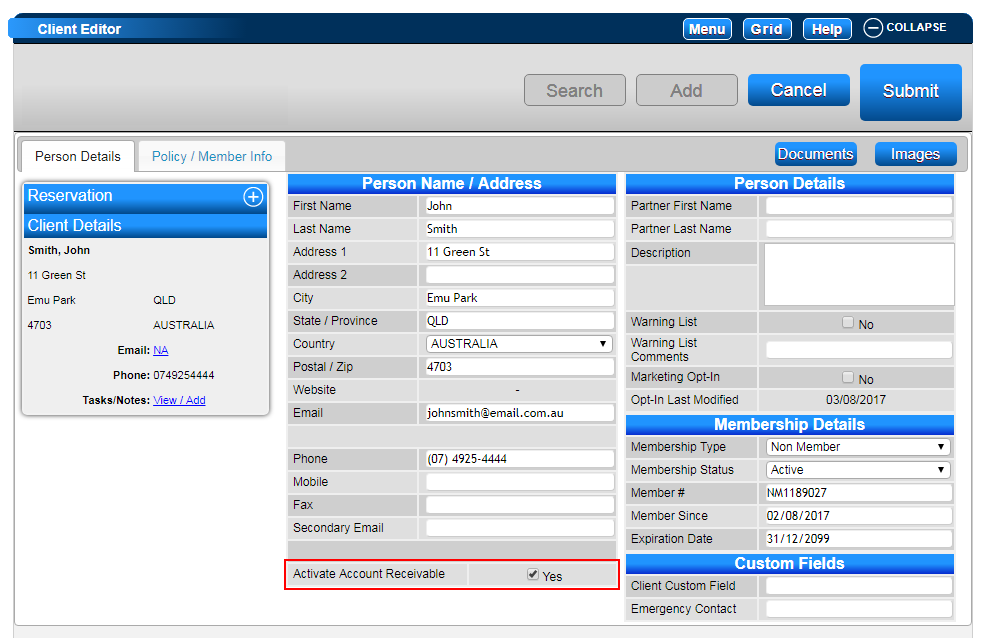
Creating an Account Receivable (AR) account for a client has been streamlined to match the process used for businesses. The Client Editor panel now includes an "Activate Account Receivable" flag for clients.
Prerequisites
- Access to the Client Editor panel
- Client's name for search
Steps
- Search for a Client:
- Click on the Search button.
- Enter the client's name.
- Click Search. - Access the Client Editor Panel:
- In the Selected Client box, click on the Edit button to access the Client Editor panel.
- Alternatively, scroll to the bottom of the Availability Grid page to expand the Client Editor panel.
- Click on the Search button to search for the entered client name. - Activate AR Account:
- In the client's file, tick the Activate Account Receivable flag.
- An AR Account is instantly created for the client, eliminating the need to navigate to the AR Review/Aging panel.
- Alternative Method:
- AR Accounts can also be created via the AR Aging Panel.
Troubleshooting
For further assistance, please contact:
- Phone: 888 777-0602 (or +61 7 4925 4400 for Australia/NZ)
- Email: support@digitalrez.com