Max Reservations Rule Setup Across Unit Types
Last modified on:
Overview
This rule allows users to set the maximum number of reservations that can be made across selected unit types each day during a specified period.
Prerequisites
- Access to the Admin tab in the system menu.
Steps
Location
- Click on the Menu button.
- Select the Admin tab.
- Click on Rule Setup.
Add New Rule
- Click Add.
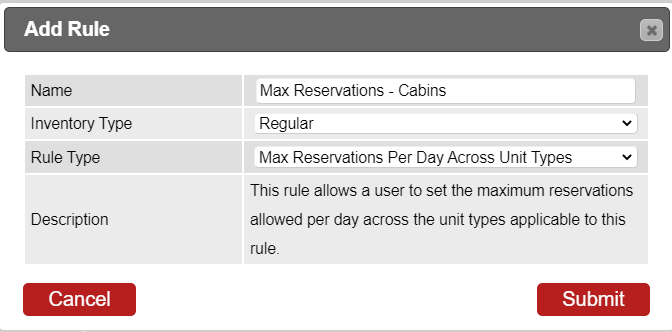
- Enter the Name of the rule.
- Click on the Inventory Type dropdown and select Regular.
- Click on the Rule Type dropdown and select Max Reservations Per Day Across Unit Types.
Setup
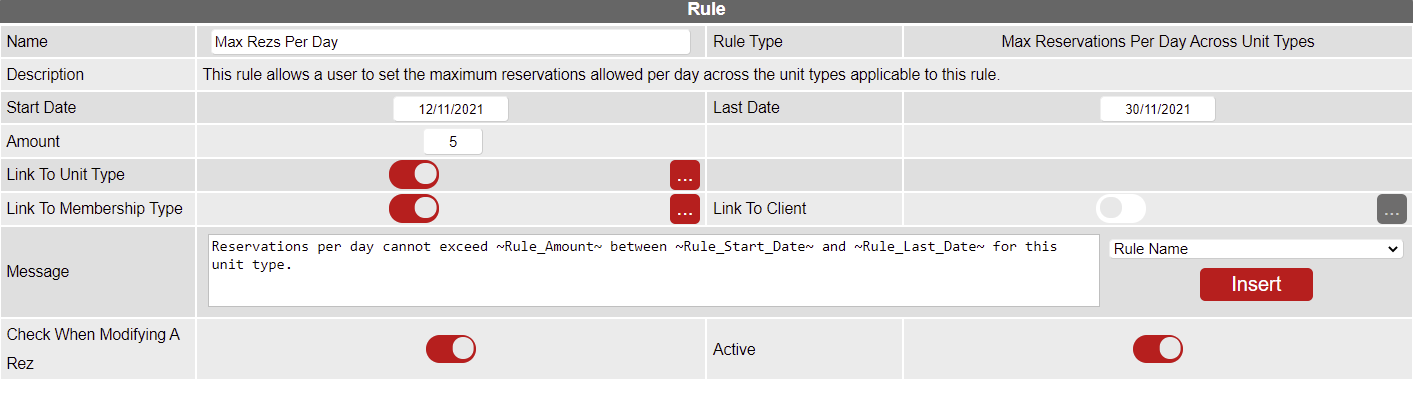
- Start Date: Select a start date for the time frame which this rule will affect reservations.
- Last Date: Select an end date for the time frame which this rule will affect reservations.
- Amount: Enter the maximum number of reservations allowed across the selected unit types for the specified time frame.
- Link To Unit Type: Select the unit type(s) this rule applies to. Use the three-dot button to select those unit types.
- Link To Membership Type: Use this flag when the rule applies only to specific membership types. Use the three-dot button to select those membership types.
- Link To Client: Use this flag when the rule applies only to specific clients. Use the three-dot button to add those clients. Click the add button and then search for them.
- Message: A default message will be applied. The message can be edited to display any required information. Wildcards are available to be inserted into the message, which will pull the wildcard data to be displayed.
- Active: Once satisfied with the settings, use this flag to activate the rule within your business.
Troubleshooting
- Ensure all required fields are filled correctly.
- Verify that the selected dates and unit types are accurate.
- Check that the rule is activated if it is not functioning as expected.