Website Widget Generator Setup Instructions
Last modified on:
Overview
The Widget Generator allows for an additional booking section on your website. Guests can enter their required stay dates and the number of occupants to display available Unit Types and Units for the selected date range and occupant selection.
Prerequisites
- Access to the Admin tab on your website's menu.
Steps
Location
- Click on the Menu button.
- Select the Admin tab.
- Click on Widget Generator under the Administrative section.
Setup
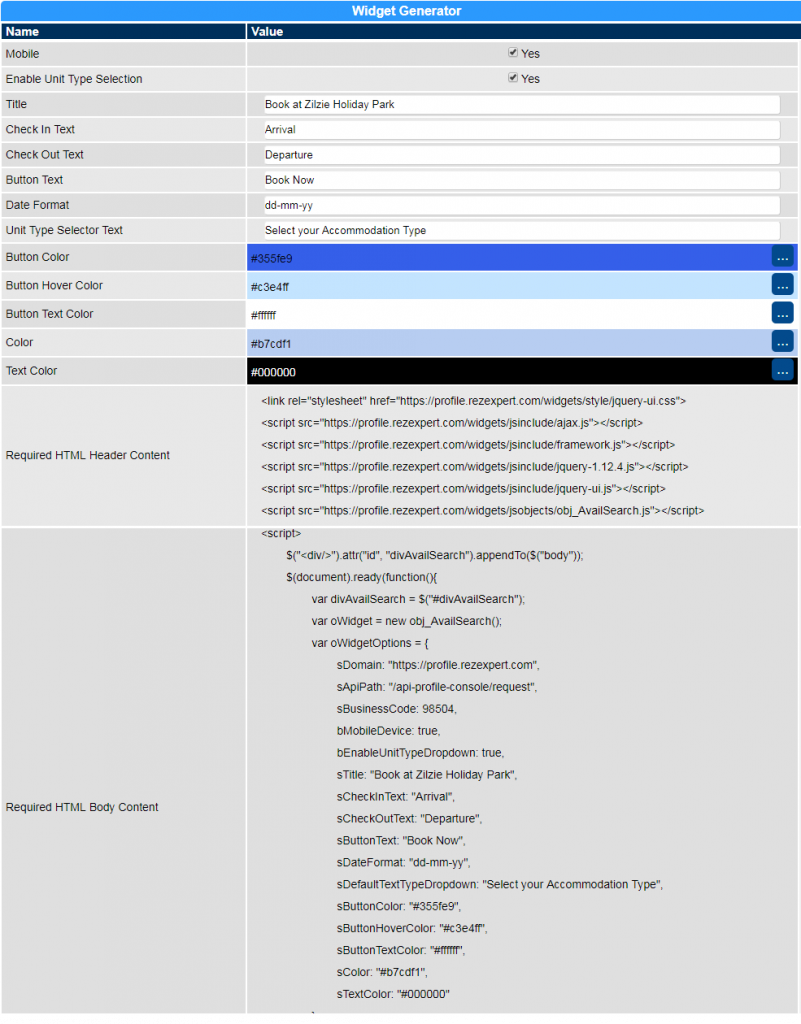
- Mobile View: Displays information in a stacked/vertical view. If not selected, the widget display will be horizontal.
- Enable Unit Type Selection: Displays Unit Types in a dropdown with the number of units available during the selected date range. Guests can choose the required Unit Type and enter the number of guests, directing them to that Unit Type’s availability grid for booking.
- Title: Text to display at the top of the widget. This is optional.
- Check In Text: Text to display with the Check In Date selector (e.g., Arrival Date).
- Check Out Text: Text to display with the Check Out Date selector (e.g., Departure Date).
- Button Text: Text to display on the booking button (e.g., Book Now).
- Date Format: Enter the required date display format (e.g., dd-mm-yy or mm,dd,yy).
- Unit Type Selector Text: Text to display above the Unit Type selector dropdown.
- Colours: Configure the widget colours to match the business's preference.
- Required HTML Header Content: Provide this information to your website designer to embed on the website.
- Required HTML Body Content: Provide this information to your website designer to embed on the website.
Preview
- This is a dynamic page with no Submit button to save changes. Any changes to the Widget page during setup will automatically update the HTML Header and Body Content.
- RezExpert will not save the created Widget for future reference. Ensure the design is completed and sent to the website designer before moving to a different area of RezExpert or logging out.
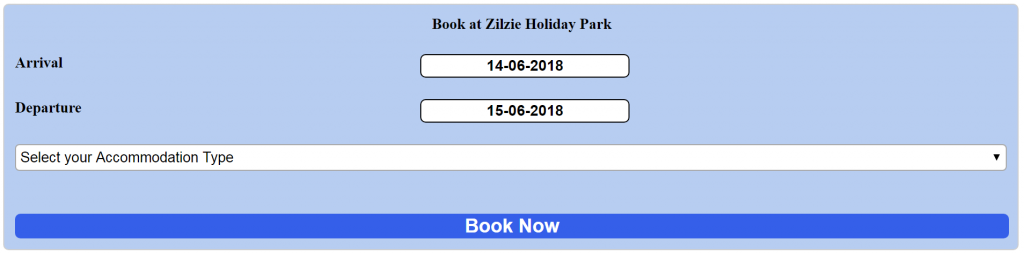
- Use the Preview button to preview the Widget settings.
- Mobile Enabled:
- Mobile Not Enabled:

Troubleshooting
- Ensure all required HTML content is correctly provided to the website designer.
- Verify that the widget settings are previewed and confirmed before exiting the setup.