Advance Power Payment Options for Residents
Last modified on:
Overview
On occasion, a Long Term/Permanent resident may wish to pay power in advance or make weekly payments towards their monthly power bill. There are two options for handling this advance payment:
- Creating an Account Receivables Account for the client to "hold" the payment until required.
- Creating a Security Deposit to "hold" the payment until required.
Prerequisites
- Access to the Admin Menu and Account Manager.
- Ability to modify Client Files and Guest Folios.
- Knowledge of setting up Security Deposits.
Steps
Option One: Account Receivables Account
- Create an Account Receivables Account:
- Access the Admin Menu.
- Expand the Account Manager panel and search for the Client.
- Click "Add" to create the AR Account.
- Alternatively, within the Client File, activate the Accounts Receivable flag. - Paying Extra towards Power:
- Note: This is completed in the AR Account, not the Guest Folio.
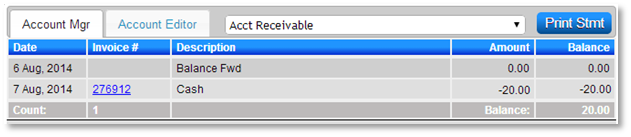
- Within the client’s AR Account, click "Payment" and enter the amount the client is paying in advance towards power. The AR Account will show a credit balance.
- When Power is Due:
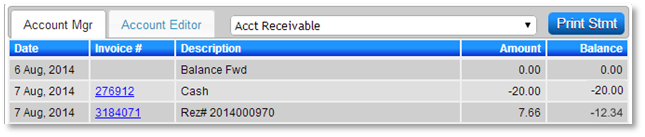
- When power charges are processed to the Guest Folios, the credit amounts are used to pay these charges.
- In the Guest Folio, select the "Payment" button from the Charges/Payments tab.
- Select the Payment Type "AR Transfer" and enter the amount to be used. Click "Allocate" to allocate the payment to charges the client wishes to pay. Click "Post" and "Submit" to finalize.
- The AR Balance within the Guest Folio and Account Manager will adjust accordingly.
Option Two: Security Deposit
- Setup Security Deposit:
- Click a Menu button, select the "Setup" tab, and click on "Products Setup."
- Click "Add" and enter the following:
- Label: Advanced Power Payment
- Group: Security Deposits
- GL Type: Revenue Only
- Product: Retained Security Deposits
- Press "Submit" to finalize.
- Assign GL Codes to the Security Deposit for report purposes.
Note: If this is the first Security Deposit setup for the business, refer to the Help Document – Manually Applied Security Deposit for the required setup steps, or contact RezExpert Support Tech for assistance.
- Paying Extra towards Power:
- In the client’s Guest Folio, change to the Charges/Payment tab and click the "Payment" button.
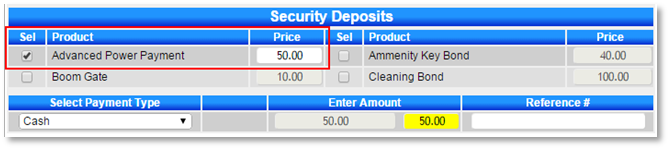
- In the Security Deposits, tick the Advanced Power Payment security deposit and enter the amount the client wishes to pay.
- Select the Payment Type used and click "Post" and "Submit" to finalize the payment.
- When Power is Due:
- When power charges are processed to the Guest Folios, the credit amounts can be used to pay these charges.
- In the Guest Folio, select the Action: Convert next to the Security Deposit Payment. This will convert the amount to a payment automatically.
- Guests can view their running balance on the Reservation Statement Summary or Detail, located in Print Statement.
Troubleshooting
For further assistance, refer to the Help Document on Paying Power in Advance.