Pin CodeGate Setup and Configuration Guide
Last modified on:
Overview
Access codes for remote properties, gates, and buildings can be scheduled up to 2 years in advance. Multiple gates can be created within a property. PIN Code CSV files can also be imported directly into the Business. Contact DigitalRez to enable the Module.
Prerequisites
- Ensure the module is enabled by contacting DigitalRez.
Steps
Location
- Click on any Menu button.
- Select the Setup tab.
- Click on Gate Setup.

Gate Setup
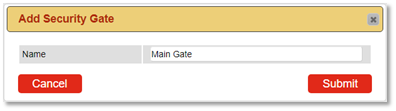
- Click Add to create a gate code for entry to the property.
- Enter the name of the Security Gate for reference.
Parameters
Parameters include:
- Gate name
- Link to Unit – Number of units linked to the gate
- Active – Set the slide control to On or Off to deactivate.
Link to Unit:
- Click on the 3 dots to select the Unit Types related to the Security Gate.
- If the Gate is the Main gate (all Unit Types’ reservations require access), select All.
- If the Gate is a secondary gate (only specific Unit Type(s) require access), select the required Unit Types.
- If only specific units within a Unit Type require the access code, select the required Units.

- The number of selected units will now display.
- Active: Set the slide control to on to activate.
- When a gate is no longer active, set the slide control to off to deactivate.
- Click Submit to finalize.
- Repeat steps for all required gates within the property.
- Gate codes can now be entered for each gate setup.
Email Wildcards
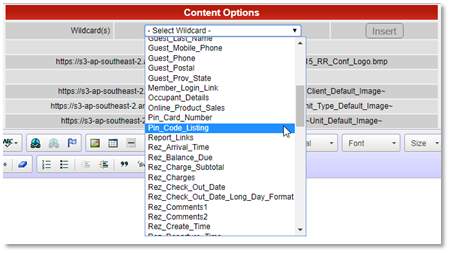
- Wildcard Pin_Code_Listing is available to add to Confirmation emails and pre & post marketing emails.
- The wildcard only needs to be inserted ONCE; if there are multiple gate & room codes applicable for the booking, all will list on the emails.
- Click on any Menu button, select the Admin tab, and click on System Label Manager.
- Click on Emails on the left to expand out the email list.
- Select the required email and click Edit to insert the wildcard into the email.
Note: The reservation must be assigned to a unit to receive the PIN Code listing.
Troubleshooting
- Ensure the module is enabled by contacting DigitalRez.
- Verify that the correct parameters are set for each gate.
- Confirm that the wildcard is correctly inserted into the emails for PIN Code listings.