Configure Payment Status Colors in Rez Grid
Last modified on:
Overview
You have the option to configure grid colors of a reservation based on Payment Status (e.g., Partially Paid, Fully Paid) instead of Booking Status (e.g., Unit Assigned, Unassigned).
Prerequisites
- Access to the Setup menu in the system.
- Permissions to modify Business Info and Preferences.
Steps
Enabling Payment Status
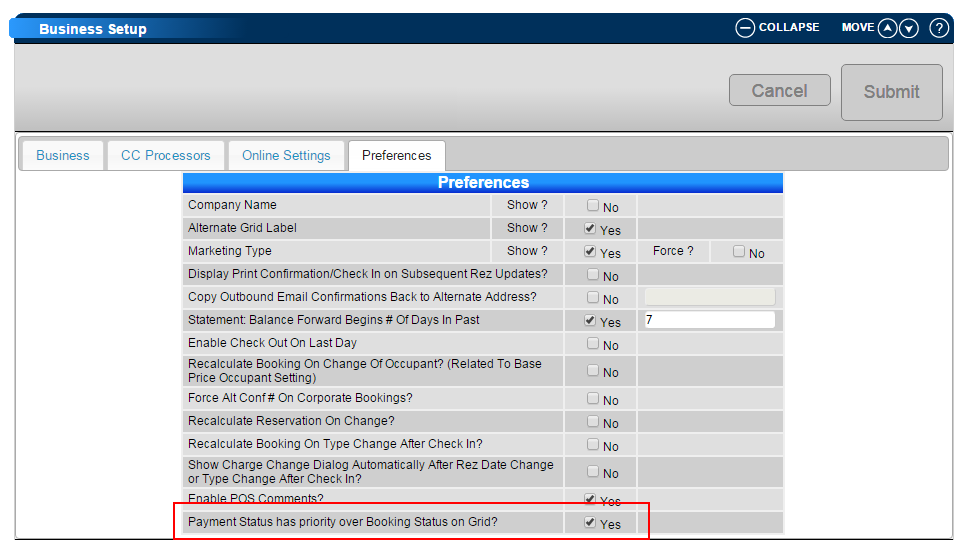
To enable reservation colors to be determined by Payment Status rather than Booking Status:
- Click Setup from the Menu bar.
- Expand Business Setup and click 1. Business Info.
- Click on the Preferences tab.
- Tick the setting Payment Status has priority over Booking Status on Grid.
Grid Colour Legend
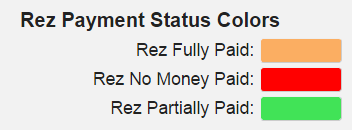
To access the Grid Colour Legend:
- Click on the Utilities button on the Availability Grid.
- View the current color selection assigned.
- Colors can be changed within Setup > Theme Editor > RezExpert Console > Grids.
Troubleshooting
- TIP: The Reservation Symbols will indicate the Booking Status of the reservation, regardless of the reservation's current Payment Status or any Alert assigned.
- # - Reservation is Unassigned
- No Symbol - Reservation is Assigned
- * - Reservation has been Checked In (Checked Out Reservations will also display this symbol).