Public Payment Add-on Module Instructions
Last modified on:
Overview
Public Payment provides the functionality to generate a unique payment link that can be sent to a customer to settle a reservation or an account. This feature is available for:
- Reservations
- Accounts
Please reach out to DigitalRez to utilize this functionality.
Prerequisites
- Ensure you have access to the DigitalRez system.
- Confirm that your business has SMS capabilities if you wish to send payment requests via SMS.
Steps
Reservations
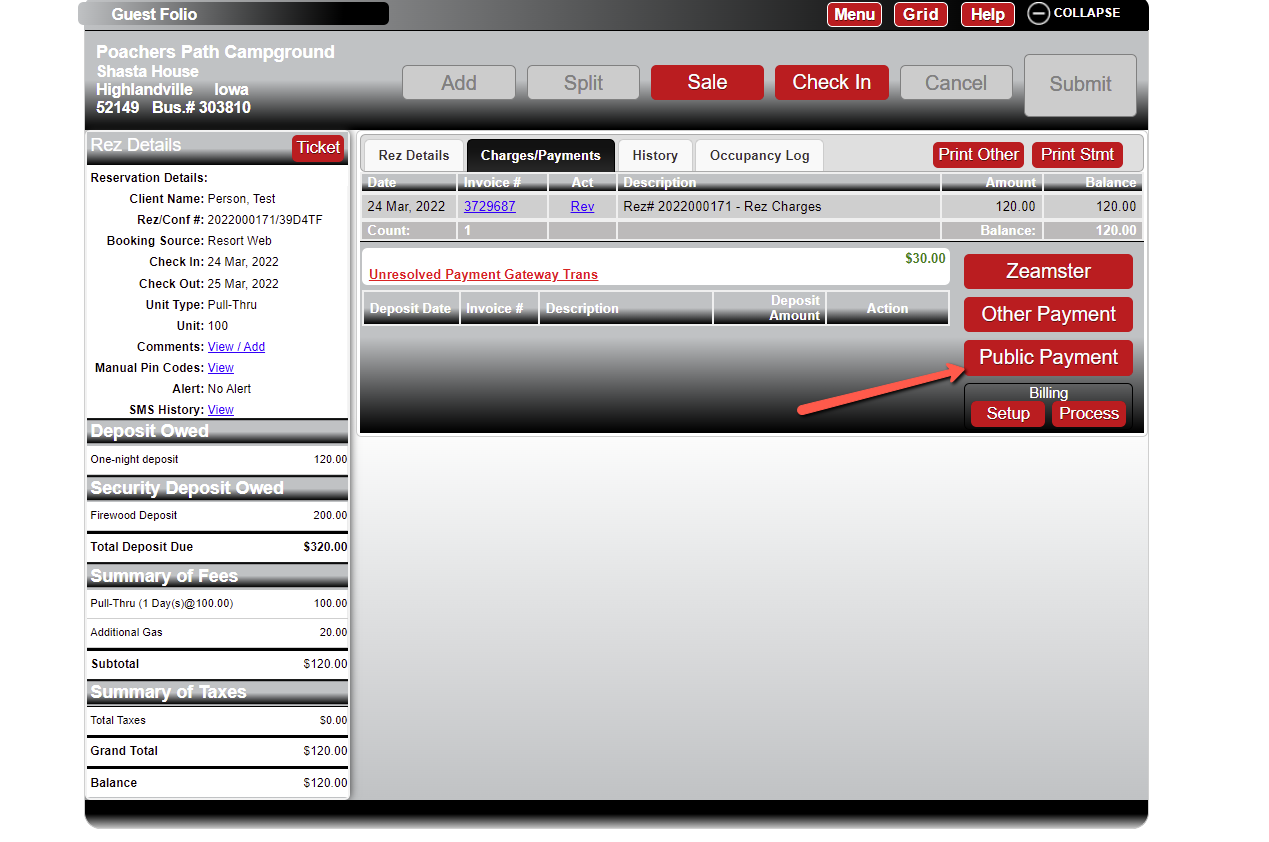
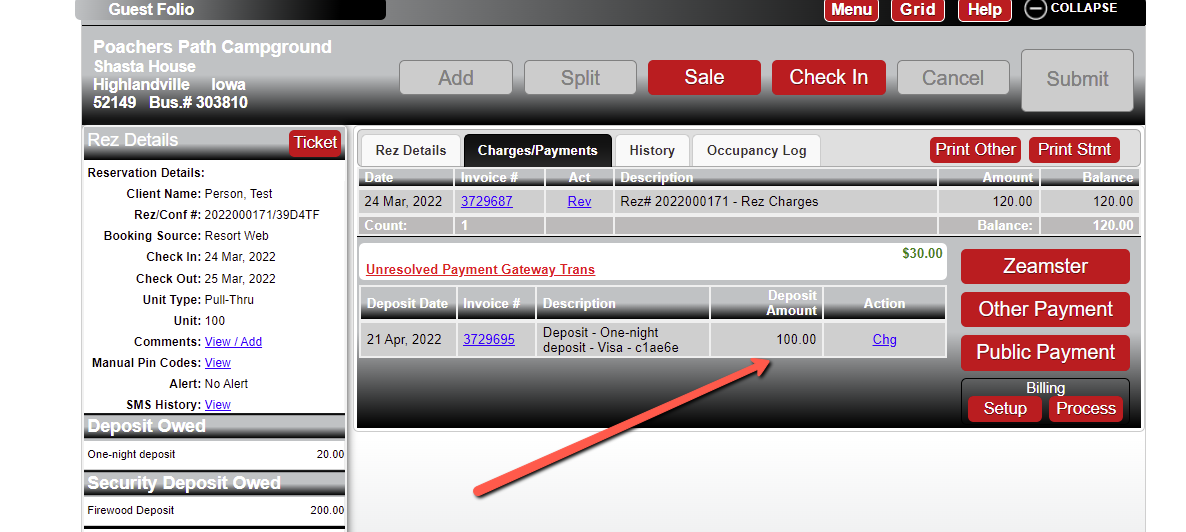
- Navigate to the Charges/Payments tab of a booking.
- Click the Public Payment button.
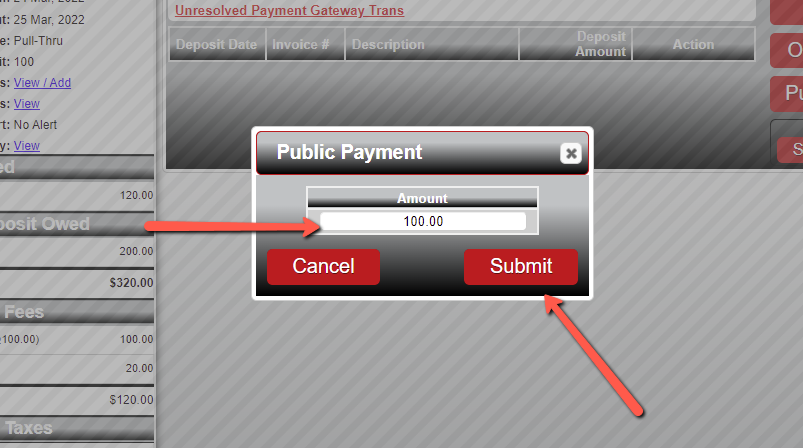
- Enter the amount to be paid and click Submit.
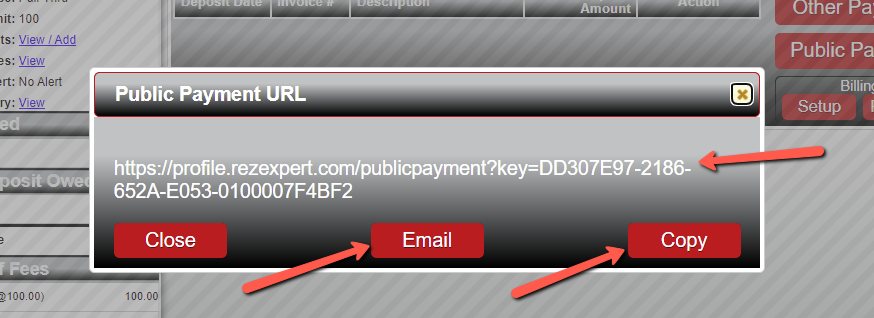
- Choose one of the following options to send the payment link:
- Click the Email button to send a payment request to the client.
- Click the Copy button to save the link to your clipboard.
- If your business has SMS, click the SMS button to send a payment request via SMS.
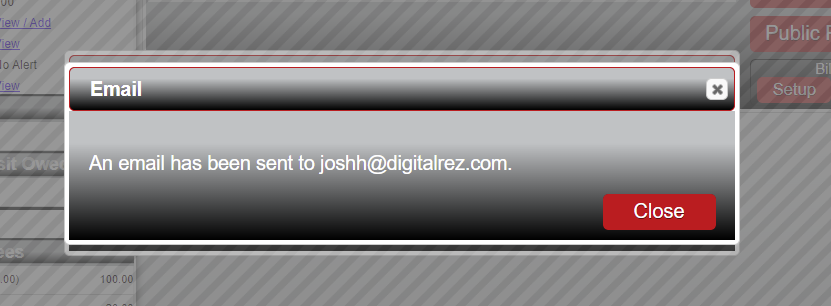
- Select whether to send the email to the primary email address, secondary email address, or manually enter an email address.
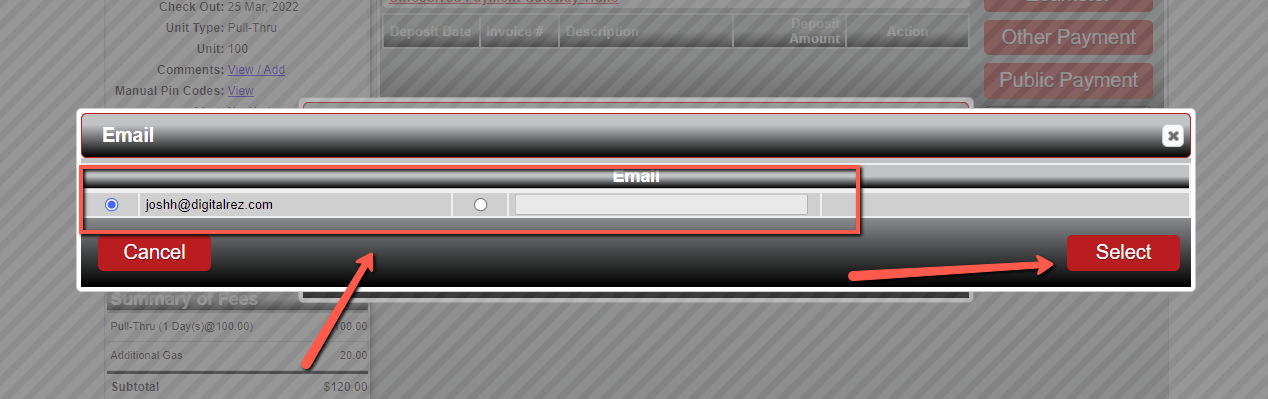
- The customer will receive an email containing the link.
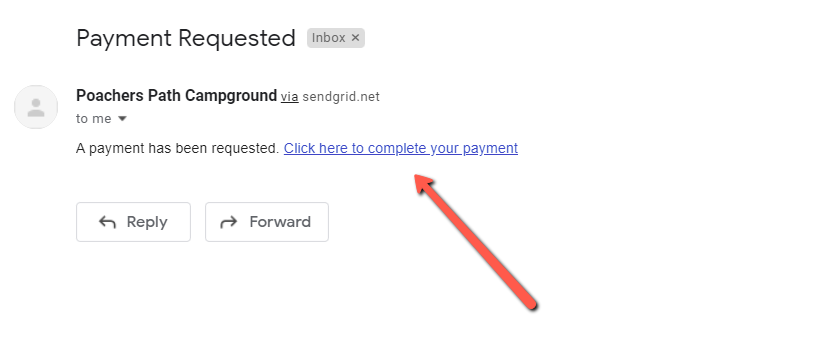
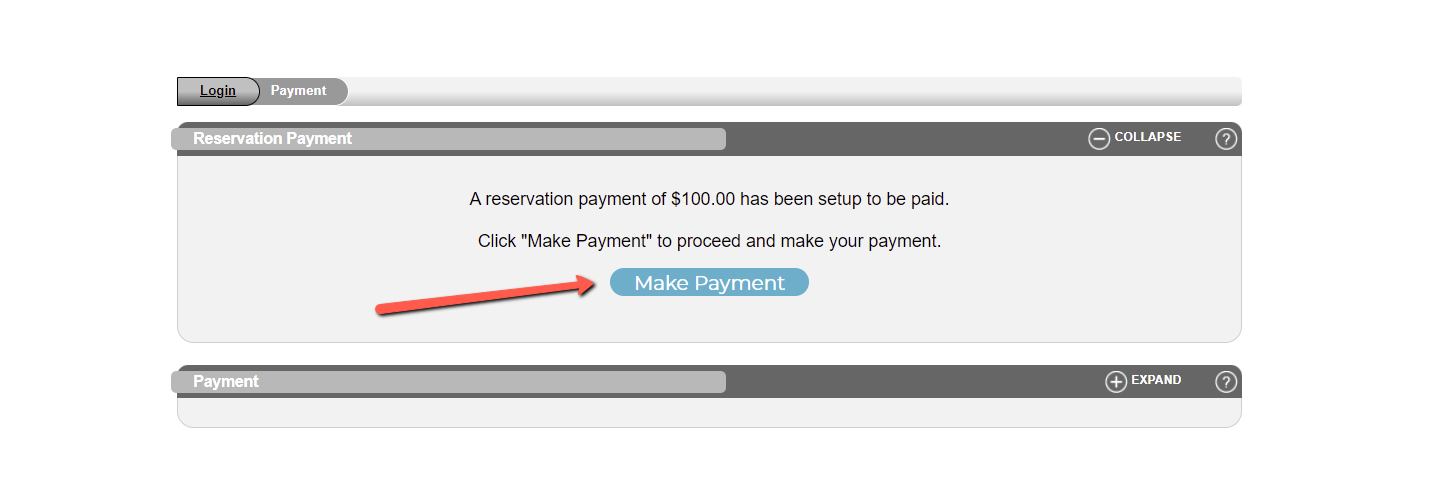
- Once the customer opens the payment link, they will:
- Click the Make Payment button to proceed.
- Choose their desired settlement type and click the next button.
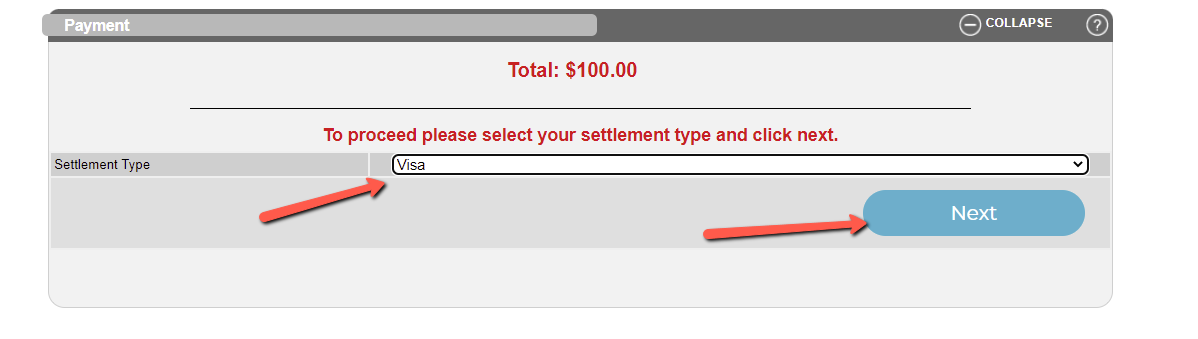
- The customer will be redirected to a payment page to enter their card information and submit.
- Upon successful payment, they will be redirected to a confirmation page.

- The payment is then applied to the reservation.
Accounts
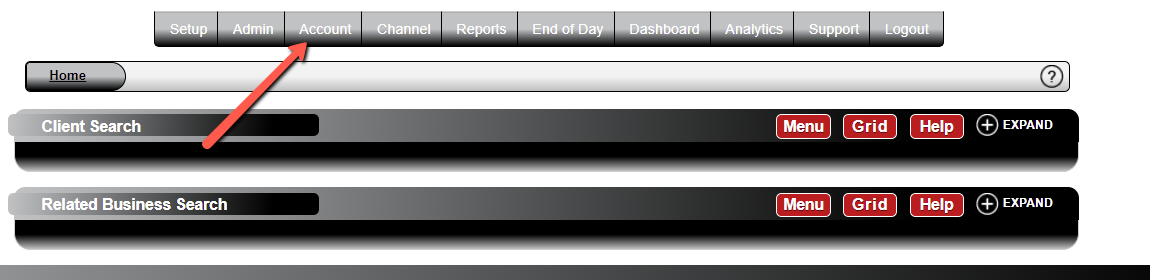
- Click the Account button.
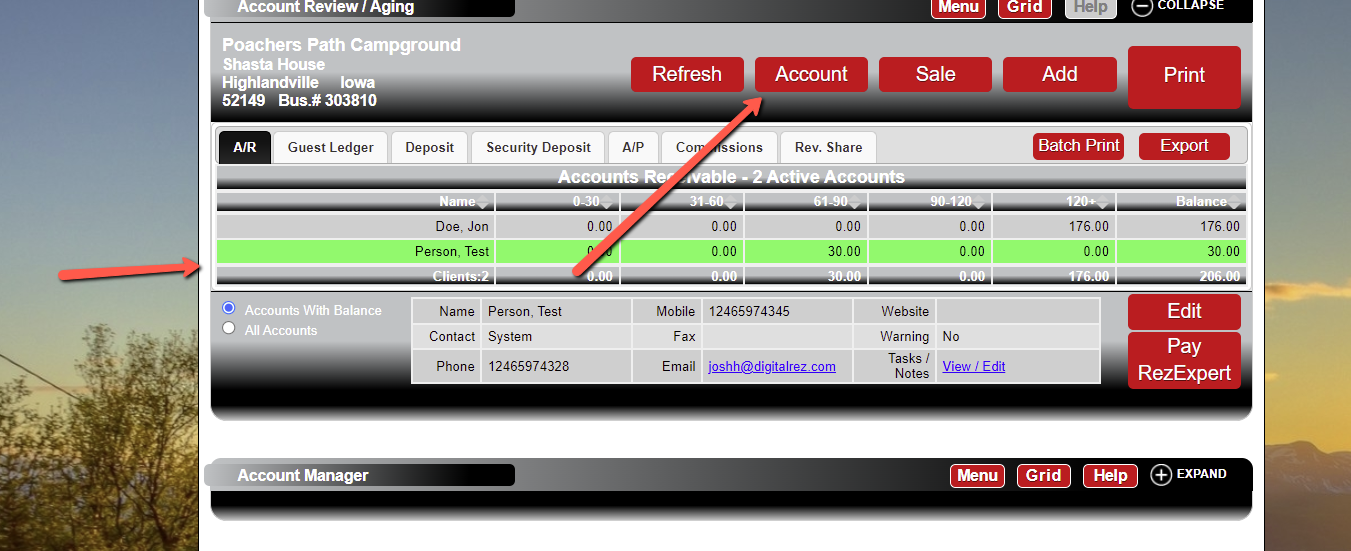
- Select the account to be settled and click the Account button above.
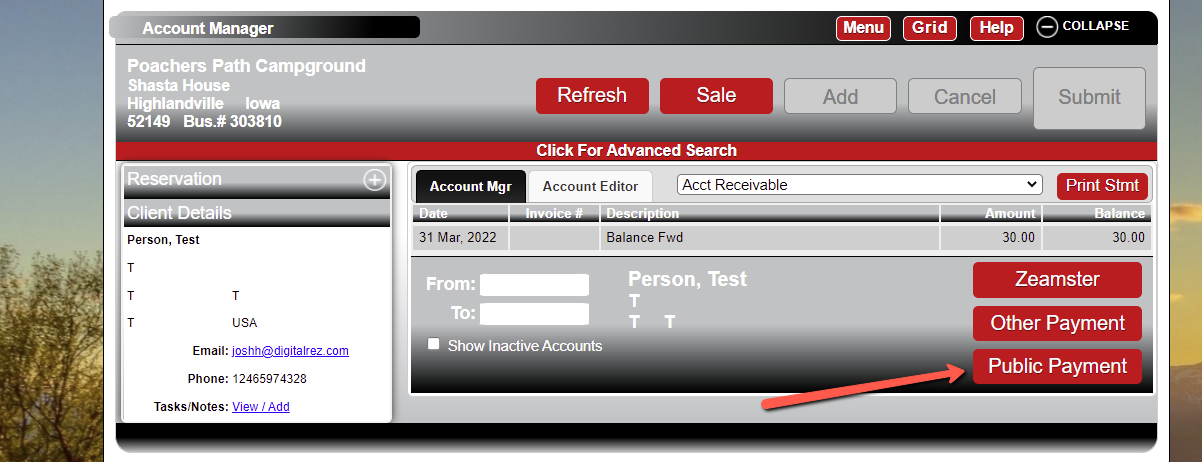
- Click the Public Payment button.
- Enter the amount to be paid and click Confirm.
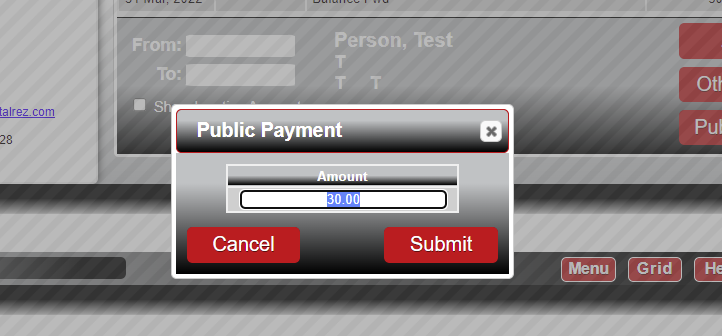
- Choose one of the following options to send the payment link:
- Click the Email button to send a payment request to the client.
- Click the Copy button to save the link to your clipboard.
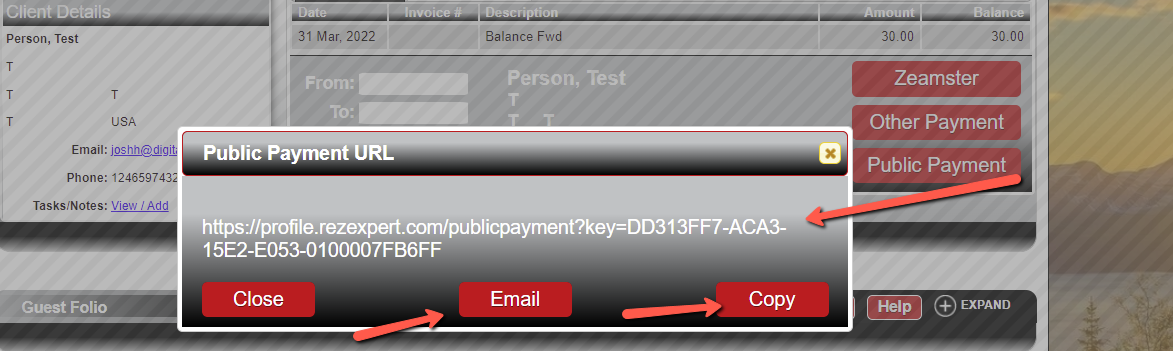
- Select whether to send the email to the primary email address, secondary email address, or manually enter an email address.
- The customer will receive an email containing the link.
- Once the customer opens the payment link, they will:
- Click the Make Payment button to proceed.
- Choose their desired settlement type and click the next button.
- The customer will be redirected to a payment page to enter their card information and submit.
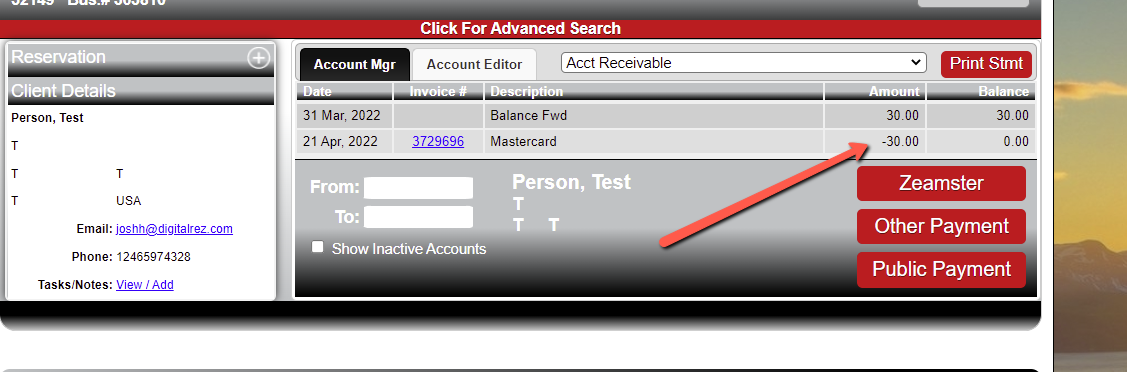
- Upon successful payment, they will be redirected to a confirmation page.
- The payment is then applied to the account.
Troubleshooting
For further assistance, please refer to the Help Document.