Reservation Process Using Calendar Tool and Rez Quote
Last modified on:
Overview
There are multiple ways to make a reservation.
Prerequisites
- Access to the Calendar Tool or Availability Grid.
- Guest information for entering into the Guest Folio.
Steps
Option 1: Calendar Tool Quote
- Select Arrival Date:
- Click on the calendar to select the Arrival Date.
- Enter the number of nights and press Submit.
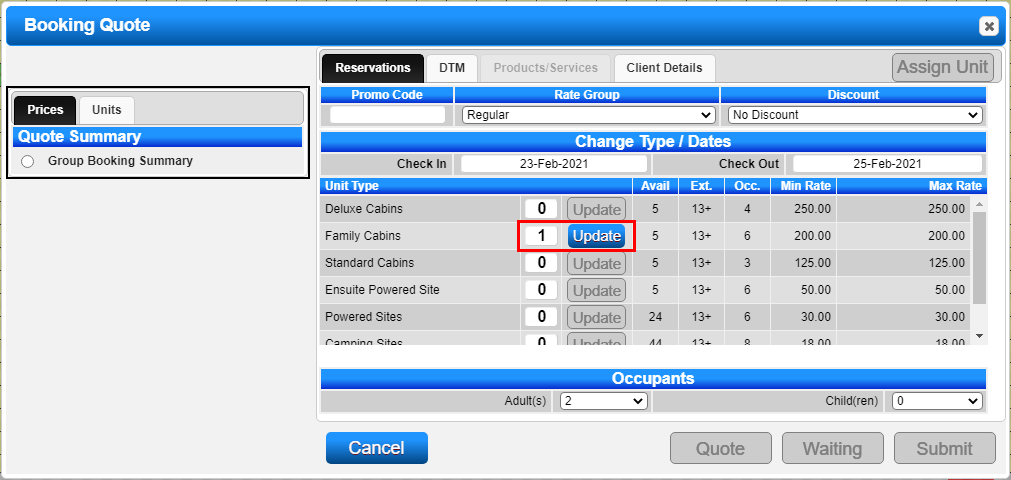
- The Booking Quote screen will appear, displaying the Unit Types, available number, max occupants, and rates.

- Review Booking Quote:
- Unit Type column: Displays all open Unit Types.
- Avail column: Shows the number of available units for the Unit Types.
- Ext. column: Indicates the number of nights the reservation can be extended.
- Occ. column: Displays the maximum number of occupants allowed for the Unit Types.
- Min Rate: Minimum rate for the selected date range.
- Max Rate: Maximum rate for the selected date range. Rate changes during the date range will be reflected here.
- Update Quote:
- Enter the number of units required for the Unit Type and press Update.
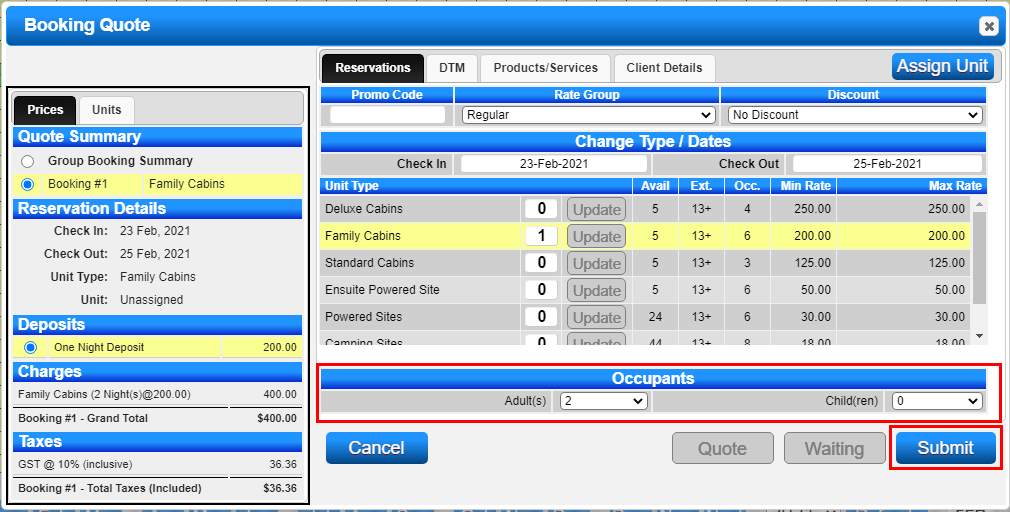
- A Quote Summary will display on the left with the base rates for the Unit Type and Dates selected.
- Adjust Check In or Check Out dates, Rate Group, or apply discounts as needed. The Quote Summary will automatically update.
- Finalize Quote:
- Enter the number of Occupants and press Submit to finalize the Quote.
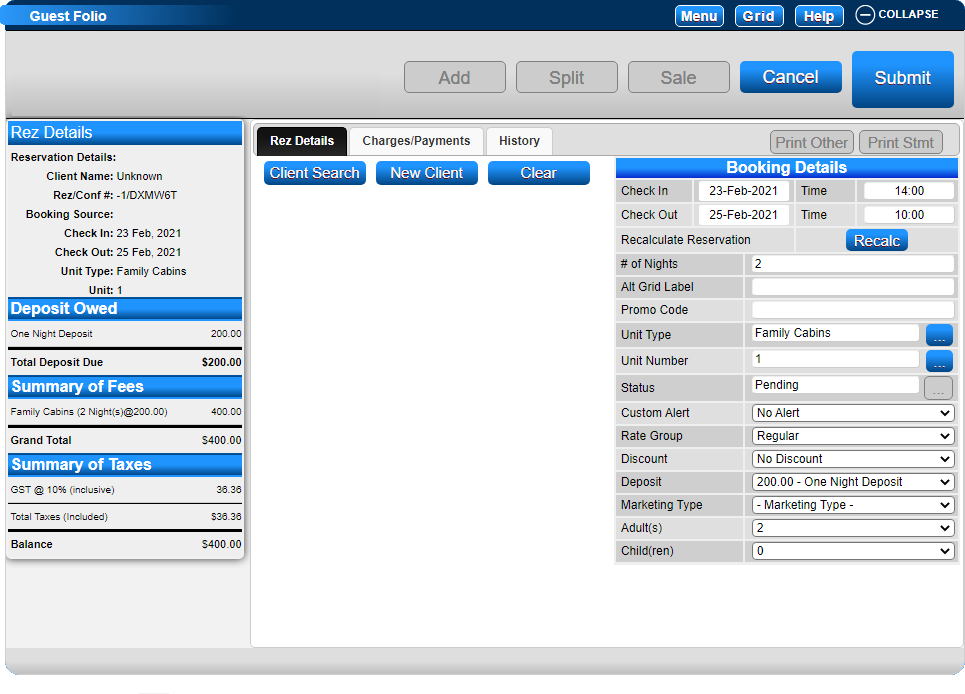
- The Guest Folio will display to enter the Client's details. Press Submit to finalize the reservation.
Option 2: Rez Quote
- Select Dates and Unit Type:
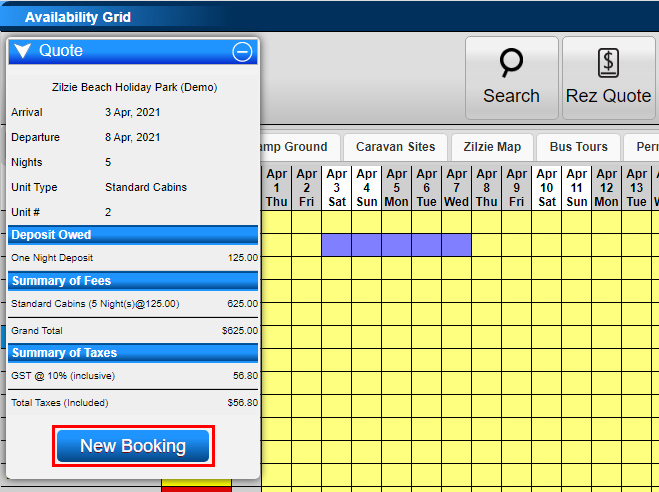
- On the Availability Grid, click on the yellow square for the arrival date and unit type required. Drag the mouse for the number of nights; highlighted nights will display as purple.
- Click on the Rez Quote button.
- Accept Quote:
- A Quote will display. Click New Booking to accept the quote and proceed to the Guest Folio.
- Within the Guest Folio, add the number of occupants.
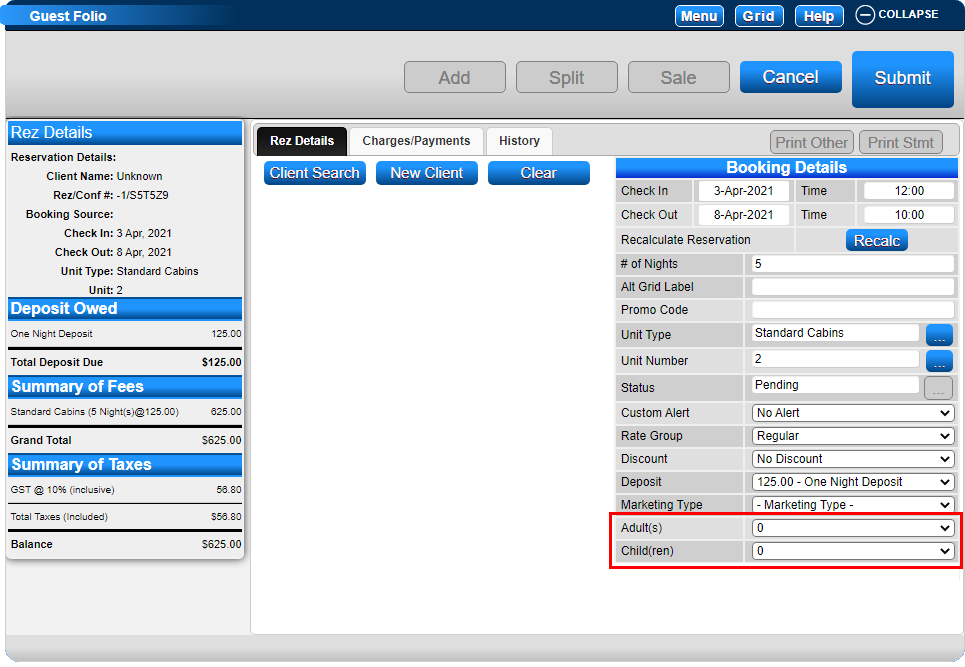
Entering Guest Details in the Guest Folio
- Verify Previous Stays:
- Ask the Guest if they have stayed before. If "Yes," click on the Client Search button, enter guest details, and search.
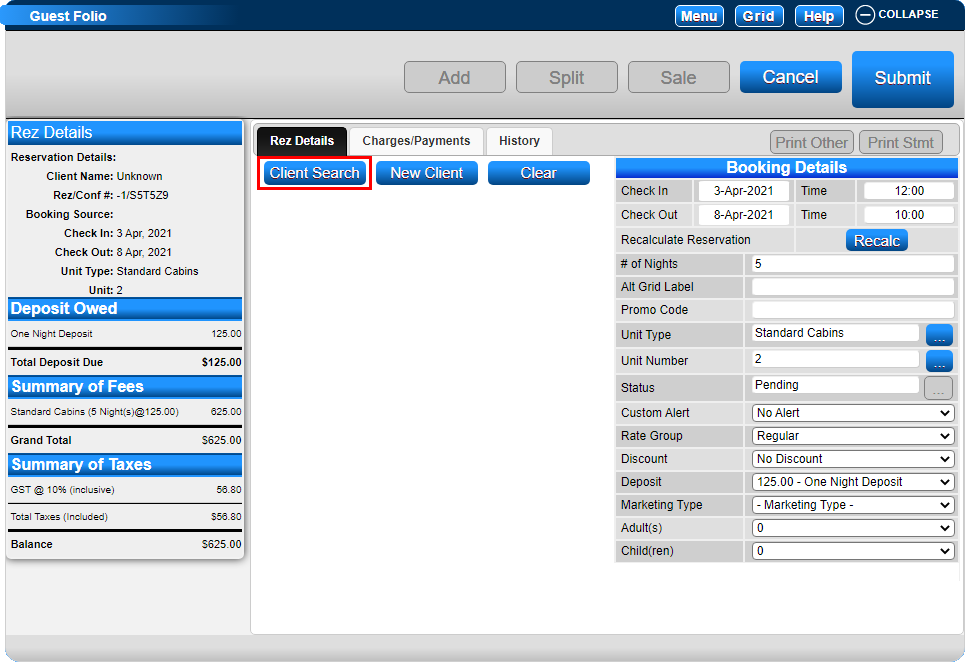
- Update Guest Details:
- If the guest is found, update details as necessary and press Submit.
- If the guest is new, click New Client and enter details in the Client Name/Address form. Mandatory fields include:
- First Name
- Last Name
- Country
- Phone or Mobile
- Complete Booking:
- Adjust Booking Details if required.
- Click Submit to finalize the booking.
- If a Deposit Policy is requested, process the deposit payment. Otherwise, email a confirmation to the guest if required.
- Click Grid to return to the Availability Grid. The reservation will now display.
Troubleshooting
- Ensure all mandatory fields are completed in the Guest Folio.
- Verify dates and rates before finalizing the reservation.
- If issues persist, refer to the Video Tutorial for additional guidance.