RezExpert Employee Login and Security Setup
Last modified on:
Overview
Create individual logins to RezExpert for your employees. Each employee should have their own login to ensure all transactions are recorded under their specific login. Security roles can be assigned based on the employee's role within the business. For example, Front Desk operators will have the Front Desk Clerk Security Role, allowing them to access the Availability Grid and make bookings but not change RezExpert settings.
Note: Only Business Group Administrator employees have access to Employee Setup.
Prerequisites
- Ensure you have Business Group Administrator access to set up employee logins.
- Familiarize yourself with the Security Groups and Roles to assign appropriate permissions.
Steps
Location
- Click on the Menu button, select the Setup tab, and click on Employee Setup.
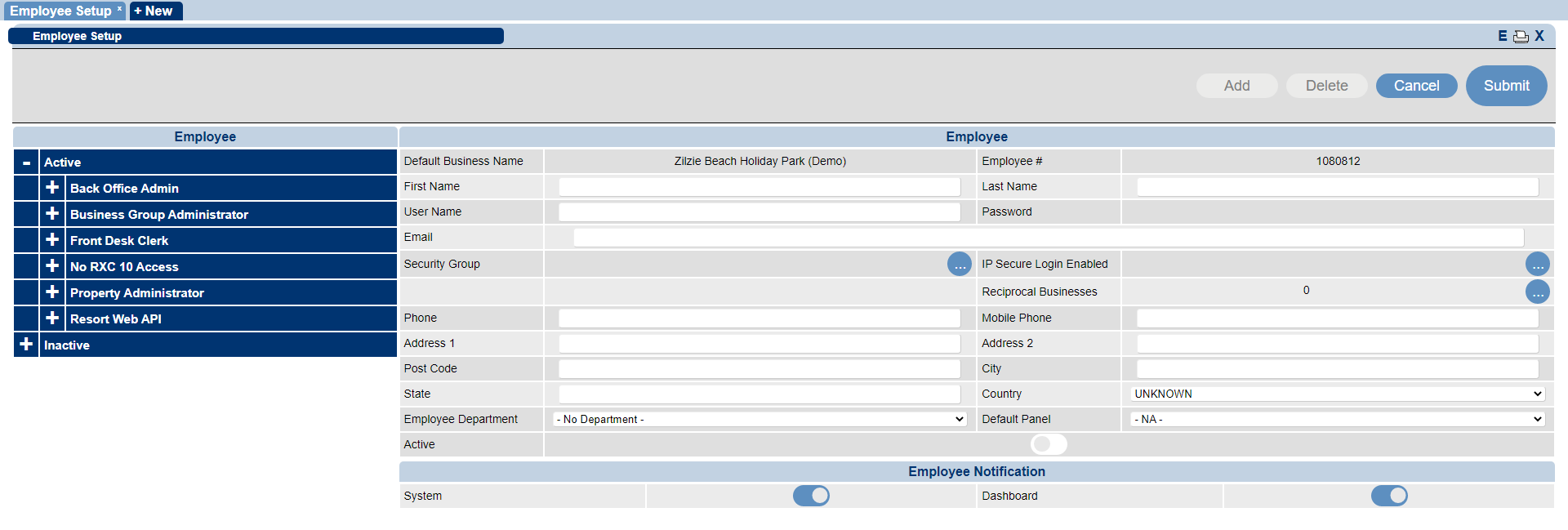
Employee Setup Layout
- Default Business: Name of the Business.
- Employee #: Automatically generated by RezExpert for reporting purposes.
- First Name: Employee’s first name (mandatory).
- Last Name: Employee’s last name (mandatory).
- User Name: Username for login (minimum 6 characters).
- Password: Send Password Recovery Email for secure password creation or reset.
- Security Group: Assign access and permissions. Business Group Administrator has overall access.
- See Security Groups for more information.
- IP Secure Login Enabled: If IP Security is enabled for your business.
- Reciprocal Businesses: Select Security Group and role access if enabled.
- Additional Employee Details: Optional fields for reference/recording.
- Employee Department: Assign department if Notes & Tasks are enabled.
- Departments are set up within Employee Department Setup.
- Active: Toggle to allow or restrict access to RezExpert.
Employee Notifications
- System: Displays RezExpert System Maintenance messages.
- Dashboard: Displays Business Dashboard daily. Access via Dashboard button if disabled.
Security Group Permissions
- Security Group settings control access and permissions within RezExpert.
- Select a Security Group and Security Role for each employee.
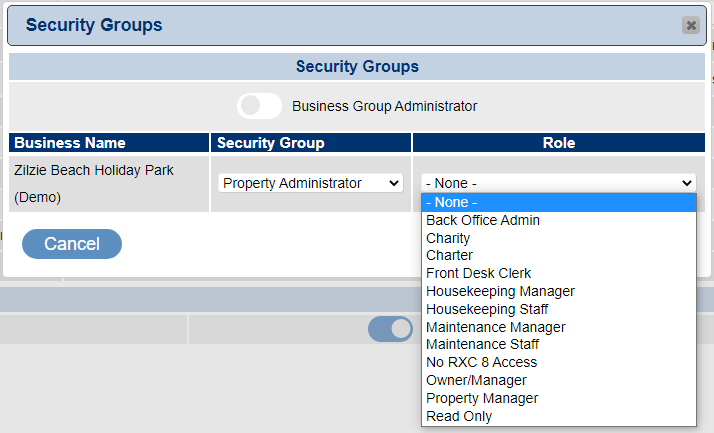
- Security Groups: Default is Property Administrator. More can be set up in Security Group Setup.
- Main Security Roles:
- Property Manager: Full access.
- Owner/Manager: Full access.
- Back Office Admin: Limited access.
- Front Desk Clerk: Access to Availability Grid and limited Reports.
Employee Listing
- All employees are listed under their Security Group.
- Click the + symbol next to the Security Group to expand and view employees.
- Select an employee to view their information.
Adding New Employee
- Click Add.
- Enter required contact details and username.
- Assign Security Group and Role.
- Click Active.
Employee Password
- Click Send Password Recovery Email to send a link for password creation or reset.
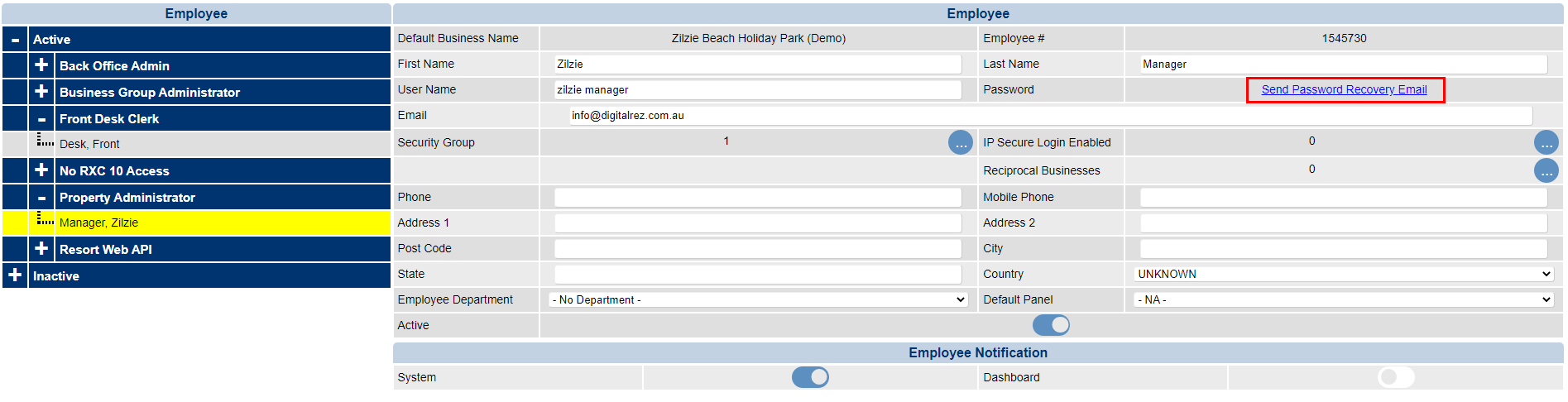
- Ensure the email is received. If not, verify the email address or check Communication Manager.
- Passwords must be at least 8 characters and meet three of the following criteria:
- At least 1 lowercase letter
- At least 1 uppercase letter
- At least 1 digit
- At least 1 symbol
Disable Employee Access
- To restrict access when an employee is no longer employed, toggle them to inactive. Their transaction history remains intact.
Troubleshooting
- If the password recovery email is not received, verify the email address and check the Communication Manager for status.
- For additional help, refer to the Help Document.
- For more information on Security Role Permissions, visit the Employee Security Role Permissions.