Point of Sale Activity Panel Overview
Last modified on:
Overview
The Point of Sale Activity panel displays all POS transactions processed through RezExpert.
Prerequisites
- Access to the End of Day section in RezExpert.
Steps
Location
- The Point of Sale Activity panel is located in the End of Day section, under the Perform Cut-off panel.
- Click on a Menu button and select Point of Sale Activity.
- Alternatively, click on the End of Day button within the Menu Bar. Select Staff End of Shift. Scroll down and expand the Point of Sale Activity panel.
Displaying Tabs
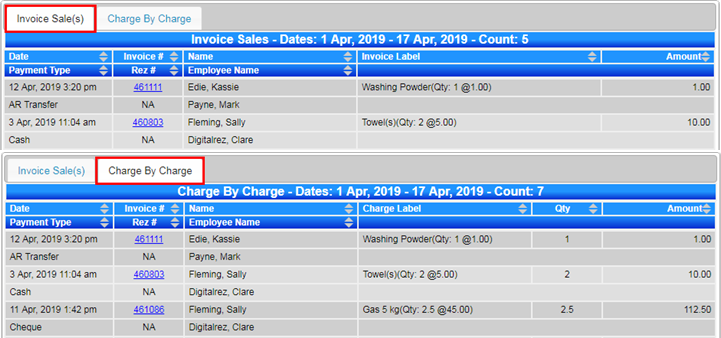
The panel is divided into two tabs:
- Invoice Sale(s): Displays the POS transactions by the Invoice Label.
- Charge By Charge: Displays each individual charge within the Invoice, providing the quantity sold of each individual product of the invoice.
Date Range
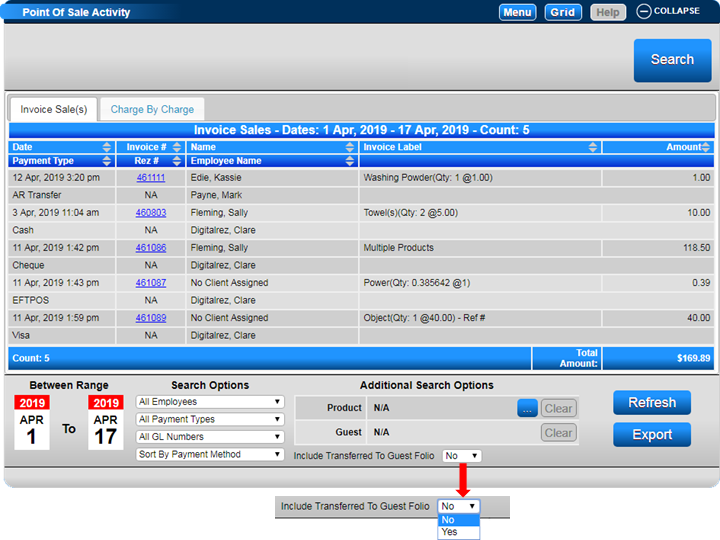
- The Date range defaults to Today’s date.
- Adjust the date range by clicking on the calendar and selecting the required dates.
- Click Refresh to view the transactions for the selected date range.
Search Options
Multiple search options are available to narrow down the displaying POS transactions:
- Employees: Select a required employee. Default: All Employees.
- Payment Types: Select the payment type used in the POS transaction. Default: All Payment Types.
- GL Numbers: Select a required GL Code associated with the products. Default: All GL Numbers.
- Sort Order: Sort by Payment Method or Sort By Employee.
Additional Search Options
Additional search options are available to further narrow down the displaying POS transactions:
- Product: Clicking on the box will display all Products available for POS transactions. When selected, only transactions processed for that product(s) will display. Clicking Clear will clear the product search selection. Default: N/A – display all Products.
- Guest: Click the Search button to search for a selected client. When selected, any POS transactions processed for the client (within the selected date range and other searched options) will display. Clicking Clear will clear the client selection. Default: N/A – display all Clients.
- Include Transferred to Guest Folio: For cash-based businesses, the Include Transferred to Guest Folio dropdown will allow sales that were transferred to the Guest Folio (payment type: Guest Folio Transfer) to display. When adjusted to Yes, the Reservation # associated with the POS transaction will also display.
Print and Export Options
- Printing a Receipt: Clicking on the Invoice # next to a POS transaction will display the Print Selector box for Invoice Sale, to select the required receipt to print off.
- Export: Clicking the Export button will export the displaying data.
Troubleshooting
For additional help, refer to the Help Document.