Submitting Support Tickets in RezExpert
Last modified on:
Overview
With the addition of the support tab, users can now submit a ticket directly to us without leaving RezExpert.
Prerequisites
- Access to RezExpert
- Internet connection
Steps
Accessing the Support Ticket Panel
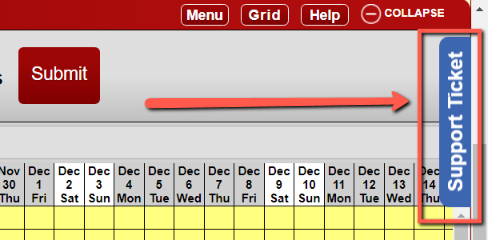
- Click the Support Tab on the right of the grid.
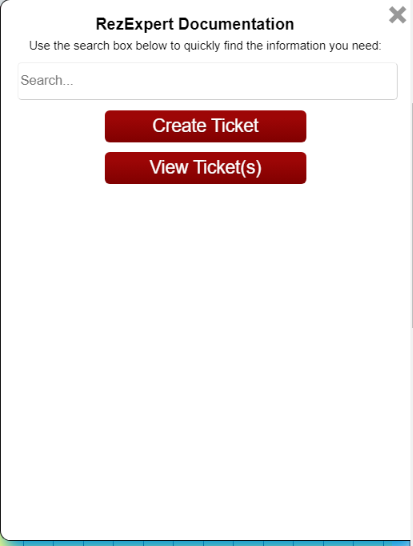
- This opens the Support panel, which includes:
- RezExpert Documentation search function
- Ticket creation and viewing buttons
Searching Documentation
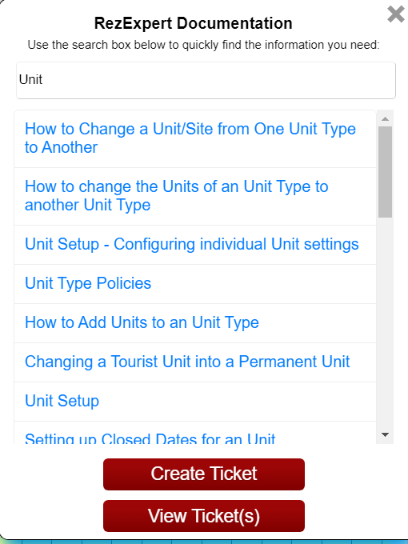
- Use the Search function to quickly find documentation related to your issue.
- Type a keyword that highlights your issue to load search results.
- Click on the desired document to open it in a new tab.
Creating a Support Ticket
- If documentation does not resolve your issue, send a Support Ticket.
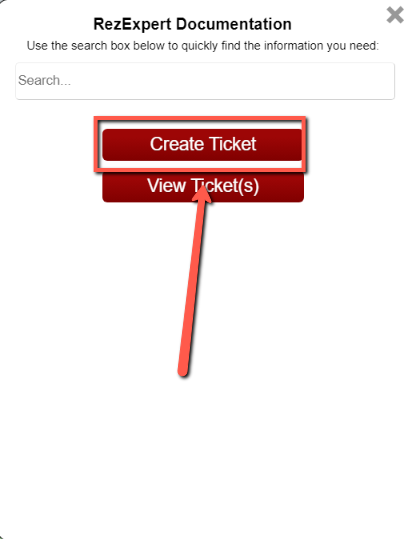
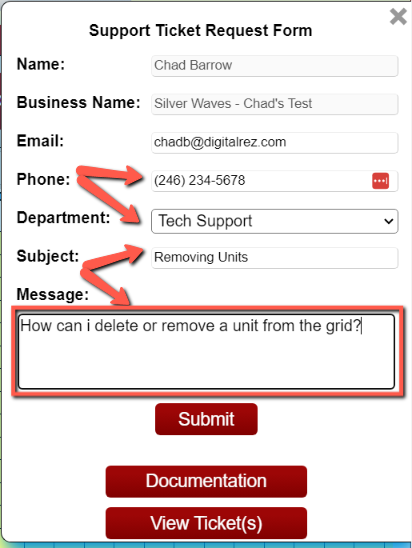
- Click the Create Ticket button.
- Some information will be auto-filled.
- Enter:
- Best contact number
- Email address
- Select a department (Technical Support or Sales)
- Use the message box to ask questions or request assistance.
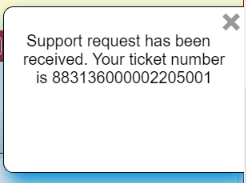
- Click the Submit button to send the ticket directly to us.
Viewing Your Support Tickets
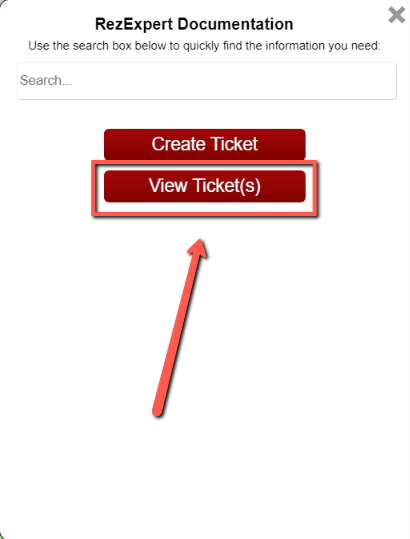
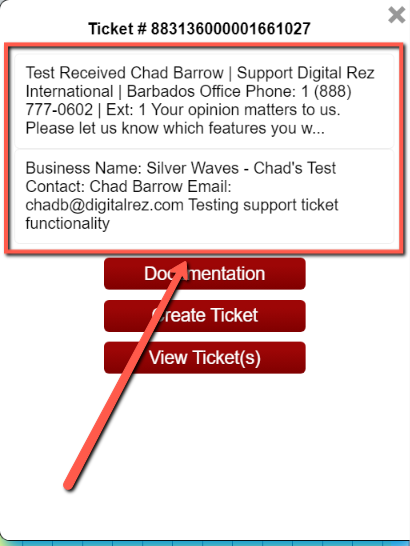
- View submitted tickets via the View Ticket(s) button.
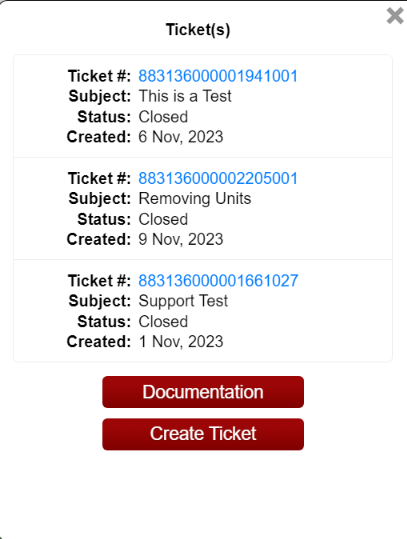
- After clicking, all tickets you sent will be displayed.
- Note: Tickets are linked to your user account; you will not see other staff members' tickets.
- Display includes:
- Ticket number
- Subject
- Status
- Date created
- Click on the ticket number to view replies from the Support or Sales team.
Troubleshooting
- Ensure you have a stable internet connection.
- Verify that you are logged into RezExpert.
- If issues persist, contact technical support directly.