Marketing Type Revenue Statistics Reporting Guide
Last modified on:
Overview
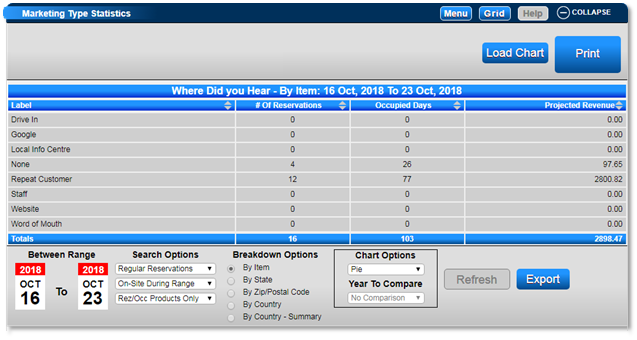
The Marketing Type Statistics panel allows you to report on the Marketing Types assigned to reservations for a selected Date Range. Note: If Marketing Types are not currently set up on RezExpert, watch the video below for setup steps.
Prerequisites
- Ensure Marketing Types are set up on RezExpert.
Steps
Accessing the Marketing Type Statistics Panel
- Click Dashboard within your Menu Bar.
- Scroll down and expand the Marketing Type Statistics panel.

- Alternatively, click on a Menu button, select Admin, and click on Marketing Type Statistics within the Analytics section.
Setting Parameters
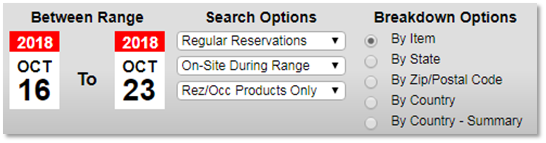
- Date Range: Select the required Date Range for the report. Note: The Date Range limit is 6 months or less. For a larger date range, export data and combine via an Excel Spreadsheet or run the Marketing Report within Report Category: Manager.
- Search Options:
- Type of Reservations (Regular or Cancelled)
- On-Site During Range
- By Check-In Date or By Made Date
- Rez/Occ Products Only or All Products
- Breakdown Options:
- By Item: All Marketing Types created in RezExpert
- By State: All entered States
- By Zip/Postal Code: All entered Zip/Postal Codes
- By Country: All selected Countries
- By Country – Summary: Summary of all countries
- After making the selection, press Refresh to see the Marketing Type Statistics.
Reporting
- After pressing Refresh, the Marketing Type Statistics will display:
- Label: Name of Marketing Type
- # of Reservations: Total number of (selected Search Option) reservations
- Occupied Days: Number of occupied days for the reservations within the Date Range selected.
- Project Revenue: The revenue amount from the Marketing Type, calculated by average reservation daily charge (Length/Balance) multiplied by Date Range selected.
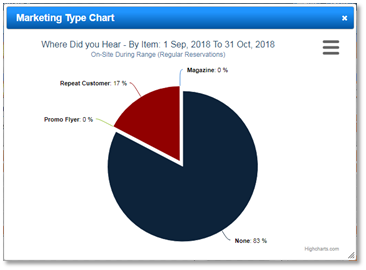
- Load Chart: To view a Pie Chart for the displaying Marketing Statistics, click Load Chart.
- Chart Options: Prior to pressing Load Chart, choose the type of chart to display – Pie or Column. To print/download the Chart, click the three bars within the Chart.
- Print Report: To print the Marketing Report from the Search Options selected, click Print.
Troubleshooting
- Ensure that Marketing Types are set up correctly in RezExpert.
- Verify that the Date Range does not exceed the 6-month limit.
- Check that the correct Search and Breakdown Options are selected before refreshing the statistics.