Product GL Number Setup Instructions
Last modified on:
Overview
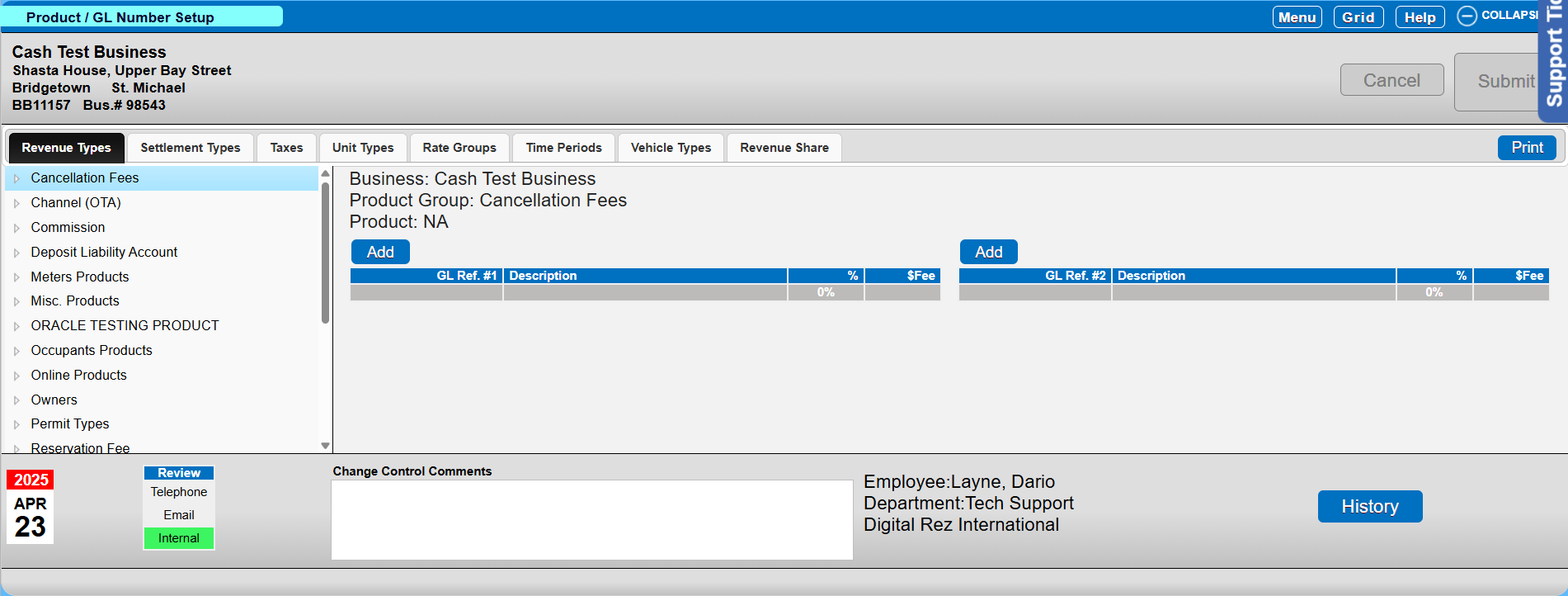
The Product GL Number Setup panel is used to configure General Ledger (GL) account mappings for various financial components of your business, including revenue types, settlement methods, taxes, and more. This ensures that transactions are correctly recorded in the system.
Location
- Menu
- Setup
- Product GL Number Setup
Common Use Cases
- Revenue Type: Assign GL#s for different income sources
- Settlement Types: List of the settlement types in the system, Credit cards, cash, A/R, etc.
- Taxes: Created Taxes from the Tax setup, e.g., Sales Tax, VAT, Tourism Fees
- Unit Types: Inventory added to the system, e.g., Pull-thru, cabins
- Rate Groups: Various created Rate Groups in the system
- Time Periods: Created Time Periods from the Time Period Setup
- Vehicle Types: List vehicles from the Vehicle Type Setup
- Revenue Shares: Ownershare, commissions, etc.
GL References
- GL Ref #1: Primary GL map
- GL Ref #2: Secondary GL map
Prerequisites
Ensure you have access to the Product GL Number Setup panel through the specified menu path.
Steps
Assigning a GL Number to Product
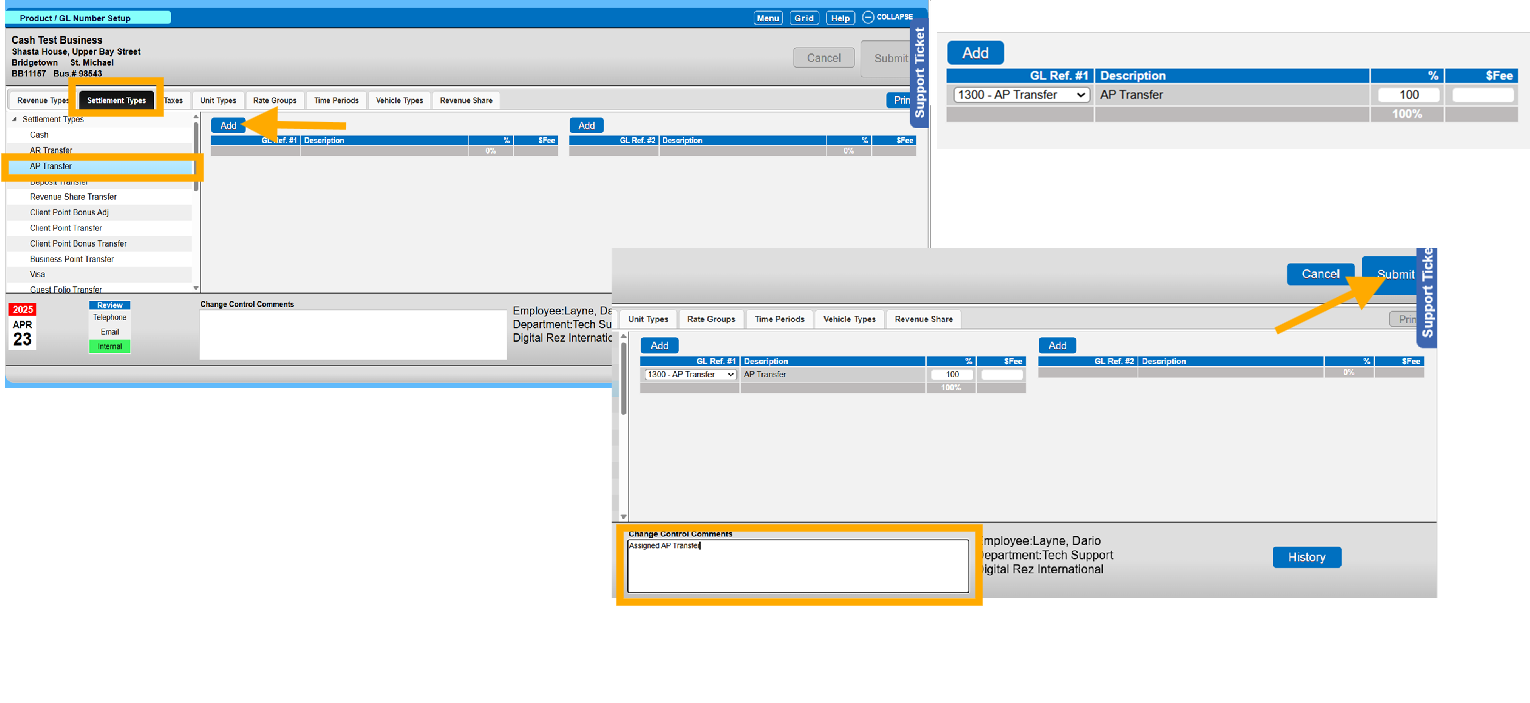
- Select the Tab and then the option from the left side Menu.
- Click the Add button to create a new row.
- Select the appropriate GL Account from the dropdown.
- Enter the percentage, must be 100%.
- To save, add in your Change Control and Submit.
Generating a Report
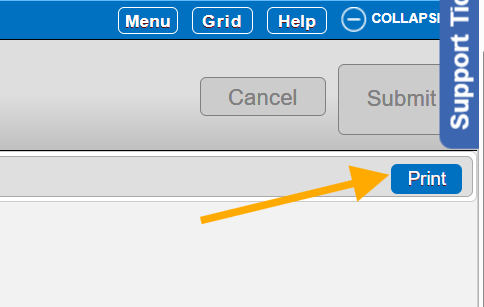
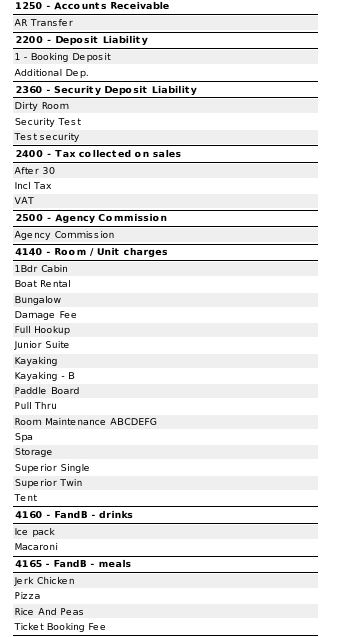
The Print button generates a report showing:
- All items that have been assigned a GL.
- Items that have not been assigned a GL.
- The report groups entries by GL Number for easy reconciliation.
Troubleshooting
If you encounter issues with assigning GL numbers or generating reports, ensure that:
- All fields are correctly filled.
- The percentage is set to 100%.
- You have the necessary permissions to access and modify the GL setup.