Account Review/Aging Screen Overview
Last modified on:
Overview
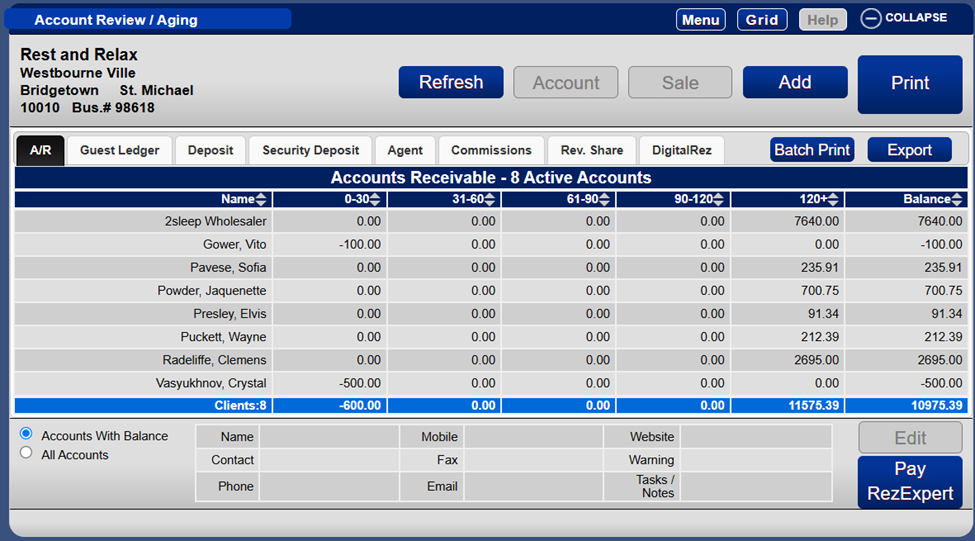
The Account Review/Aging screen provides a detailed view of outstanding balances. It is primarily used for reviewing account activity, tracking overdue payments, and managing client or agent accounts.
Prerequisites
- Access to the Account Review/Aging screen.
Steps
Accounts Table Overview
- Each row represents an active A/R account with aging categories:
- 0–30 / 31–60 / 61–90 / 90–120 / 120+: Shows how long the balance has been outstanding. Helpful for tracking overdue payments.
- Balance: Total outstanding balance for each client or business.
- At the bottom, totals summarize outstanding balances across all clients shown in the current view.
Action Buttons
Action Buttons | Definitions
|
Refresh | Updates the data displayed on the screen to reflect the most recent account activity. |
Account | Opens detailed account information for the selected client. |
Sale | Directs you to the POS screen to quickly add a charge to the selected A/R. |
Add | Allows you to search and create an A/R for a client/guest. |
Display any reports assigned to the tab (assigned within Content Assignment Setup). | |
Batch Print | Print multiple account statements or reports at once. |
Export | Allows you to export the table data for the tab into a CSV file. |
Edit | Allows you to edit the selected client’s details. |
Filter Options
- Accounts With Balance: Displays only those accounts with an outstanding balance.
- All Accounts: Shows all accounts, including those with zero balance or credits.
Tabs
- A/R: Accounts: View persons with a balance within their AR.
- Guest Ledger: Displays balance and charges for checked-in guests.
- Security Deposit: Track security deposits collected.
- Agent: Review accounts and balances related to travel agents or third-party booking agents.
- Commissions: Tracks earned commission for agents.
- Rev. Share: Tracks revenue-sharing for partners and stakeholders.
- DigitalRez: Show software service charges and facilitate direct payments.
Troubleshooting
- Ensure the data is refreshed regularly to reflect the most recent account activity.
- Verify filter settings if expected accounts are not displayed.
- Check action button functionality if unable to perform desired operations.