Business Tax Configuration Guide
Last modified on:
Overview
Configure all taxes used in your business, including Exclusive, Inclusive, and Advanced Tax.
Prerequisites
- Access to the business setup menu.
- Understanding of tax types applicable to your business.
Steps
Location
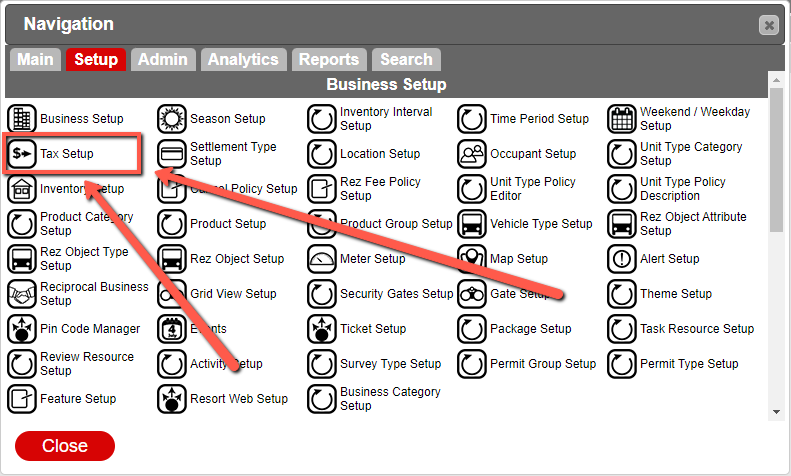
- Click on any Menu button.
- Select the Setup tab.
- Click on Tax Setup within Business Setup.
Creating the Tax
- Click Add.
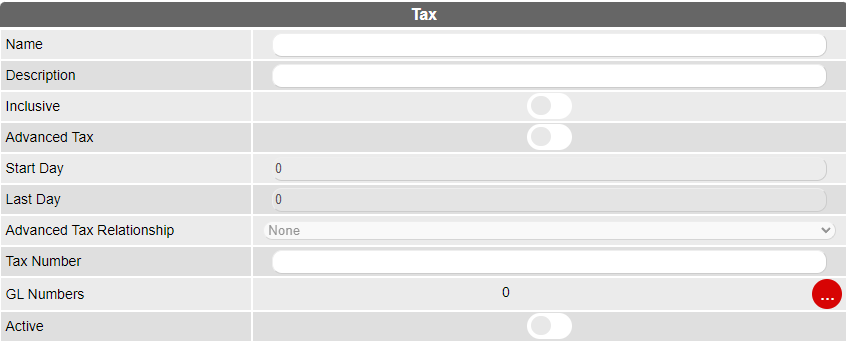
- Name: Enter the name of the Tax (e.g., GST; Tax).
- Description: Enter a brief description of the Tax, if required.
- Inclusive: Enable if Tax is inclusive.
- Advanced Tax: Enable if the tax applies in particular circumstances (e.g., After 28 days stay, Tax drops to a lower percentage).
- Start Day: If Advanced Tax is enabled, enter the number of days before the tax takes effect (e.g., 28 Days for GST 5.5%).
- Last Day: If Advanced Tax is enabled, enter the number of days before the tax ends (e.g., 99999 for long-term reservations).
- Advanced Tax Relationship: If Advanced Tax is enabled, on the second Tax Value created, select the Tax Value it is related to.
- Tax Number: Enter the Business Tax Number that will display on Invoices, Receipts, and Statements.
- NOTE: Only enter the Tax Number on the first Tax created.
- GL Number: Tick on the circle to assign the required GL Codes (accounting codes).
- Active: Enable to make the tax available for use.

Setting the Tax Value Percentage
- Click Add to load the calendar.

- Select the date the Tax is effective from.
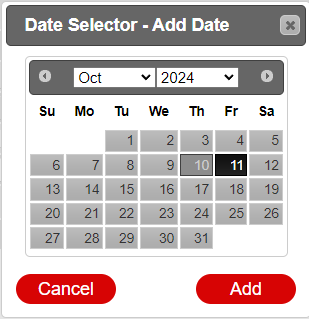
- Click the Add button.
- In the Value % field, enter the value of Tax (e.g., 10%).

- Enable the Active flag to activate the Tax.

- Click Submit to finalize.

Assigning Tax
- Once Tax has been created, it can be applied to the Unit Types, Products, and/or Policies applicable.
- The Unit Types' tax can be modified from within the Inventory Setup or the Product Setup.
- Products taxes can be modified from within the Product Setup.
- Policies (cancellation) can be modified from the Product Setup or Cancel Policy setup.
- Rez Fee Policies can be configured from the Rez Fee Policy Setup or the Product Setup.
Troubleshooting
For further assistance, refer to the help document: Tax Setup.pdf.