Reservation Invoice Rate Override Instructions
Last modified on:
Overview
This document provides a step-by-step guide on how to override a rate for a reservation.
Prerequisites
- Access to the reservation system.
- Necessary permissions to modify reservation details.
Steps
- Enter Reservation Details
- Enter the details for the reservation.
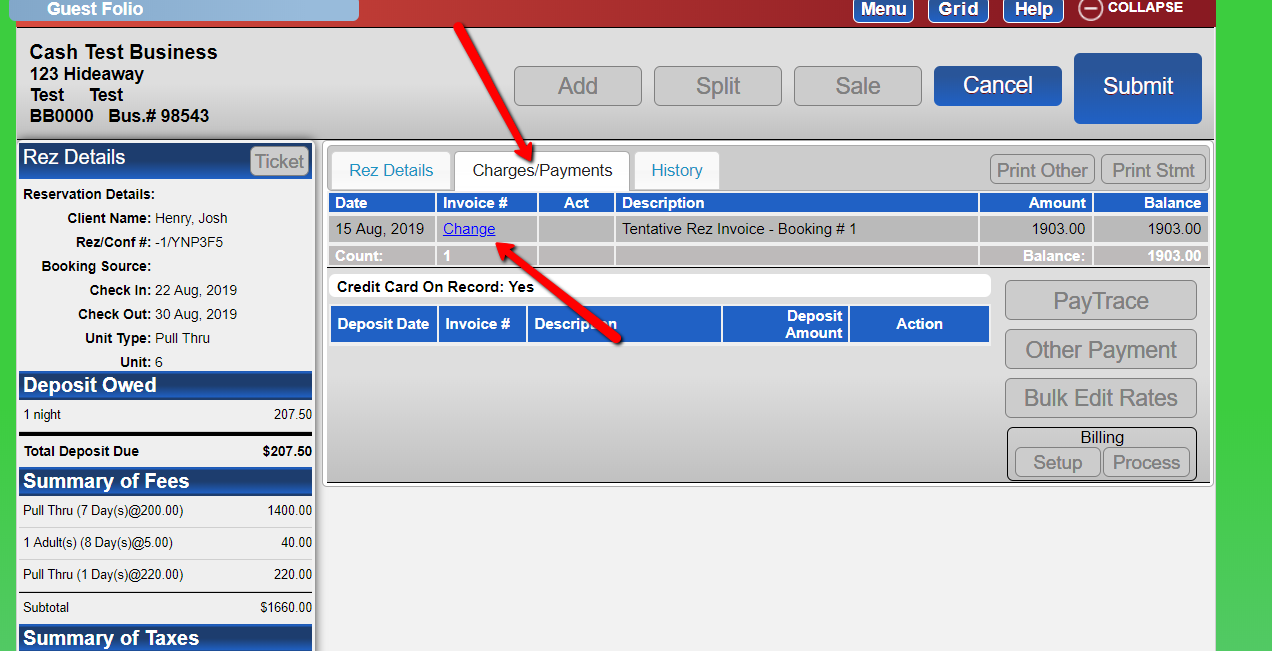
- Before submitting, navigate to the "Charges/Payments" tab for that reservation. - Modify Invoice
- In the "Charges/Payments" tab, locate the blue "charge" link under the "Invoice #" column.
- Click "Change". - Adjust Rate
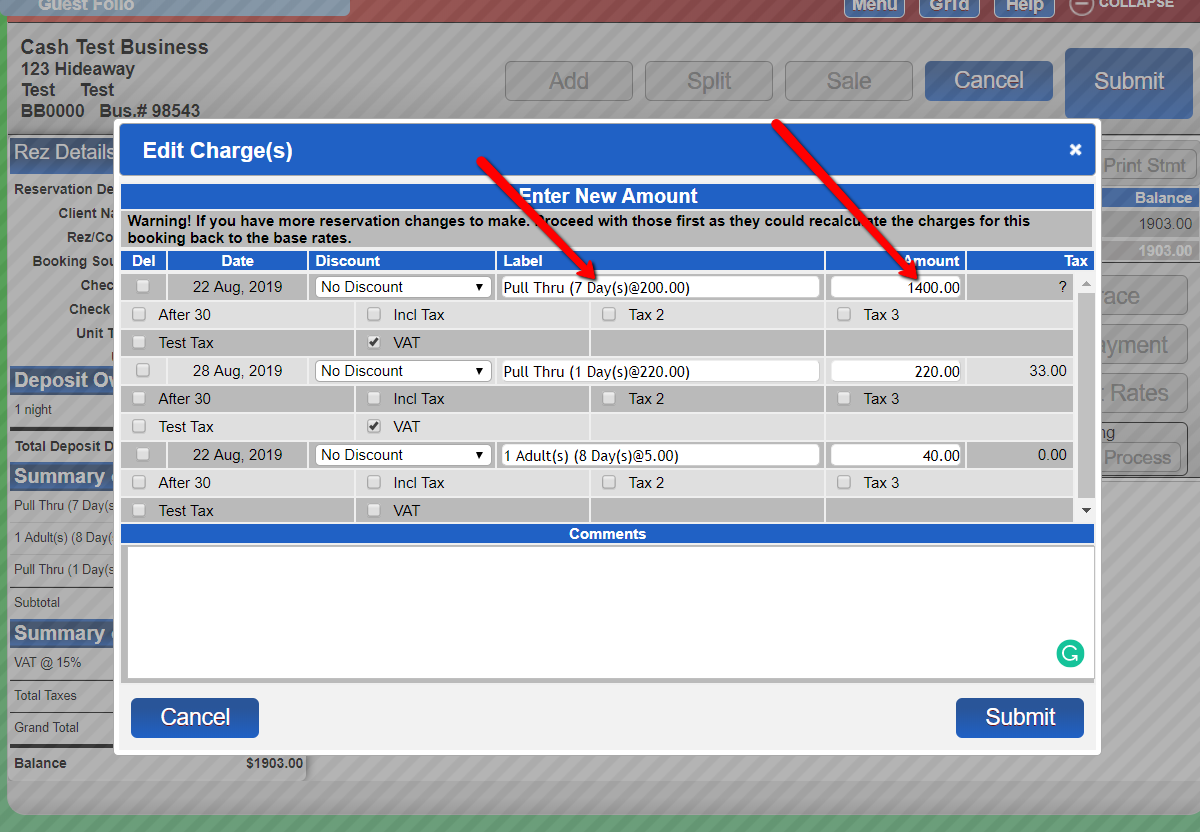
- Change the labels and amounts to reflect the desired rate.
- Enter a comment at the bottom explaining the reason for the rate change. - Submit Changes
- Click "Submit" and then "Close".
- Continue making any additional changes to the reservation as needed or simply submit.
Troubleshooting
- Existing Reservations
- If the reservation is already created, it must be recalculated before submitting. Go to the "Charges/Payments" tab and follow from Step 2.
- Recalculation Options
- Option A: Click the "Recalc" button if enabled for your business. It is located in the Guest Folio.
- Option B: Change the Rate Group or Unit Type and then change back to initiate a recalculation.