Max Occupants Per Day Booking Rule Setup
Last modified on:
Overview
The "Max Occupants per Day" booking rule allows users to set a limit on the number of occupants allowed on-site per day for a specified date range. For instance, you can restrict the number of people allowed on the property to 50, irrespective of the number of reservations.
Prerequisites
- Access to the Admin tab in the system menu.
- Ability to navigate to the Rule Setup section.
Steps
Location
- Click on the Menu button.
- Select the Admin tab.
- Click on Rule Setup.
Add
- Name: Enter the name of the rule, e.g., "Max Occupants."
- Inventory Type: If DTTM is enabled, select "Regular" from the Inventory Type dropdown.
- Rule Type: Select "Max Occupants Per Day" from the Rule Type dropdown.
- Press "Submit."
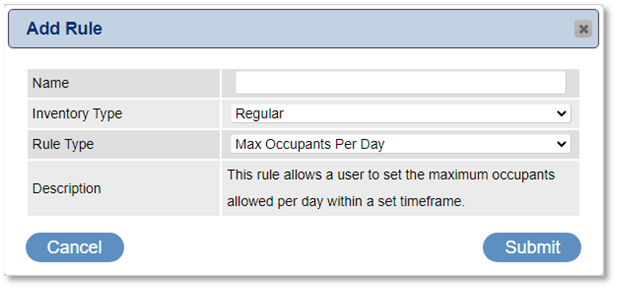
Rule Setup
- Start Date: Select the start date of the rule using the calendar.
- Last Date: Select the last date of the rule using the calendar. If not for a specific date range, select December 31, 2099.
- Amount: Enter the maximum number of occupants allowed per day for the date range.
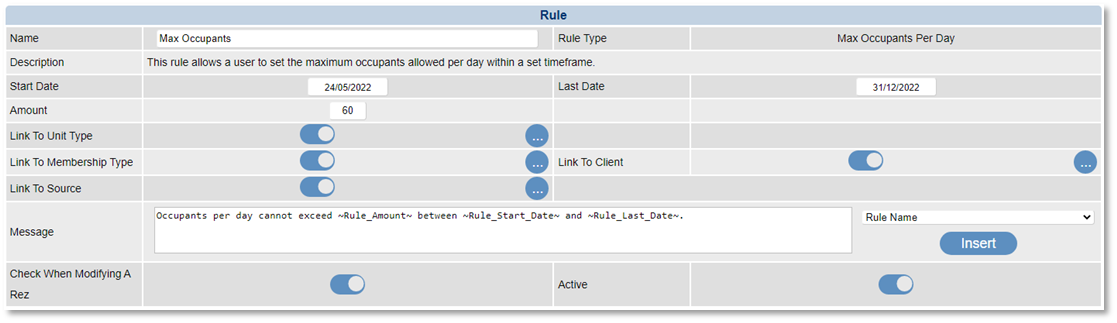
- Link To settings: Apply the rule to selected Unit Types, Membership types, or Clients.
- By default, all sliders are enabled with no settings. The rule will not activate until the Link settings are configured.
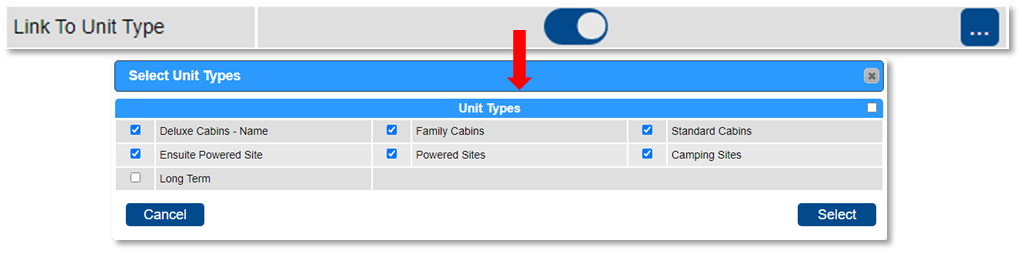
- Link To Unit Type: Select the Unit Types for the rule. Disable the slider to apply to all Unit Types.
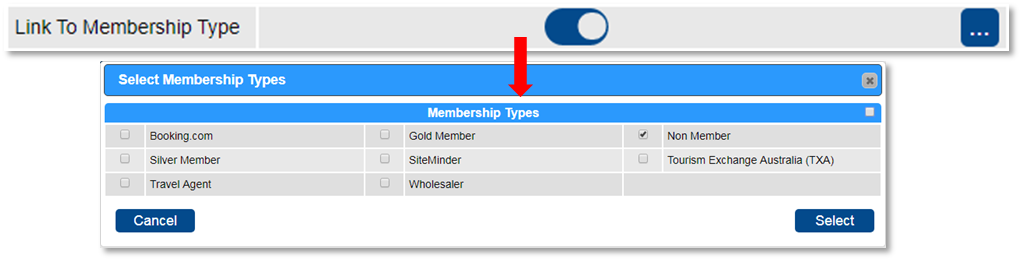
- Link To Membership: Select the Membership types. Disable the slider to apply to all Member Types.
- Link To Client: Search for selected Clients to apply the rule. Untick the flag to apply to all clients. Disable the slider to apply to all clients.

- Link To Source: Set where the rule will apply, e.g., for Online Bookings (Resort Web) only. Disable the slider to apply to all booking sources.
- Check When Modifying A Rez: Ensure the booking rule is reviewed when a reservation is modified.
Message
- When the rule is not met, a message will display. You can edit this message if required.
- Wildcards can be inserted into the message to display specific data.
- Once all settings are configured, click on the Active flag to activate the rule.
Troubleshooting
- Ensure all necessary settings are configured correctly for the rule to activate.
- Verify that the Link settings are set to apply the rule to the desired Unit Types, Membership types, or Clients.
- Check that the rule is active and the message is correctly set up to display when the rule is not met.
For additional help, click here to view the help document.