Automatic Email Marketing Setup for Reservations
Last modified on:
Overview
Marketing Emails can be set up to automatically send out to arriving and departed reservations. There are two options for Email Marketing:
- Before Reservation Check-In
- After Reservation Check-Out
These emails are sent once a day.
Prerequisites
- Access to the system's Admin tab
- Understanding of reservation timelines
Steps
Setting up Marketing Email
Configuration settings for sending Marketing Emails:
- Before Reservation: Local Business Day + # of Days (Today's Date + #) = If a reservation is due to arrive on the calculated before day, the Before Reservation email will be sent.
- After Reservation: Check-Out Date + # of Days = If a reservation has been checked out for the number of days set, the After Reservation email will be sent. Note: Reservation must be set to Checked Out.
To access Marketing Email:
- Click Menu
- Click Admin tab
- Click System Label Manager
- Expand Marketing on the left to select either Before Reservation or After Reservation.
Configuring the Email
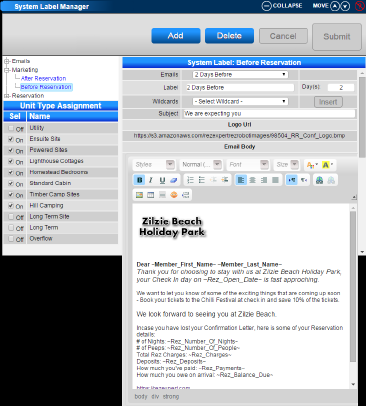
- After selecting the Marketing Email option, click Add
- Label: Enter a label/name for the email for easy identification
- Day(s): Enter the number of days to trigger the email (as per the configuration)
- Subject: Enter the Email Subject Line to appear on the Email
- Email Body: Enter the body of information to display within the Email. You can input your Business logo, “Smiley's”, Web page links
- Wildcards: Wildcards are available to enter into the email body, which will input the related information
- Select the Unit Types on the left that the email is associated with
Wild Card Glossary
RezExpert Wild Cards and their meanings:
- Rez_Balance_Due: Current Balance of Reservation
- Rez_Charges: Charges associated with Reservation
- Rez_Check_Out_Date: Reservation Check Out Date
- Rez_Comments1: Client Comments entered at time of booking (Online Reservations)
- Rez_Comments2: Comments entered into the reservation by Employees. Note: Be careful when using this Wildcard, as it will display the comments entered in by Staff
- Rez_Create_Time: When the Reservation was made
- Rez_Deposit_Policy: Deposit Policy assigned to the reservation
- Rez_Deposits: Deposit payment amounts made
- Rez_Discount: Amount that has been discounted off the reservation
- Rez_Number: Reservation Number
- Rez_Number_Of_Nights: Length of reservation
- Rez_Number_Of_People: Number of Occupants entered in the reservation
- Rez_Number_Of_Pets: Number of Pets entered in the reservation
- Rez_Open_Date: Check-In date of reservation
- Rez_Payments: Payments made to the reservation (that are not Deposits)
- Rez_Rate_Per_Night: Daily Rate of the reservation (Accrual Businesses only)
- Rez_Refund_Payment: Payment amount refunded at time of cancellation
- Rez_Total_Tax: Total amount of Tax associated with the reservation
- Rez_Unit_Label: Assigned Unit to the reservation
- Rez_Unit_Type_Label: Assigned Unit Type to the reservation
If you require more Wild Cards, please contact us.
Click Here for the Full Wildcard Glossary.
Troubleshooting
Setup Example
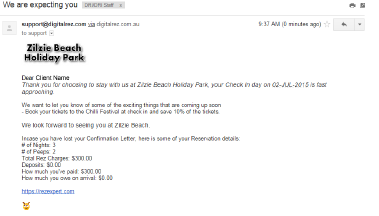
Email Example