Prescribed Check Out Day Rules Setup
Last modified on:
Overview
Prescribed Check Out Day(s) rules indicate which day(s) guests can check out on.
Prerequisites
- Access to the Admin tab in the system interface.
Steps
Location
- Click on a Menu button.
- Select the Admin tab.
- Click Rule Setup.
Add
- Click Add.
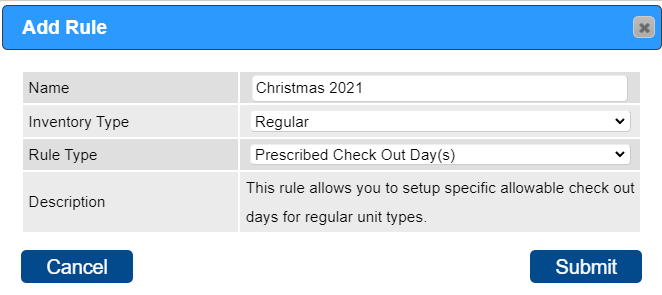
- Name: Enter the name/label of the rule for reference.
- Inventory Type: Click on the Inventory Type dropdown and select Regular.
- Rule Type: Click on the dropdown and select Prescribed Check Out Day(s).
Rule Setup
- Start Date: Enter the start date of the rule.
- Last Date: Enter the last date of the rule.
- Start Date 2: Enter the start date of the date range in which the reservation must be checking out within for the rule to apply.
- Last Date 2: Enter the last date of the date range in which the reservation must be checking out within for the rule to apply.
- Global:
- Click on the slider if the rule applies for a large period of time (e.g., all year) or is the general rule for the Unit Types.
- A general rule can be created (e.g., Check Out on Friday for the whole year). If a particular date range during the year has a different rule (e.g., Check Out on a Saturday), another rule can be created for that date range and set as not Global.
- When a booking is made, the system will prioritize non-Global settings over Global settings.
- Any Part of Rez: If any part of the reservation falls within the date range, the rule will apply.
- NOTE: The Any Part of Rez flag considers the night(s) of the reservation, not the check-out date.
- Link To Unit Type:
- Click on the slider if the rule applies to particular Unit Type(s).
- Click on the box to the right to select the required Unit Type(s).
- When the slider is not activated, the rule will apply to all Unit Types.
- Link To Membership Type:
- Click on the slider if the rule applies to particular Member Type(s).
- Click on the box to the right to select the required Member Type(s).
- When the slider is not activated, the rule will apply to all Member Types.
- Link To Client:
- Click on the slider if the rule applies to particular Client(s).
- Click on the box to the right to search and add the required Client File(s).
- Link To Source:
- The rule can apply to all Sources (Console, Resort Web) or selected Source(s).
- To apply to selected Source(s): Click on the slider to activate; click on the box and select the required Source(s).
- When the slider is not activated, the policy will apply to all Source(s).
- Days of Week: Click on the Day(s) that are associated with the rule.
- Message: When a booking is made and the rule is not followed, the message will display. The message is customizable.
- Active: Tick on the slider to activate the rule.
Troubleshooting
Additional Date Rules
- Additional Date Rules such as Prescribed Check In Day(s) can be created to indicate which day(s) guests can check in on.
- Click here to view Prescribed Check In Day(s) rules.