Walk-In Reservation for Vehicles with Powered Sites
Last modified on:
Overview
This guide explains how to create a reservation for walk-in guests with vehicles, such as motor homes, that require a powered site. Reservations must be assigned to sites appropriate for the vehicle's length.
Prerequisites
- Access to the Availability Grid
- Guest details for new or returning clients
- Vehicle details
Steps
Making the Reservation
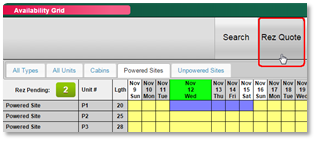
- On the Availability Grid:
- Create a Rez Quote reservation for the desired number of nights.
- Click on the arrival date, drag out for the desired number of nights, and press "Rez Quote". - Alternate Method:
- Select "Submit" instead of "Rez Quote" after dragging out for the number of nights.
- This opens the Booking Quote screen with the unit already selected.
- Enter the number of occupants and vehicle details before submitting the reservation.
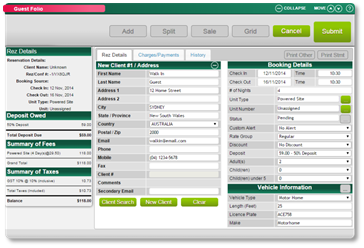
Guest Folio
- New Guest:
- Click "New Client" and enter the guest’s details.
- Returning Guest:
- Click "Search for Client" and search for the client.
- Enter the number of occupants and vehicle details.
- If using the "Submit" method, only enter client details as other booking details are already provided.

Assigning the Unit
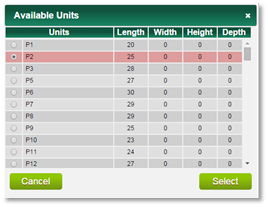
- Assign the reservation to a unit that can accommodate the vehicle's length.
- Click on "Unit #" within Booking Details.
- Select the appropriate unit based on length dimensions.
- Press "Submit" to finalize the reservation.
- This step can also be completed during check-in.
- For the "Submit" method, proceed to Step 4: Payment.
Payment
- After submitting the reservation, process the payment.
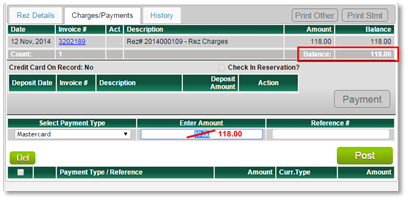
- If a deposit policy is required, you will be directed to the Charges/Payments tab.
- If no deposit policy is required, click on the Charges/Payments tab to process the payment.
- Select the payment type.
- If a deposit policy is required, override the amount and enter the full reservation amount.
- Post the full payment and press "Submit" to finalize.
Checking In
- After processing the payment, use the Quick Check-In box on the Charges/Payments tab.
- Click the "Check in Reservation?" flag.
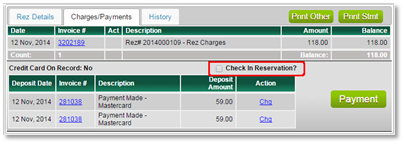
- The Rez Status Options box will display with the assigned unit already selected.
- Press "Check In".
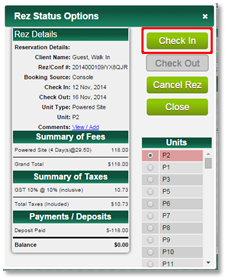
- Alternatively, switch to the Rez Details tab, click on the Status box, and press "Check In" or use the "Check In" button at the top of the Guest Folio.
- The Print Selector box will display to print a Check-In Form and/or Tax Receipt, if required.
Troubleshooting
- Ensure all guest and vehicle details are correctly entered.
- Verify the unit selected can accommodate the vehicle's length.
- Confirm payment details and amounts are accurate before finalizing.