Managing Reservations with Guest Folio
Last modified on:
Overview
The Guest Folio is the central hub for viewing and managing reservations. Users can create single, group, business, OTA type reservations, manage payments, add-on charges, documents, communication, alerts, and track additional information associated with the client or the specific reservation.
Prerequisites
To access the Guest Folio, ensure you have the necessary permissions and access to the system where the Guest Folio is implemented.
Steps
Accessing the Guest Folio
- From the Availability Grid:
- Left-click on any reservation on the grid to display the Till tape of that reservation.
- Click the Guest Folio button either at the top or bottom of the Till tape.
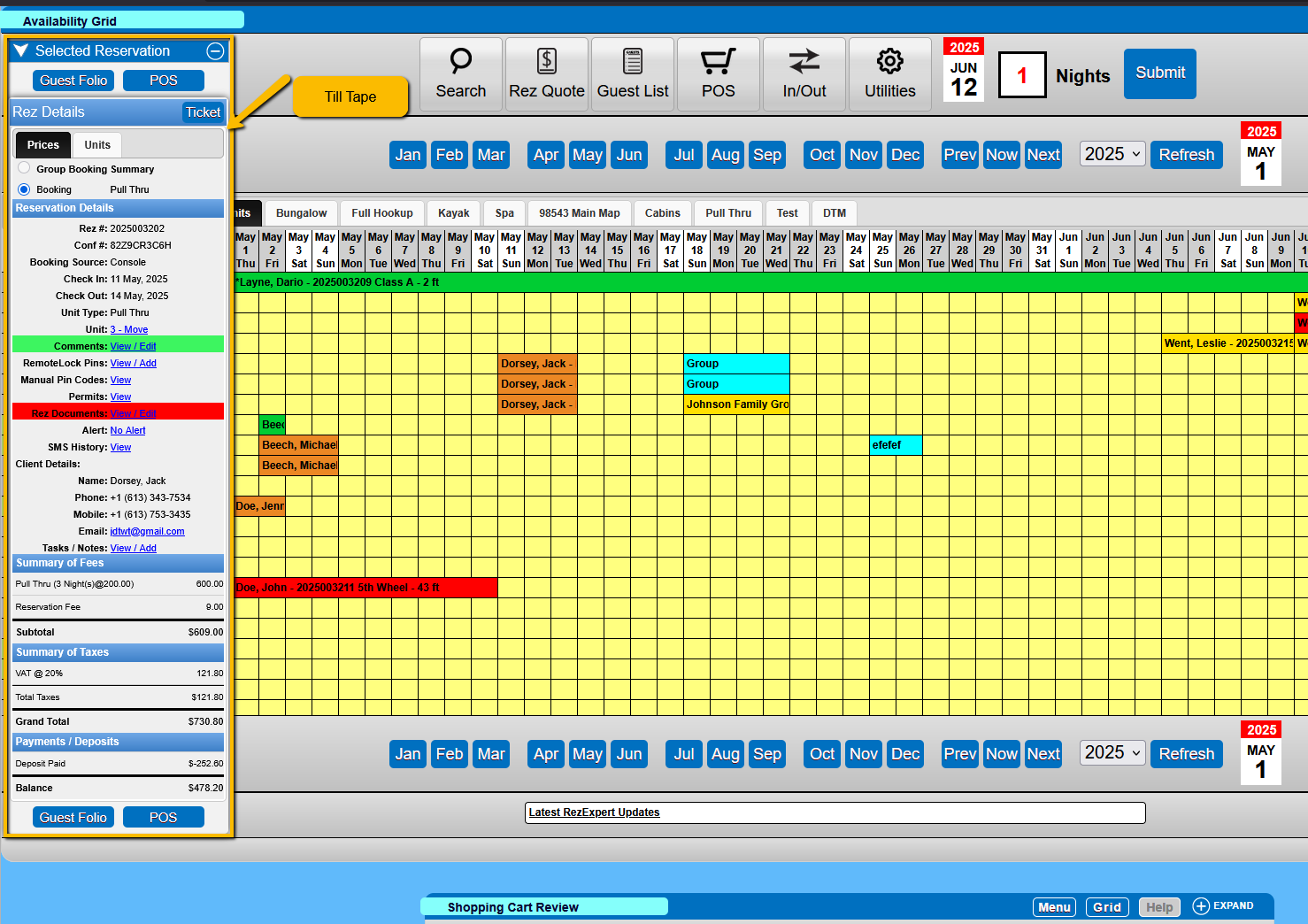
- Right-click Method:
- Right-click the reservation and select Guest Folio.
- Search Button:
- Utilize the Search button on the availability Grid and enter the Reservation Number (unique identifier).
Layout
The Guest Folio is broken down into several sections:
Till Tape
- Displays summarized information relating to the reservation or group of reservations.
- Reservation listing of Group, Corporate, Wholesaler, or Travel Agent type reservations.
- Reservation Details: showing Client’s Name, and other basic reservation details.
- Summary of Fees: includes charges, fees, and discounts related to this reservation.
- Summary of Taxes: Shows what Taxes are associated with this reservation.
- Payments/Deposits: Shows deposits or payments based on the deposit policy or reservation status.
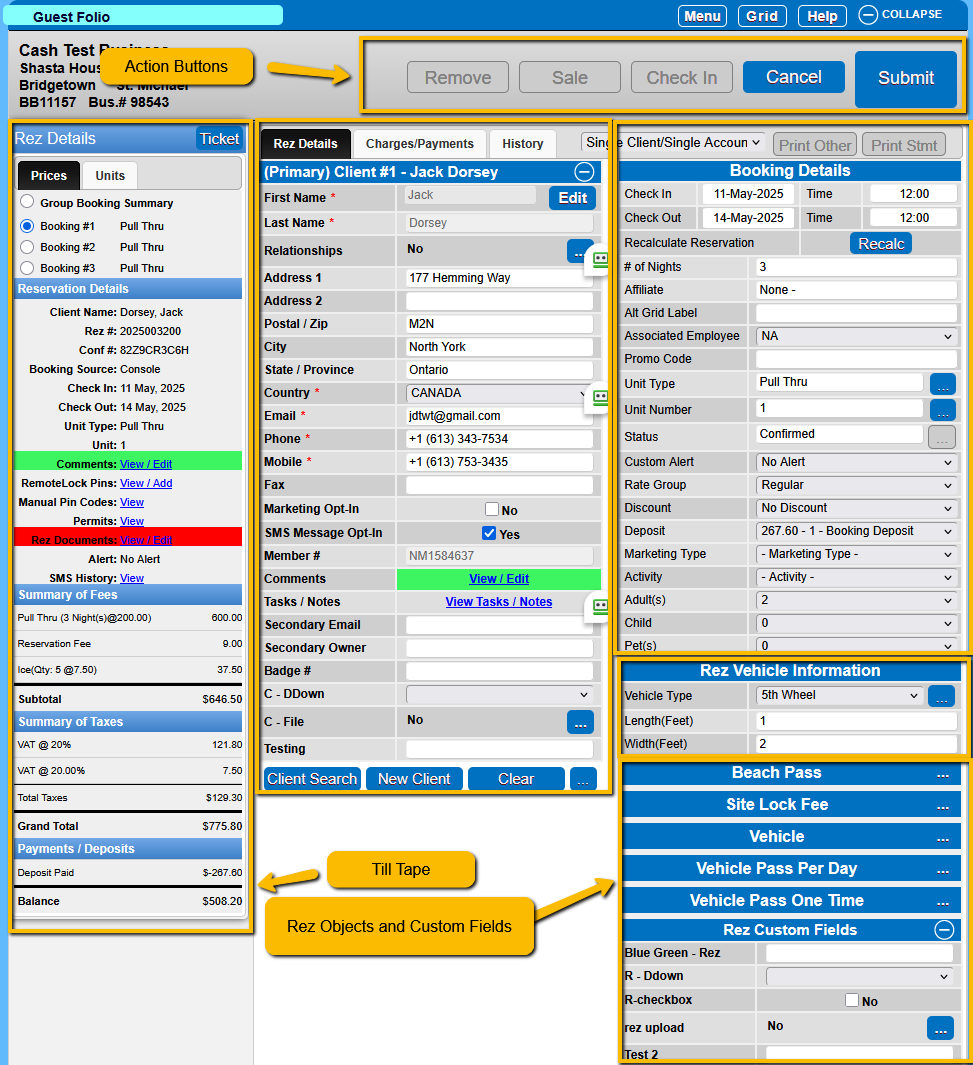
Rez Details
- This area is broken into 3 sections:
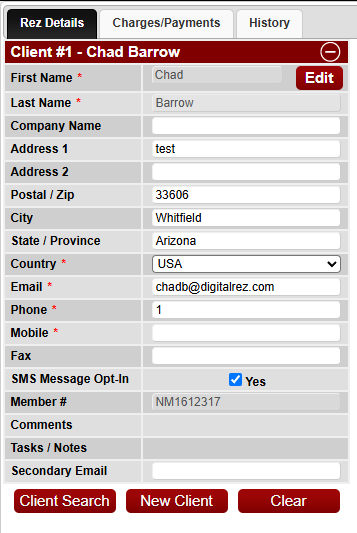
- Rez Details: Shows the Client Details, including address, contact info, and custom fields.
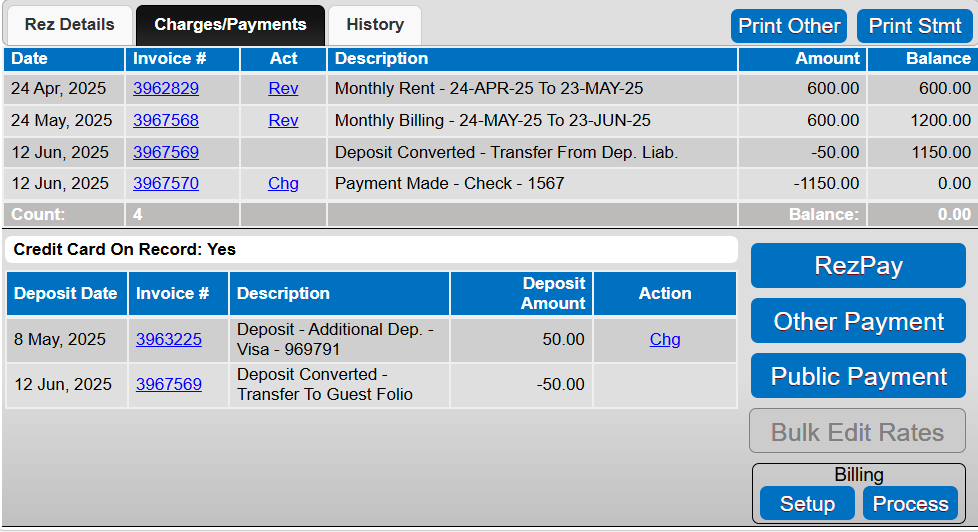
- Charges/Payments: Shows the charges associated with the current booking or group booking.
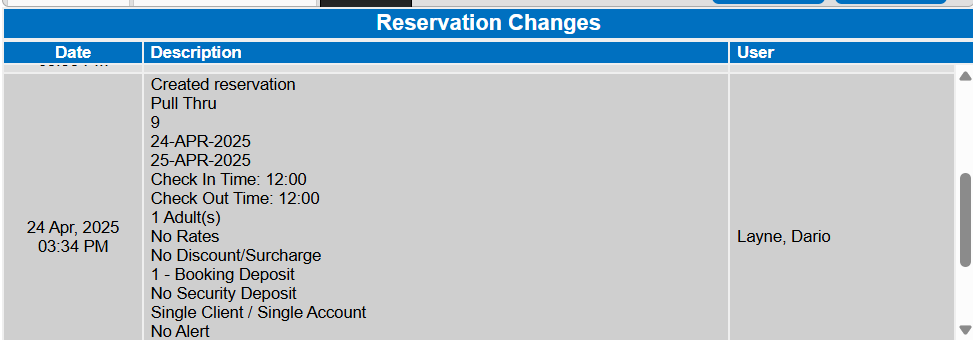
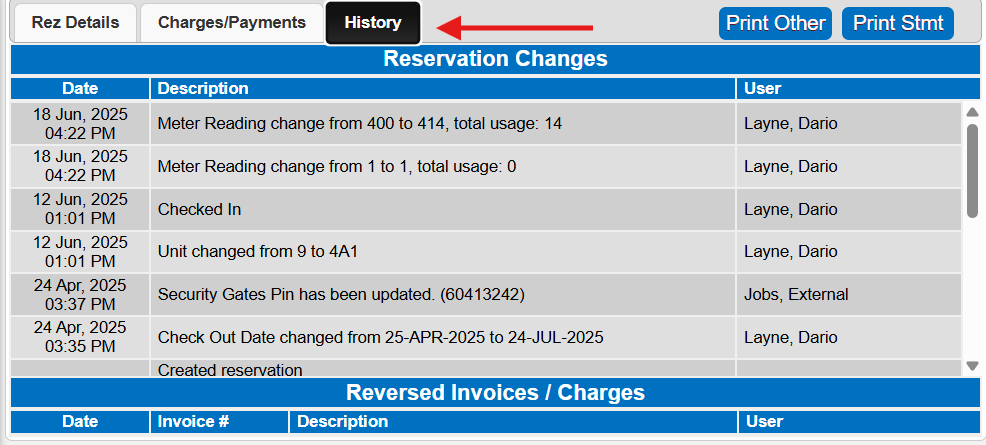
- History: Shows a history of changes in the reservation, including dates, times, and the user that made the changes.
Booking Details
- Configure specifics for the reservation:
- Check-in, check-out dates, times, and additional settings.
- Unit type and unit, booking status, and special alerts.
- Rate Group, discounts, deposits, occupants, pets, and extra vehicles.
- Marketing type of booking.
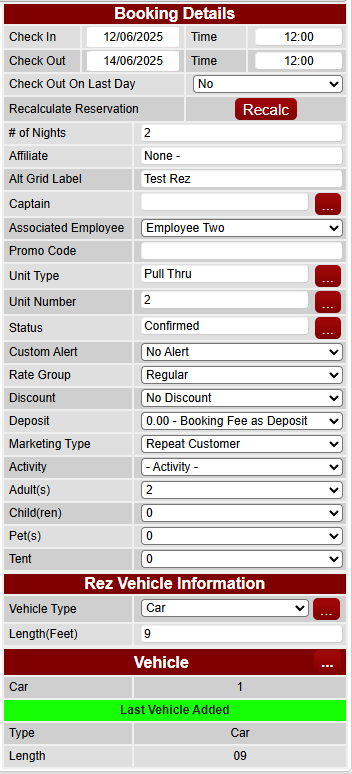
Rez Vehicle Information
- Select the vehicle type and related information, including length, model, reg number, etc.
Rez Objects and Rez Custom Fields
- Rez Objects: Associated with the booking for special charges or permissions.
- Rez Custom Fields: Related only to this reservation.
Action Buttons
- Submit: Confirm changes to a booking.
- Cancel: Revert changes before submission.
- Check In/Out: Manage check-in/out processes.
- Sale: Add POS items to the booking.
- Split/Add/Remove: Manage booking modifications.

Charges/Payments
Charges/Payments Table (Revenue Activity – Top Section)
- Logs all financial transactions associated with a reservation's revenue and payments.
- Charges: Billable items such as site fees and additional services.
- Payments: Records of received payments.
- Refunds: Transactions where funds were returned to the guest.
- Reversals: Entries of reversal for charges or payments.
Deposits Table (Deposit Liability Activity – Bottom Section)
- Tracks funds received in advance or held for future use.
- Advance Deposits: Payments made ahead of the guest’s stay.
- Security Deposits: Funds held to cover potential damages or incidental charges.
- Deposit Conversion: Transfers from liability to revenue.
Credit Card On Record
- Displays whether a credit card is stored on file for the reservation.
AR Balance
- Displays the balance of the client's Account Receivable if created.
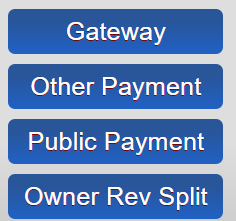
Action Buttons
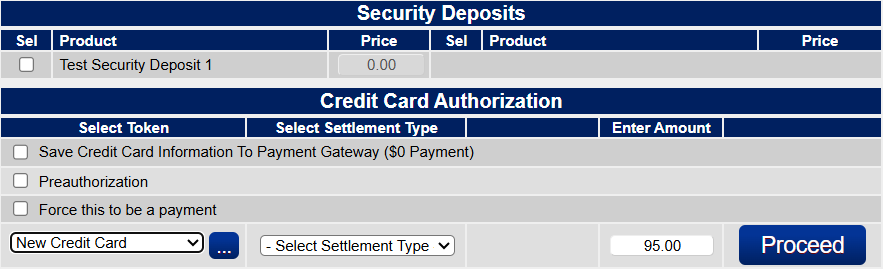
- Gateway: Launches the payment screen for real-time processing.
- Other Payment: Record manual or alternative payments.
- Public Payment: Securely request credit/debit card payment from client.
Billing Options
- Setup: Configure periodic billing setup options.
- Process: Apply billing actions, post charges.
History Tab
- A chronological log of all actions performed on a reservation.
- Includes timestamp, description of the change, and user/system responsible.
- Acts as a full audit trail for front desk staff, reservation agents, supervisors, and support teams.
Troubleshooting
For any issues accessing or using the Guest Folio, ensure you have the correct permissions and access rights. If problems persist, consult the support team or refer to the system's help documentation for guidance.