RezExpert Online Booking for Agents Guide
Last modified on:
Overview
Wholesale and Travel Agent businesses can now log into your RezExpert Online Booking page. This feature allows them to view their rates and inventory, book directly, and add requested guest details.
Prerequisites
- Wholesaler and Travel Agent records must be created in the system.
- Ensure the email address is entered during the creation of the business record as it will serve as the Username for login.
Steps
Wholesaler/Agent Login Details
- Create or Search Business Record:
- Navigate to the Availability Grid and click the Search button.
- Click on the Business tab.
- To add a new Wholesaler/Agent, click "Add Business."
- To find an existing record, click "Search." - Login Credentials:
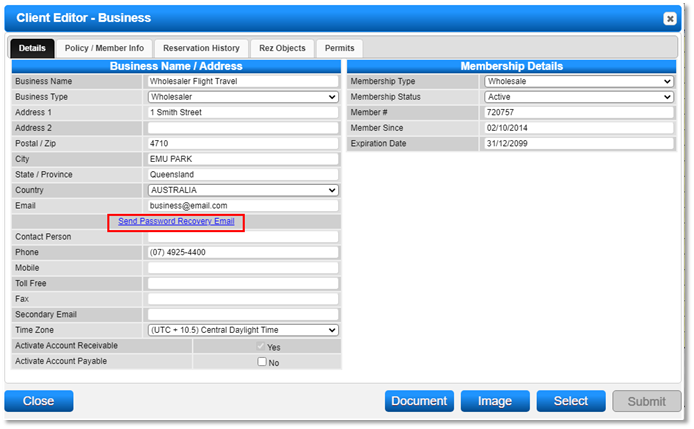
- The email address entered during the creation of the business record will be used as the Username.
- Click "Send Password Recovery Email" to allow the business to create their password.
Online Booking Page
- Businesses can log in via the Online Booking interface to view set rates and book Accommodation Types.
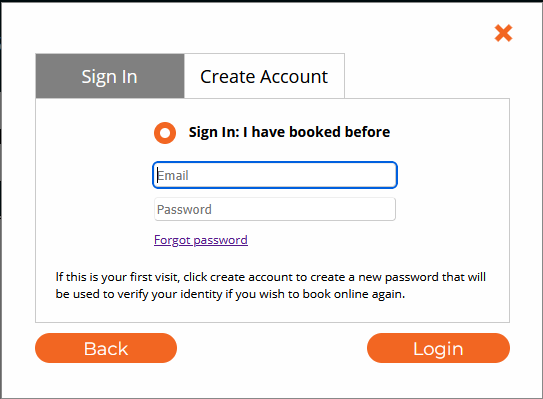
- Access "Reservation Activity" to view Upcoming, Past, and Cancelled Bookings.
- Select an upcoming reservation to cancel or send comments.
Making Bookings Online
- Booking Process:
- Proceed through the normal booking process and click "Book Now" to access the Booking Details section. - Booking Details:
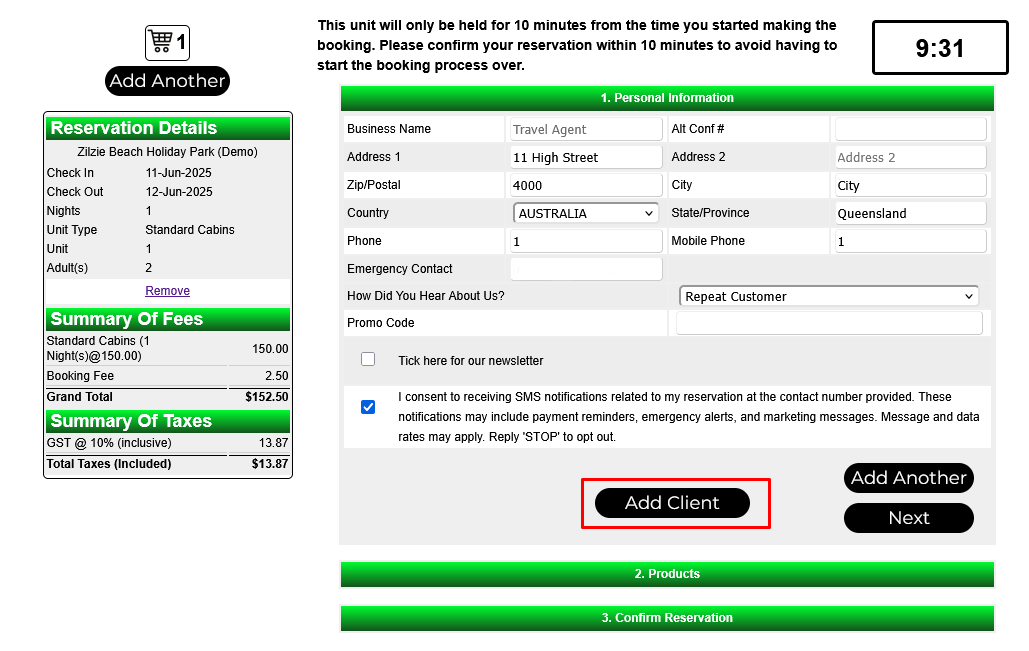
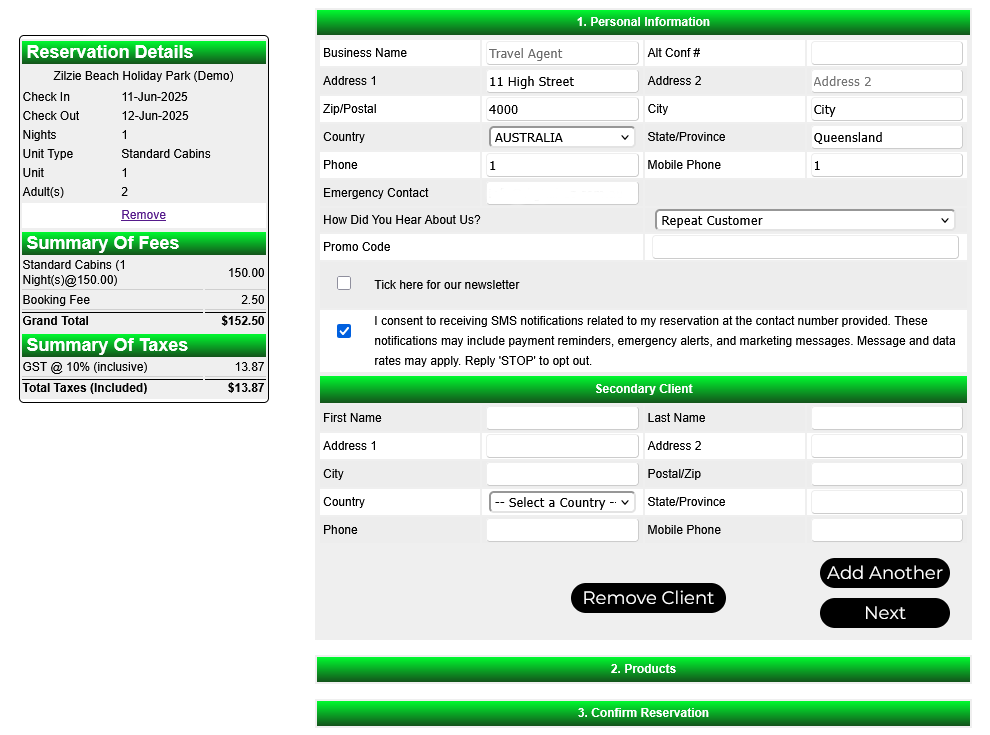
- Business information will prepopulate the Booking Details panel.
- Enter the Booking Confirmation number into the Alt Conf# field.
- Staying Clients Details:
- Click "Add Client" to enter customer details, then click "Next."
- Use "Remove Client" if incorrect details are entered.
- Accepting T&Cs and Payment:
- Review the Business’s Terms and Conditions.
- Enter additional comments if necessary and proceed to payment.
- After payment, the booking is confirmed.
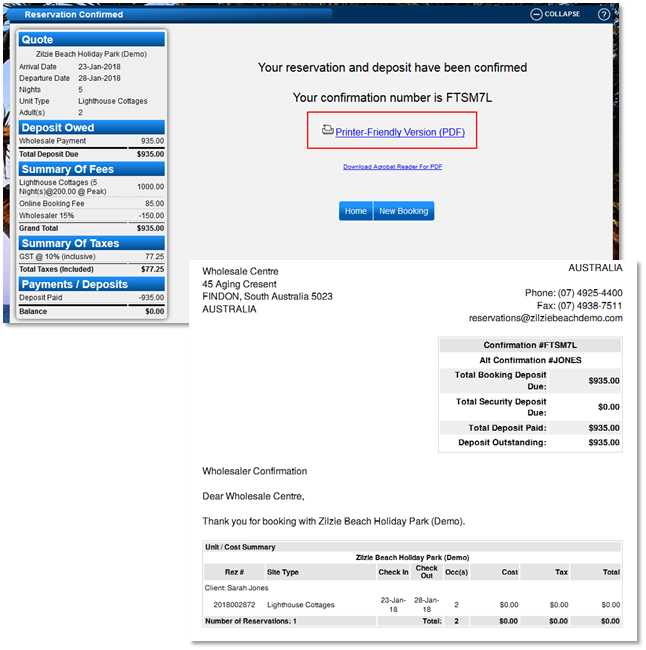
- Optionally, click "Printer Friendly PDF" for a printed confirmation.
- An email confirmation will be sent to the business.