Max Days in Advance Check-In Rule Setup
Last modified on:
Overview
The Maximum Days in Advance Check In rule is designed to restrict the number of days in the future that customers can make changes to the Check In date of their reservation. This rule allows you to set up maximum days in advance for regular Unit Types. For example, customers may be restricted from changing their check-in date more than 90 days in the future.
Prerequisites
- Access to the Admin tab in the system.
- Permissions to set up rules.
Steps
Location
- Click on the Menu button.
- Select the Admin tab.
- Click on Rule Setup.
Add
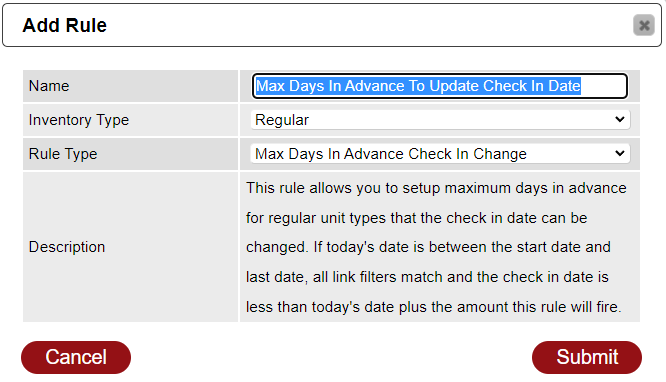
- Name: Enter the name of the rule, e.g., "Maximum Days in Advance To Update Check In Date."
- Inventory Type: Select "Regular" from the Inventory Type dropdown.
- Rule Type: Select "Max Days in Advance Check In Change" from the Rule Type dropdown.
- Press "Submit."
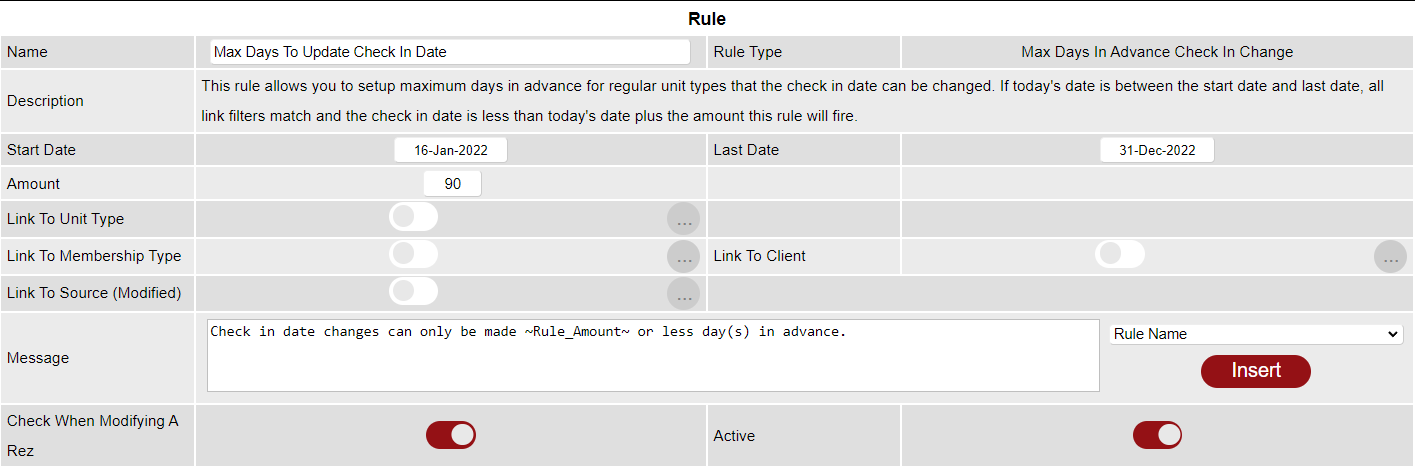
Rule Setup
- Start Date: Select the start date of the rule using the calendar.
- Last Date: Select the last date of the rule. If not for a specific date range, select "31 Dec 2099."
- Amount: Enter the number of days for the rule, indicating how far in advance the reservation must fall from today's date.
Links
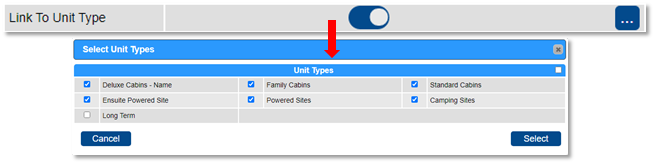
- Link To Unit Type: Apply the rule to selected Unit Types by using the slider. Disable the slider to apply to all Unit Types.
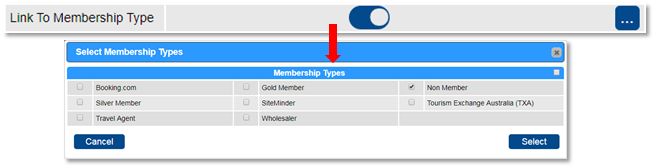
- Link To Membership: Apply to selected Member Types. Disable the slider to apply to all.
- Link To Client: Search for selected Clients to apply the rule. Disable the slider to apply to all clients.

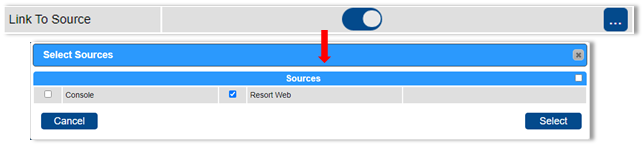
- Link To Source: Set where the rule will apply, e.g., for Online Bookings (Resort Web) only. Disable the slider to apply to all.
Message
- When the rule is not met, a message will display. You can edit this message if required.
- Wildcards can be inserted into the message to display specific data.
- Once all settings are configured, click on the Active flag to activate the rule.
Troubleshooting
For further assistance, refer to the help document: Click here to print the Help Document