Adjusting Reservation Price Steps
Last modified on:
Overview
This document provides a step-by-step guide to adjusting the price of a reservation.
Prerequisites
- Access to the reservation system.
- Necessary permissions to modify reservation prices.
Steps
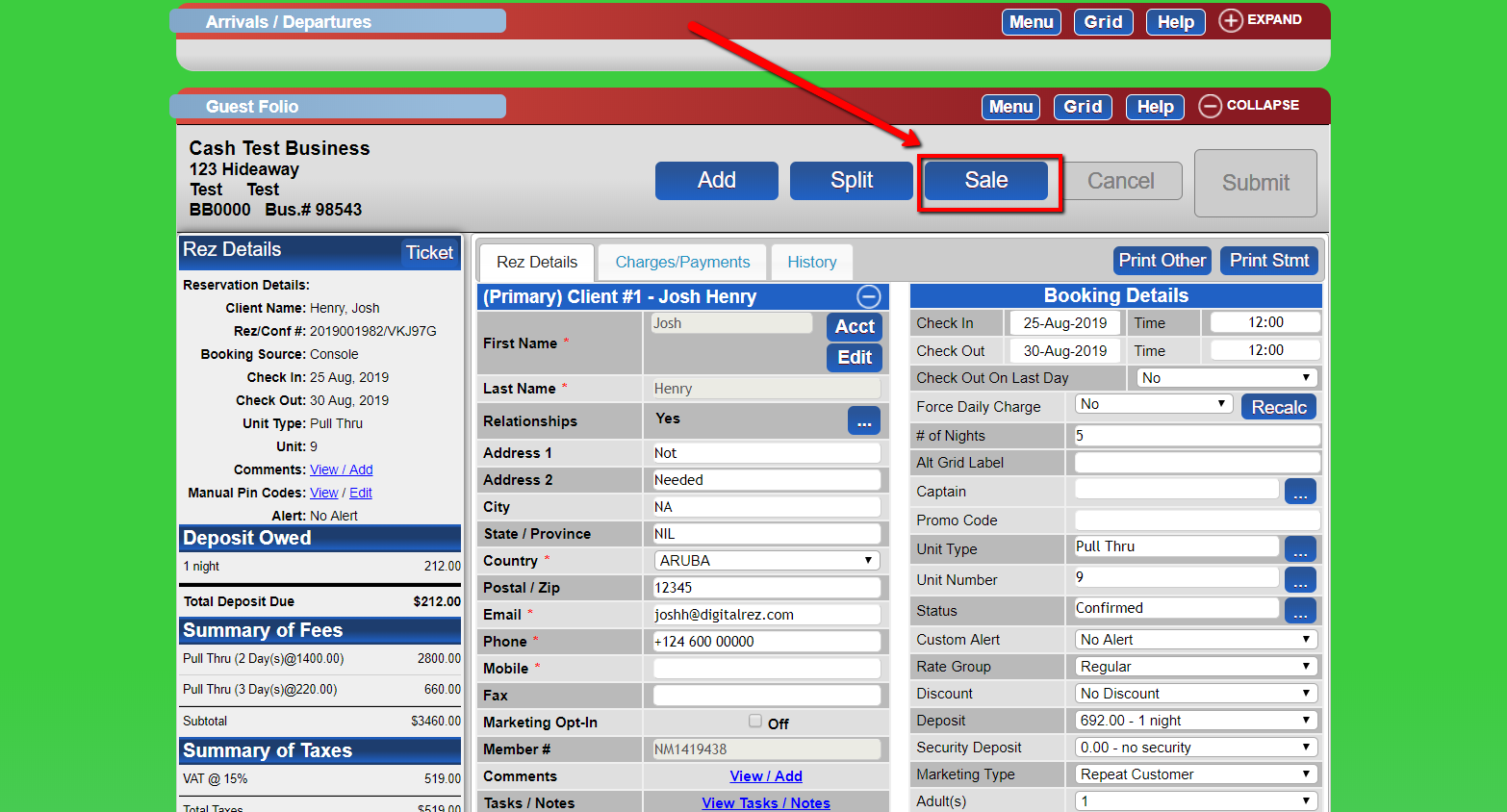
- Access the Reservation:
- From within the reservation, click the "sale" button at the top of the panel.
-
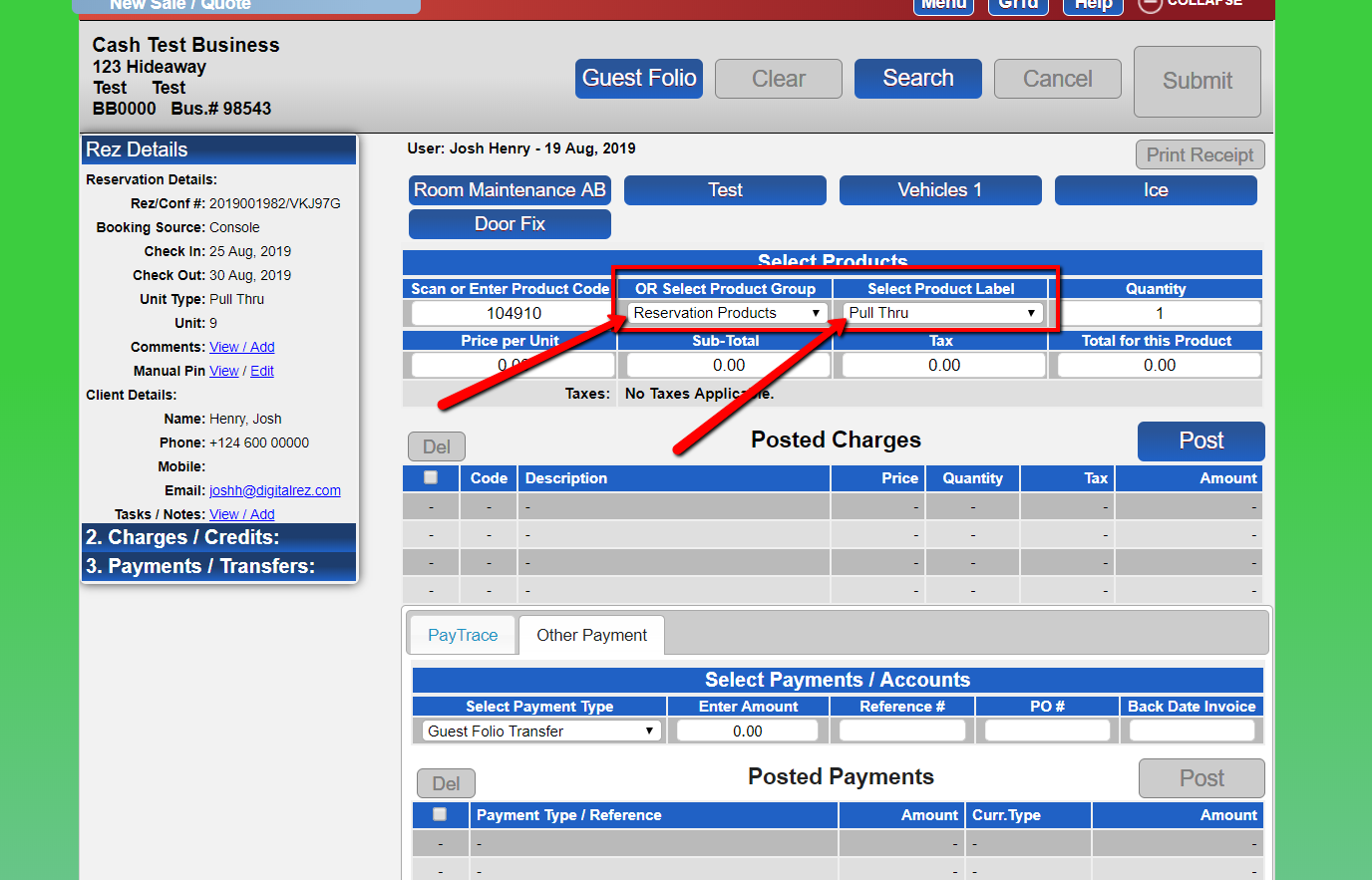
- Select Product Group and Product:
- Choose the correct product group and product.
-
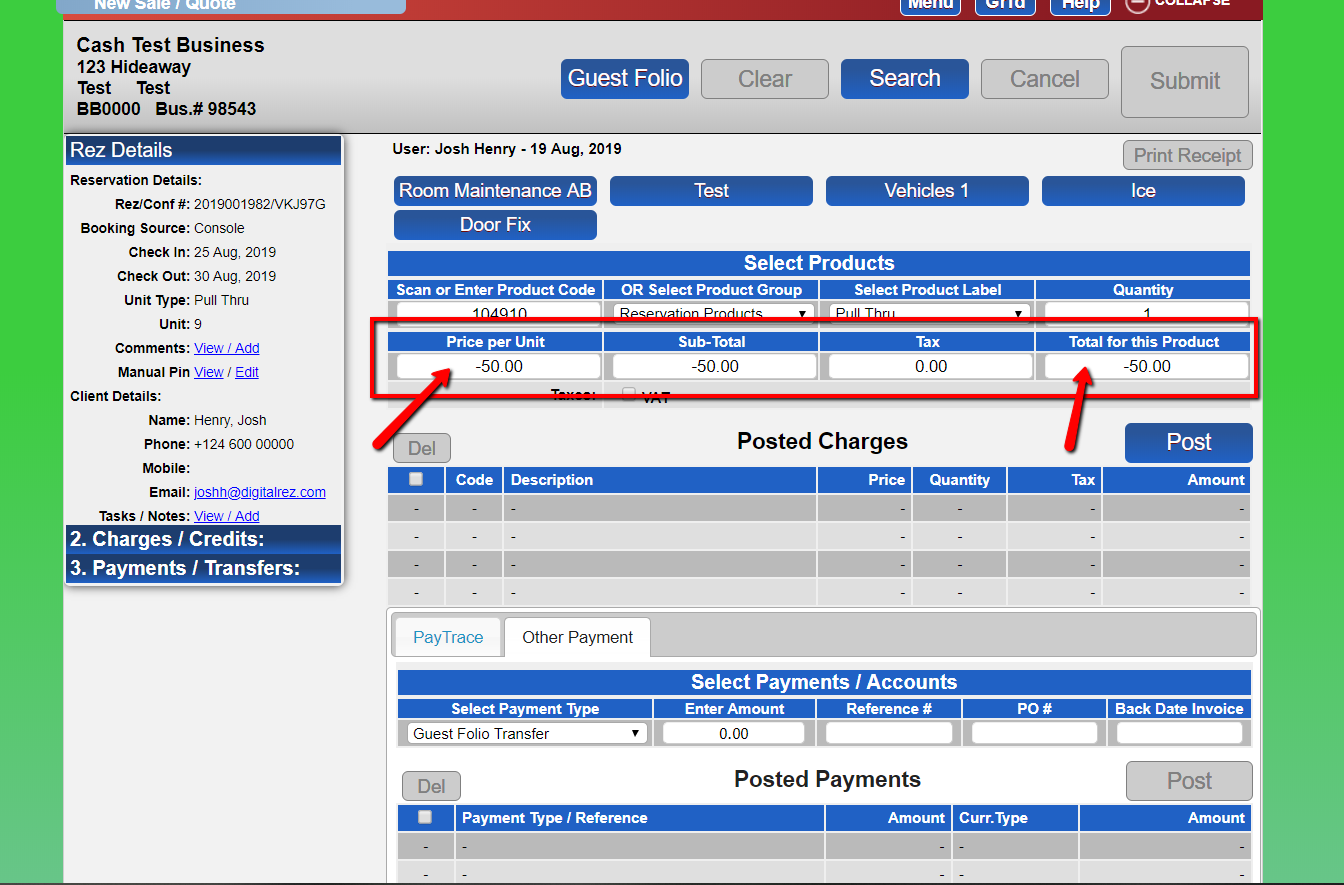
- Enter Price Adjustment:
- Enter the amount in the "price per unit" section. If the adjustment is a decrease, use a negative amount.
-
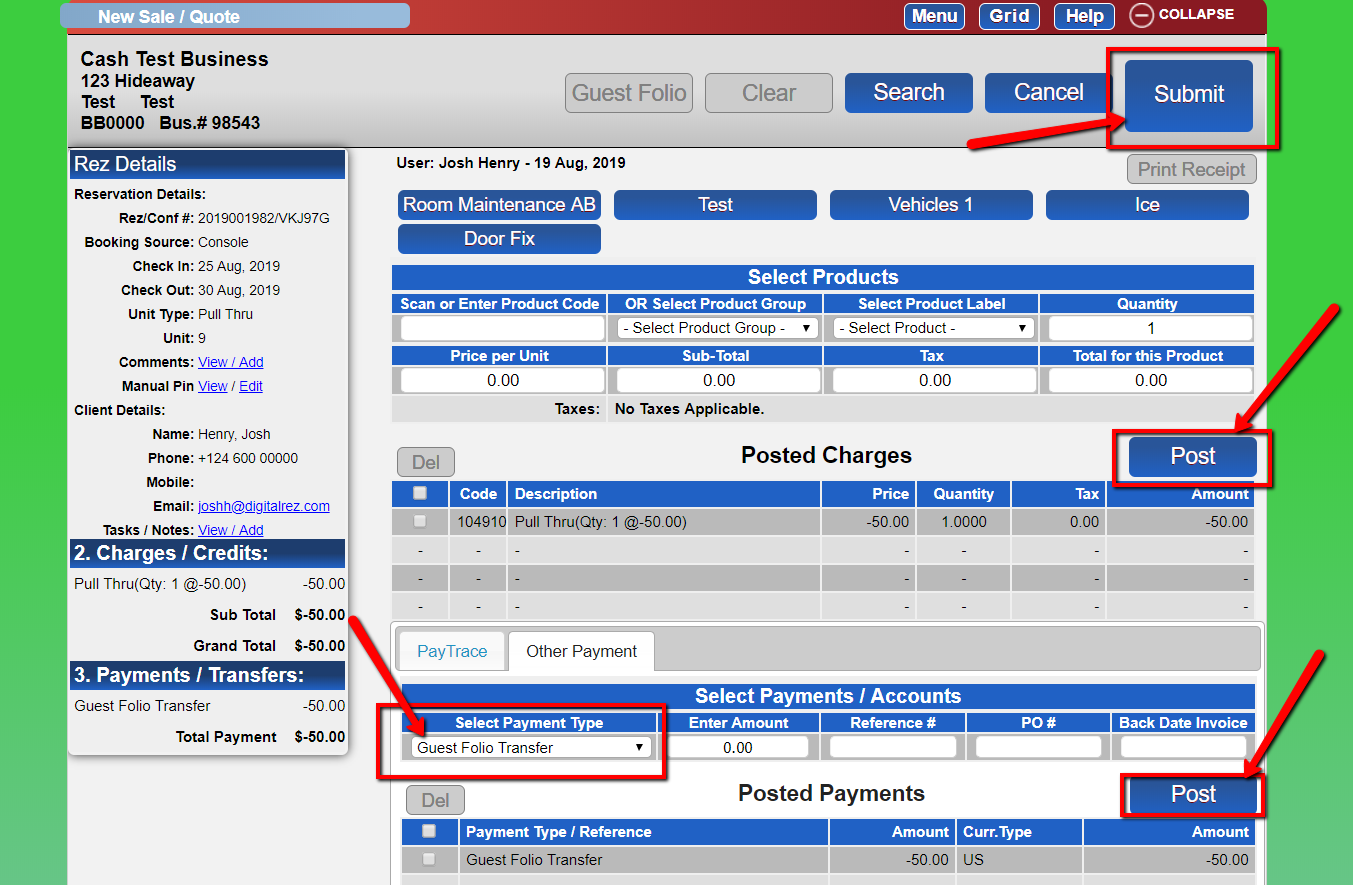
- Post the Adjustment:
- Click the first "Post" button.
- Select the payment type "Guest Folio Transfer."
- Click the second "Post" button and submit.
-
Troubleshooting
- Ensure you have the correct permissions to adjust prices.
- Verify the product group and product selection to prevent errors.
- Double-check the amount entered for accuracy, especially when using negative amounts for decreases.