Vehicle Type Setup Instructions
Last modified on:
Overview
This document provides instructions on how to set up the required vehicle types and details for recording on guest reservations.
Prerequisites
- Access to the system menu
- Permissions to modify vehicle type settings
Steps
Location
- Click Menu
- Go to the Setup tab
- Click Vehicle Type Setup
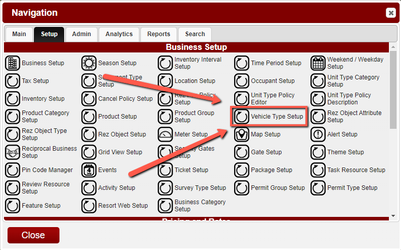
Adding a Vehicle Type
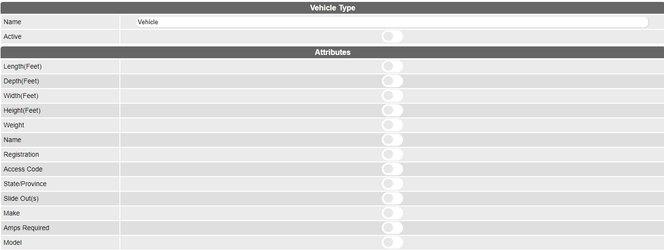
- Click the Add button

- Input the Name of the Vehicle Type
- Make it Active
- Activate the applicable attributes being tracked by the business:
- Length (Feet) - Activate if tracking length
- Depth (Feet) - Activate if tracking depth
- Width (Feet) - Activate if tracking width
- Height (Feet) - Activate if tracking height
- Weight - Activate if tracking weight
- Name - Activate if tracking vehicle name
- Registration - Activate if tracking vehicle registration numbers
- Access Code - Activate if tracking access codes
- State/Province - Activate if tracking registration location
- Slide Out(s) - Activate if tracking number of slide outs
- Make - Activate if tracking vehicle make
- Amps Required - Activate if tracking required amps (30 amp/50 amp)
- Model - Activate if tracking vehicle model
- Year - Activate if tracking vehicle age
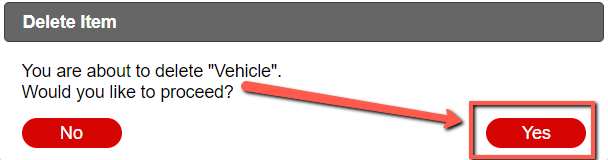
Deleting a Vehicle Type
- Select the Vehicle Type so it is highlighted
- Click the Delete button

- Click Yes on the confirmation prompt
Additional Attribute Configuration
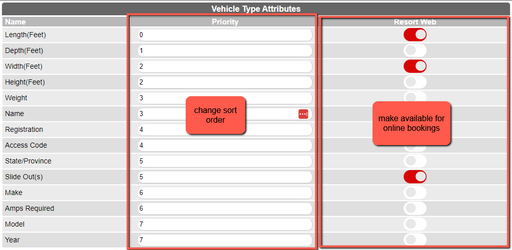
- Select the Attributes tab
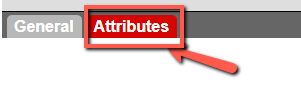
- This loads the Attributes Panel where you can edit them further
- Change sort order using the Priority column
- Show attributes on the Online Portal using the Resort Web column
Troubleshooting
- Ensure you have the necessary permissions to add or delete vehicle types.
- Verify that all required fields are filled out when adding a new vehicle type.
- If attributes are not displaying correctly, check the configuration in the Attributes Panel.