Owner Contract Setup for Property Management
Last modified on:
Overview
This module is designed for businesses with units owned by investors, facilitating monthly revenue sharing with owners. It enables management of owners and the production of End of Month Statements, detailing revenue sharing from reservations and any management expenses/fees.
Note: This module is available for a small monthly fee. Contact DigitalRez to authorize this module for your business.
Prerequisites
- Authorization from DigitalRez for module activation.
Steps
Location
- Click on a Menu button.
- Select the Admin tab and click on Property Setup (within Administrative).
- Alternatively, click Admin from the Menu Bar and choose Property Setup.
Setting up a Contract
- Click the Add button to create the contract.
- Enter the physical details of the Unit/Site in the Physical Description panel.
- Label: Enter the name of the contract for identification.
- Unit: Select the Unit Type and Unit/Site number of the owned Unit/Site.
- Address: Enter the physical address of the Unit/Site.
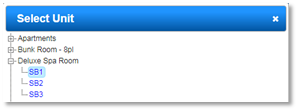
- Additional fields are available for more location information if required.
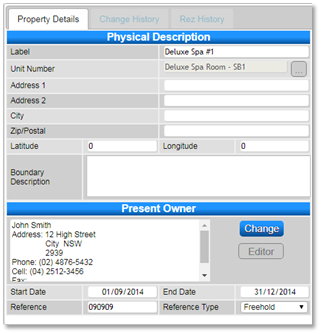
- In the Present Owner panel, enter the Owner’s details.
- Click Change to search for the Owner’s Client Record.
- If the owner is new, click Add Person to create a Client Record for the owner. - Enter the Start/End Date of the Contract.
- Enter the Reference number or reference.
- Select the Reference Type from the dropdown.
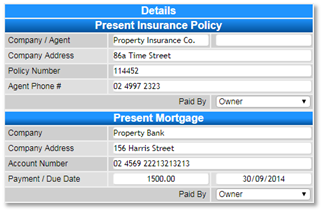
- In the Details panel, enter the Insurance and Mortgage Policy details if applicable.
- Present Insurance Policy: Enter the Insurance Policy.
- Present Mortgage: Enter the Mortgage details. - Click Submit to finalize the Owner’s details for the contract.
Commission Policy
- Click Policies to set the Commission Policy for the contract. Click Add.
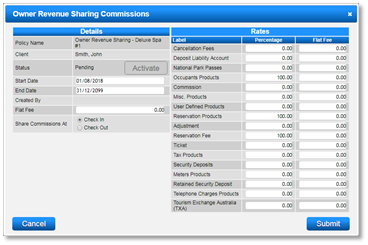
- Enter the commission percentages/flat rate for the required product groups.
- Flat Rate: The value can be positive (+) for commission paid on other products or negative (−) if you charge the owner for services like cleaning and linen per Check In/Out. - Common default product groups are Reservation Products and Occupant Products.
- Set the Share Commissions flag: at Check In or at Check Out (as per your agreement with owners).
- Click Submit to finalize the commission policy.
- A message box will appear to confirm the creation of Commissions – Owner Revenue account, click Yes.
- Click Activate to activate the commission policy.
Reservations on an Owned Unit/Site
- Any reservations made on an Owned Unit/Site will automatically calculate the commission percentage/flat rate and send it to the Owner’s Rev Share Account. The commission will be shared according to the flag set, i.e., at Check In or at Check Out.
Owners’ Accounts and Balances
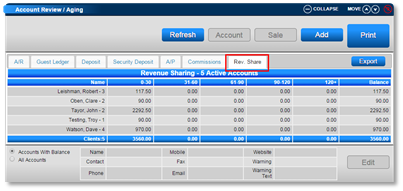
- To view the shared revenue commission, click Account from the Menu Bar. Alternatively, click a Menu button and select Account Review/Aging.
- In the Account Review/Aging panel, select the Rev. Share tab – all Owner Accounts with Balances will display.
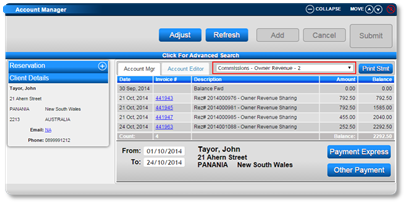
- Select the owner and click Account to view the individual owner revenue sharing transactions.
Owner’s Account and Statements
- All shared commissions will display.
- Click Print Stmt to print any required Statements - Owner Account Summary and Owner’s Statement of Earnings are available.
- Process payments to Owners when completed to ensure the Owner’s Account is accurate.
Troubleshooting
For further assistance, refer to the help document: Creating an Owner Contract.pdf.