Creating Automated Marketing Emails for Reservations
Last modified on:
Overview
Marketing emails allow users to create automated emails that can be sent a specified number of days before the arrival of reservations or after the checkout of reservations.
Prerequisites
- Access to the Menu
- Admin privileges
- Access to Marketing Email Setup
Steps
Location
- Navigate to:
- Menu
- Admin
- Marketing Email Setup
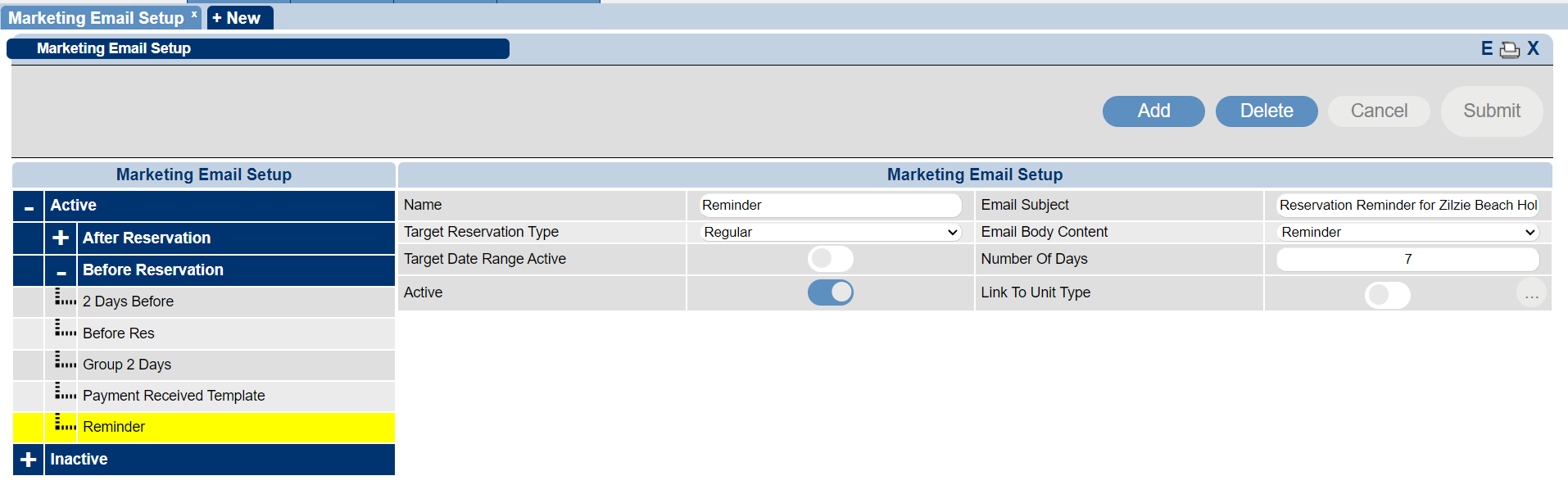
- Name: Enter the name of the Marketing Email.
- Email Subject: Enter the subject for the email. Character Limit: 50 characters.
- Target Reservation Type: Select the type of customer to receive the reservation.
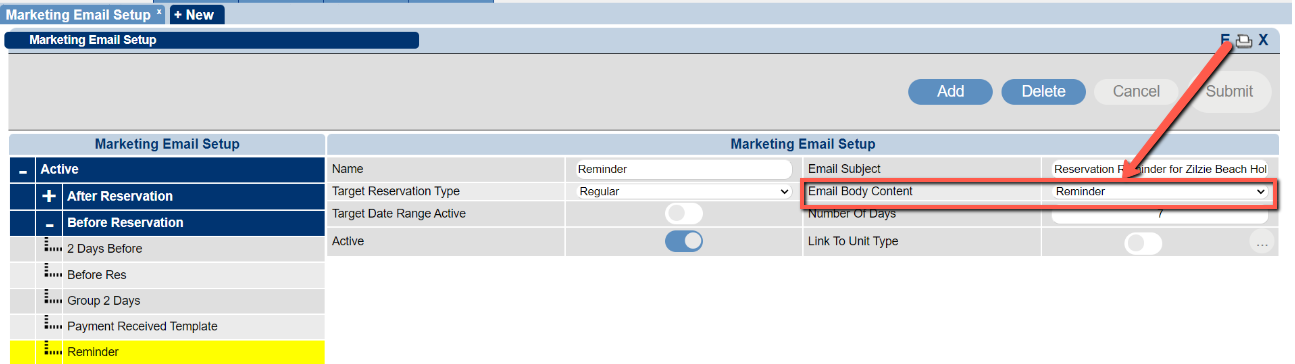
- Email Body Content: This list is populated based on the selected Target Reservation Type and the content(s) assigned in the Content Assignment Setup.
- Target Date Range: Configure if the emails are to be sent based on reservations either checking in or out within that date range.
Creating The Email Subject and Body
- The body of the email is created in the Content Setup under the Rez HTML content type.
- Once created, assign it to the appropriate Marketing Type option in the Content Assignment Setup.
Location - Content Setup
- Navigate to:
- Menu
- Admin
- Content Setup
- Create any new content under the Rez HTML Section.
- Click Here for more help on the Content Setup
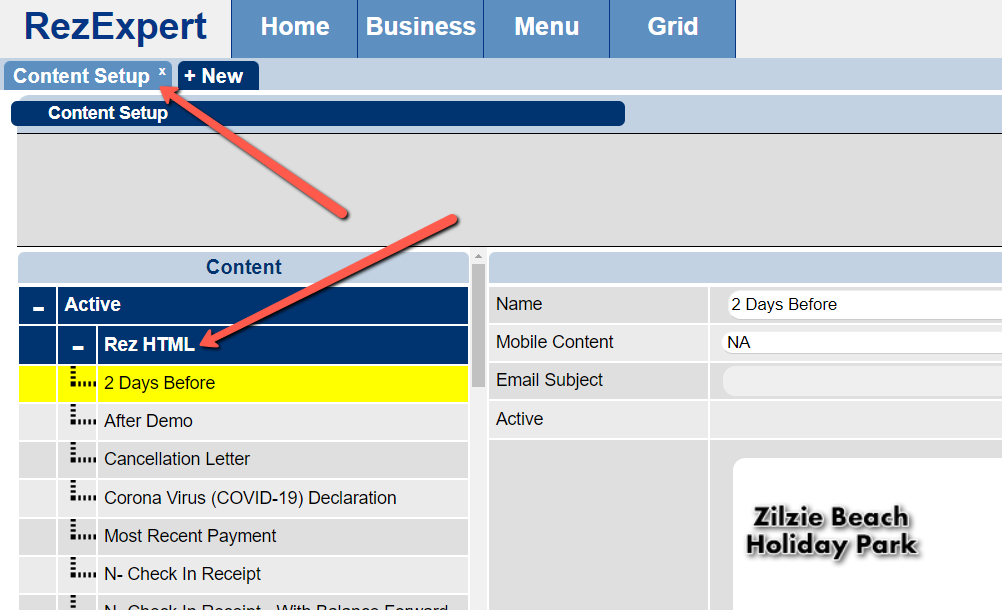
- Once the email body is created, assign it to the appropriate area in the Content Assignment Setup.
Location - Content Assignment Setup
- Navigate to:
- Menu
- Admin
- Content Assignment Setup
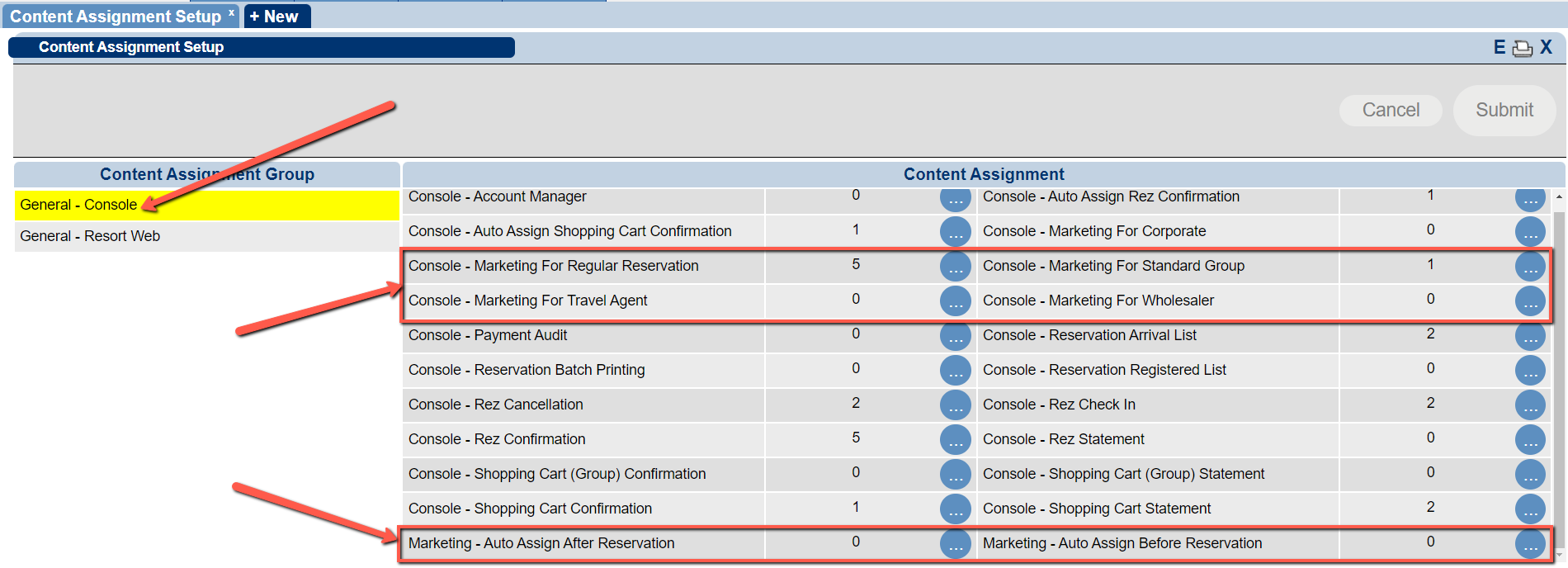
- Once the email body is assigned to the appropriate section, it will be available in the Marketing Setup dropdown for the Email Body Content once the appropriate Target Reservation Type is selected.
Troubleshooting
For additional assistance, refer to the help section or contact support.