Batch Printing from In/Out Panel
Last modified on:
Overview
This document provides a step-by-step guide for performing a batch print from the In/Out panel.
Prerequisites
- Access to the In/Out panel
- Reservations available for printing
Steps
- Access Batch Print:
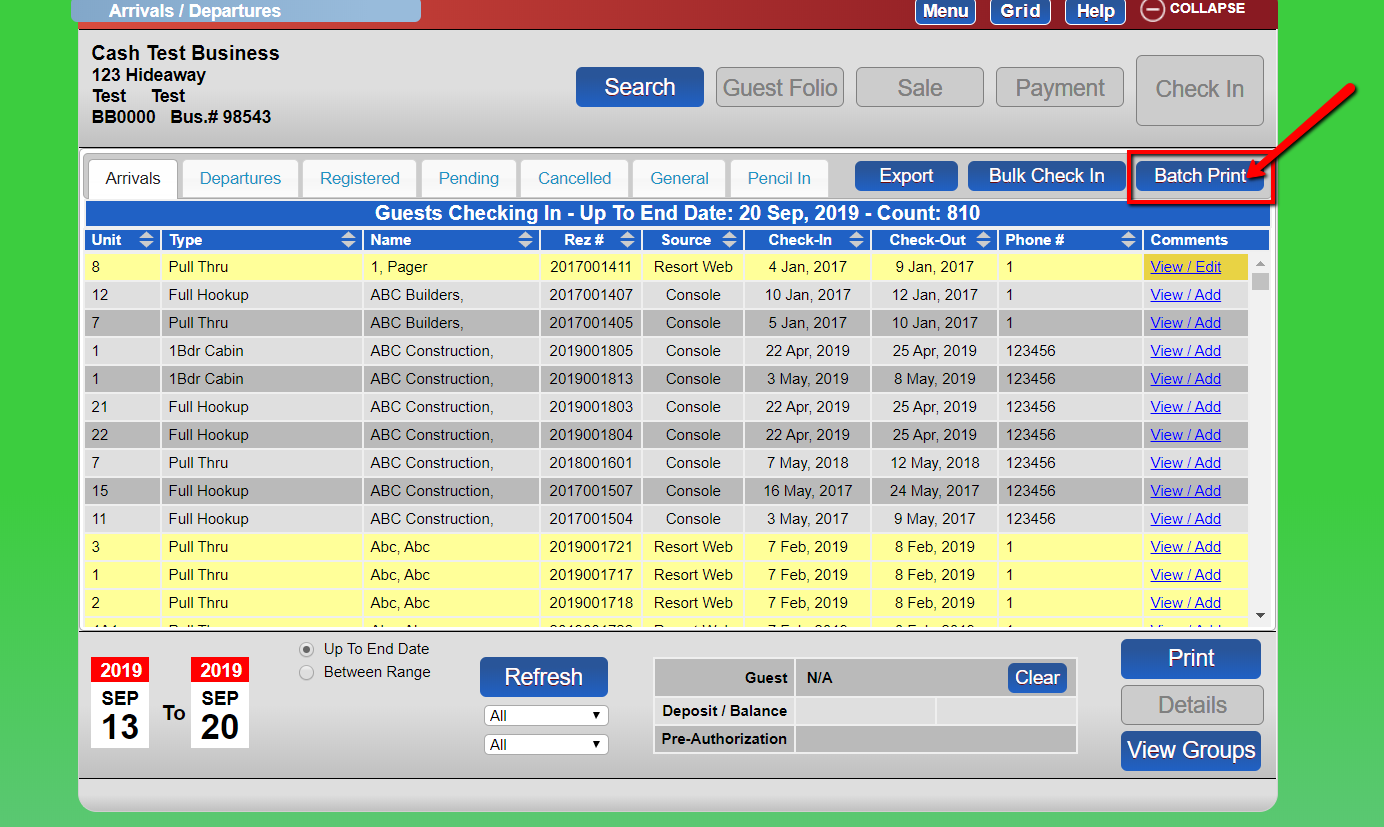
- From within the In/Out panel, locate the "Batch Print" button on the right, depending on the tab you are on.
- Click on "Batch Print." - Select Reservations:
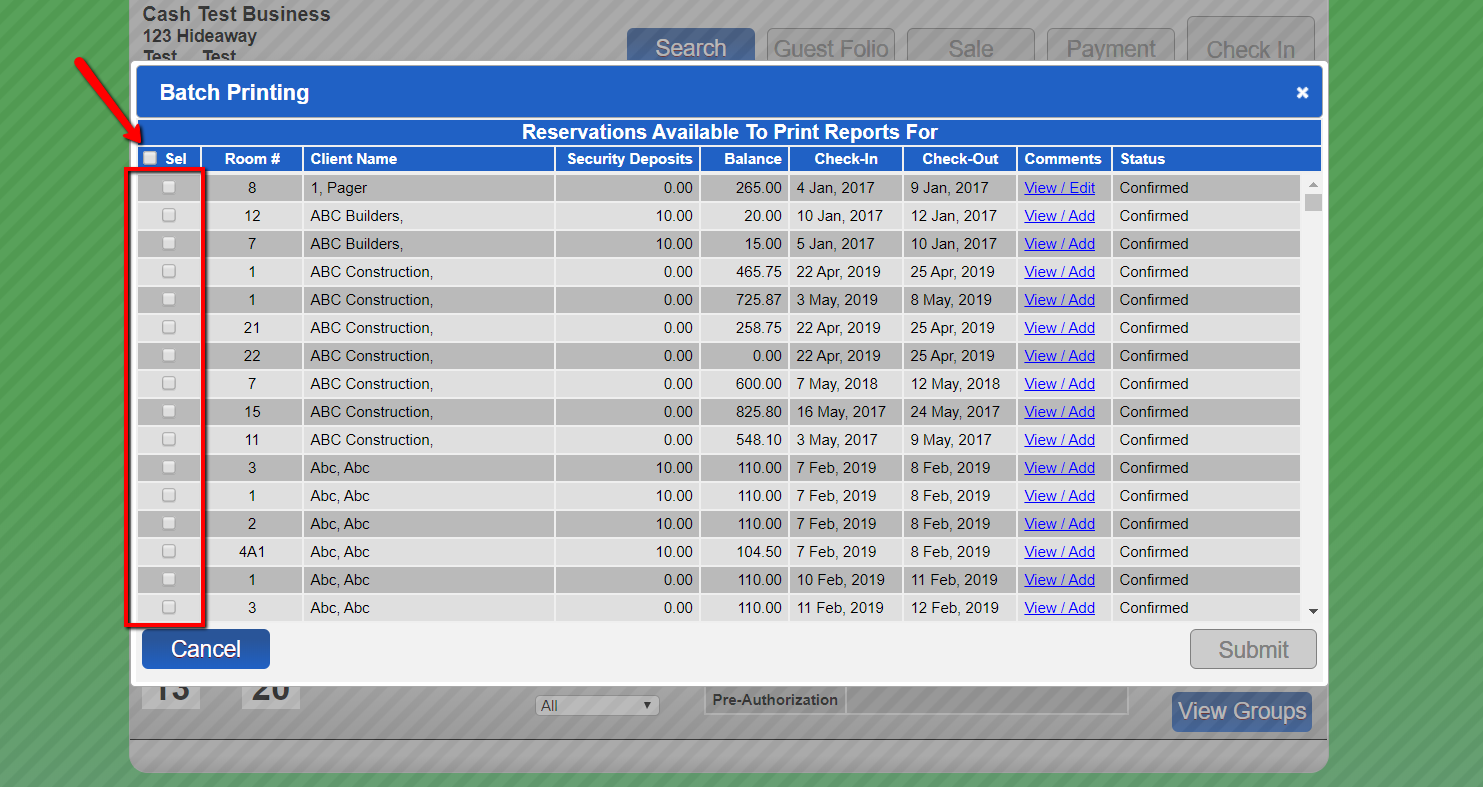
- Choose all or individual reservations that you wish to print information for. - Submit Selection:
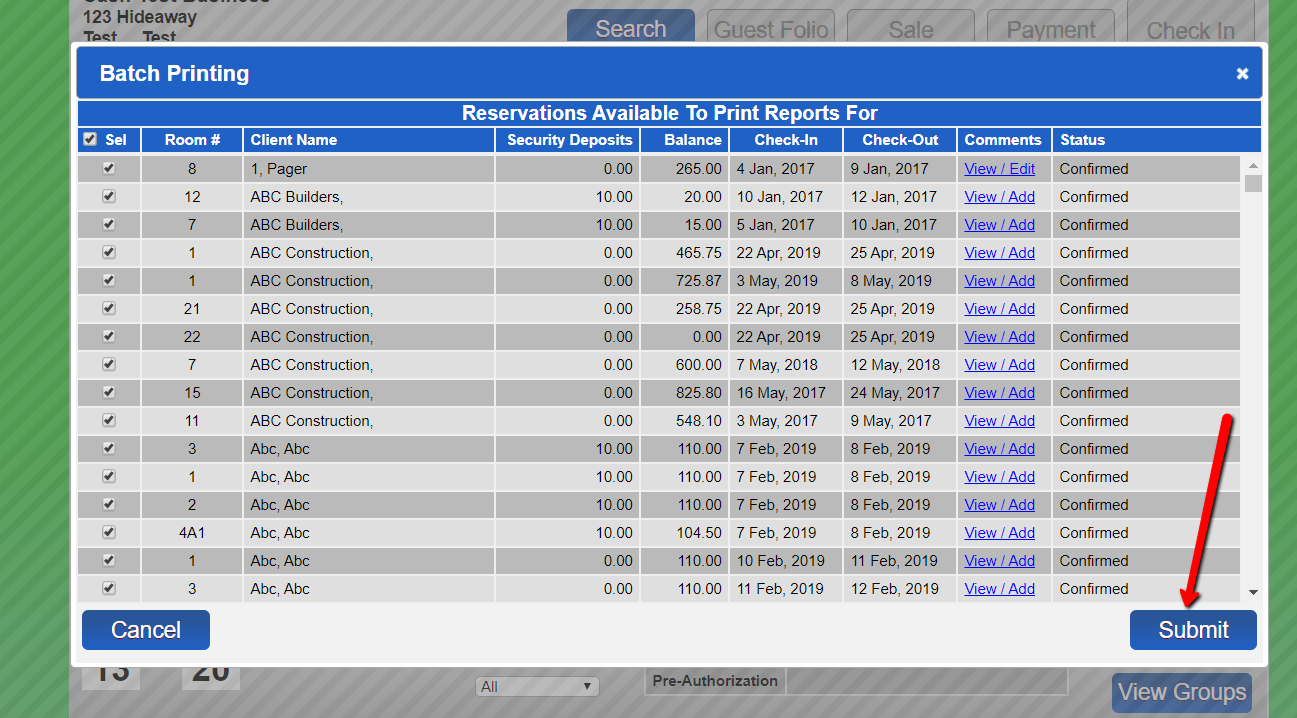
- After selecting the desired reservations, click "Submit." - Confirmation:
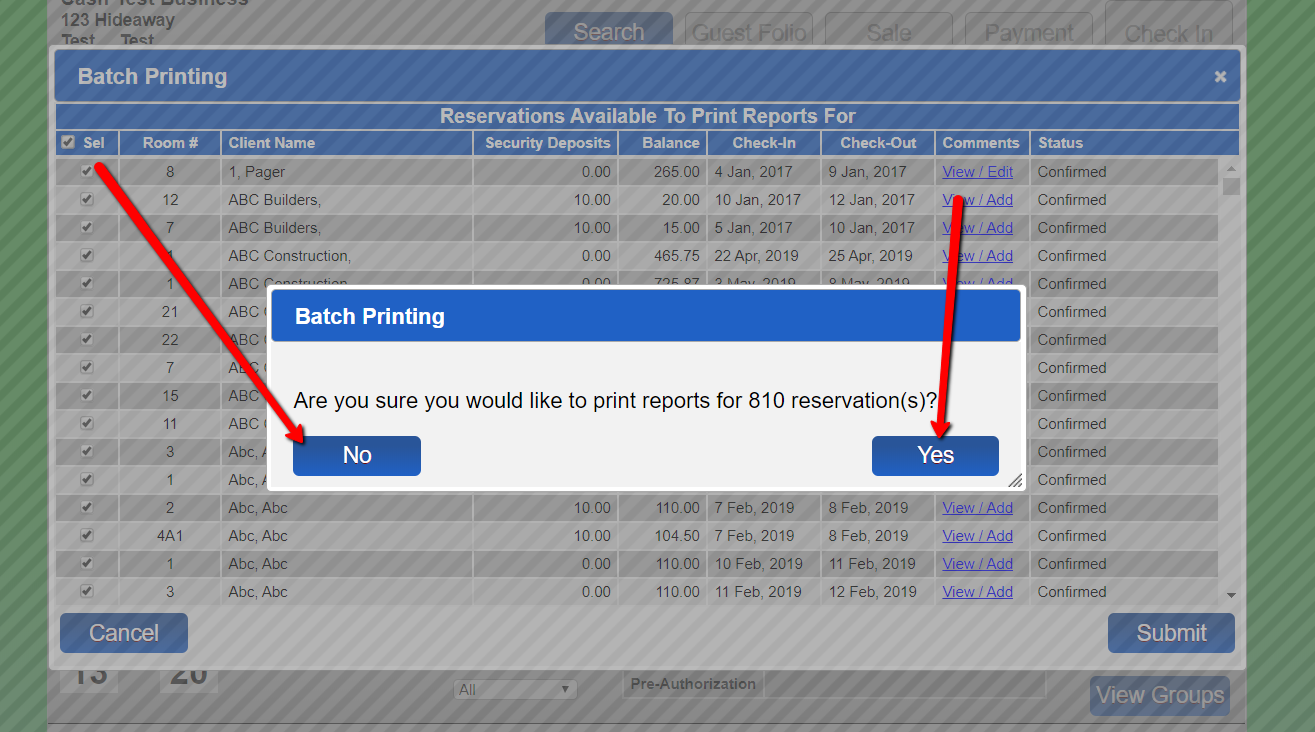
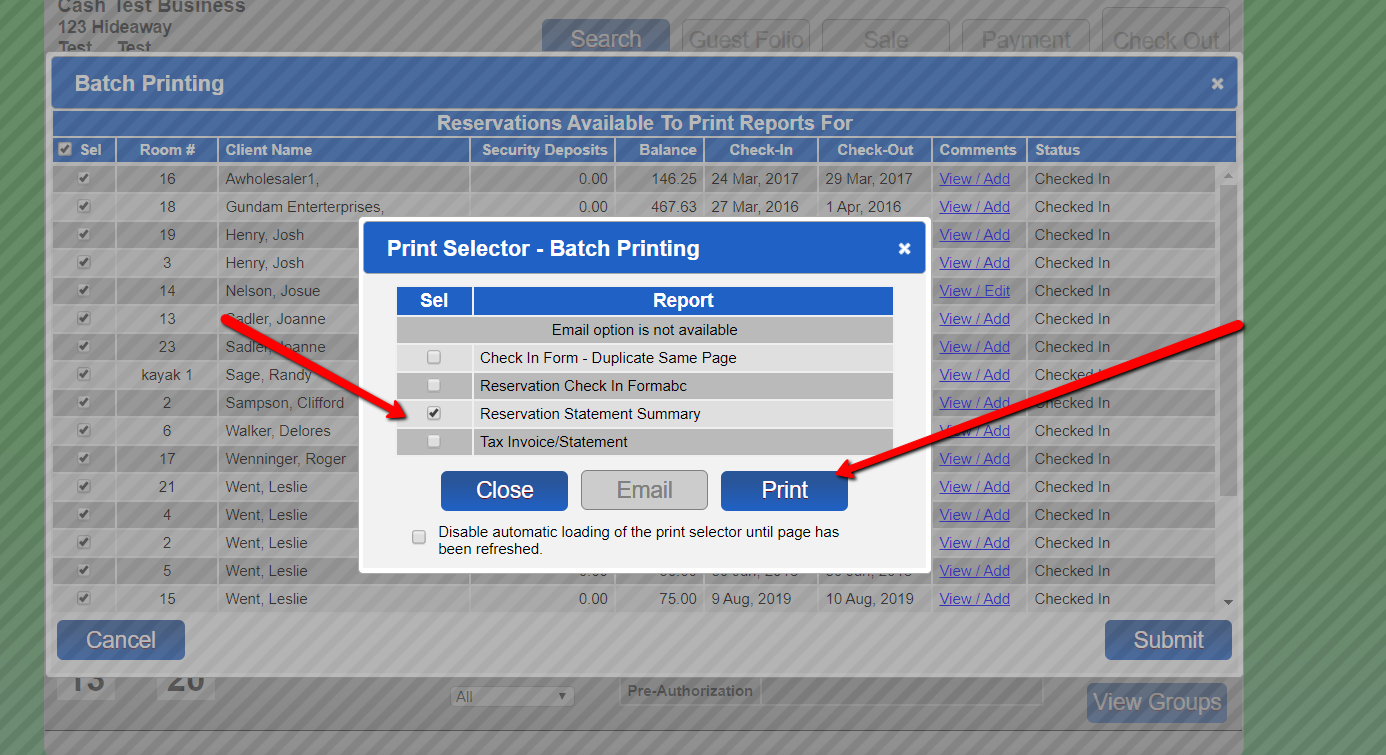
- Select "Yes" to continue or "No" to return to the Batch Printing Panel. - Choose Report:
- Select the report you wish to print for the selected reservations.
- Click "Print." - Print Reports:
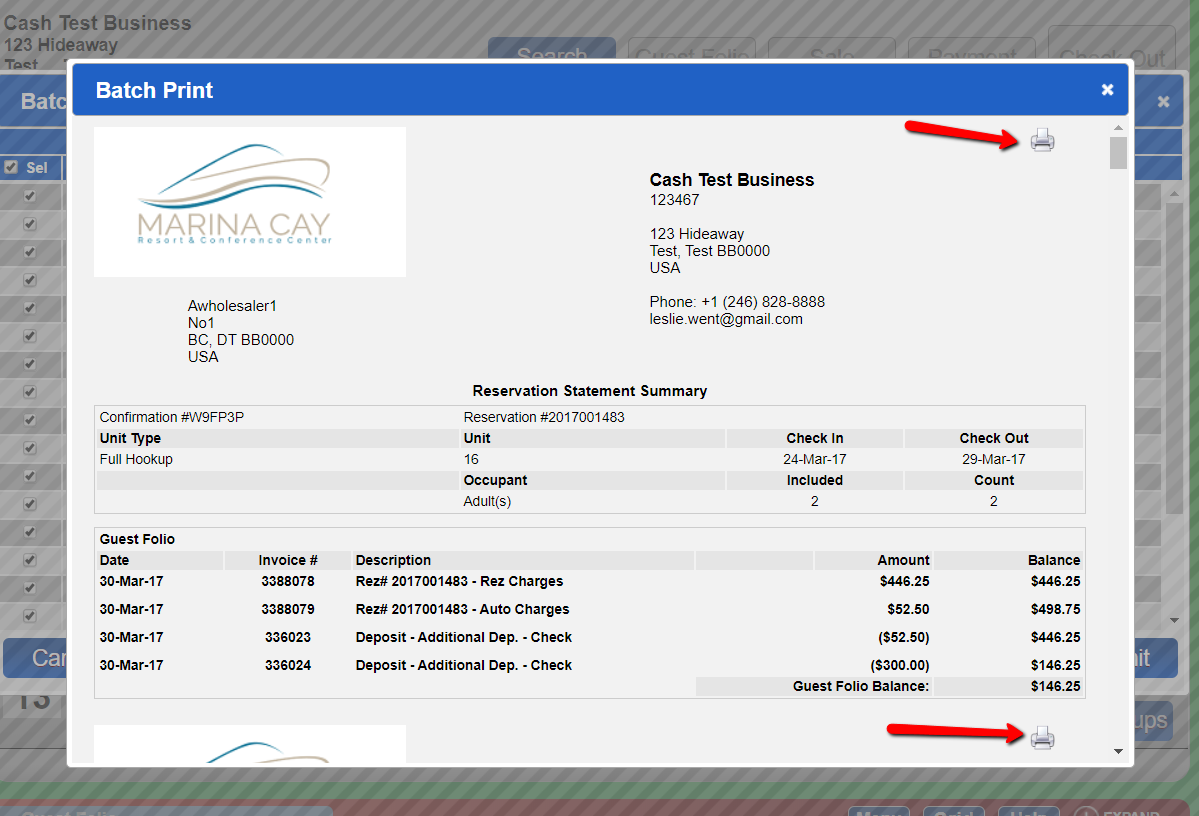
- Use the printer icon to print the list of reports.
Troubleshooting
- Ensure you are on the correct tab in the In/Out panel to access the "Batch Print" button.
- Verify that reservations are correctly selected before submitting.
- Confirm the correct report is chosen before printing.
Images