Automatic Security Deposit Setup and Management
Last modified on:
Overview
Security Deposits can be set to be automatically applied to all new reservations. They are held in a Deposit Liability account prior to check-in and can be refunded to the guest before check-out. All Security Deposits/Bonds held are displayed in the Security Bond Ledger Panel, accessible via Accounts > Security Bond tab.
Prerequisites
- Ensure the Security Deposits flag is enabled in Business Setup.
- A Retained Security Deposit Product Group must be created before setting up any Security Products.
Steps
Business Setup
- Click on a Menu button.
- Select the Setup tab.
- Click on Business Setup.
- Click on the Preferences tab.
- Enable the Security Deposits flag.
Security Deposit Product Group Setup
- Click on a Menu button.
- Select the Setup tab.
- Click on Product Group Setup.
- Click Add.
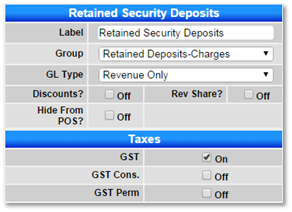
- Enter the label: Retained Security Deposits.
- Press Submit and refresh the screen.
- Scroll up to the Product Setup panel and click Add.
- Enter the label: Retained Security Deposit.
- Select the group: Retained Security Deposits.
- Set GL Type to Revenue.
- Select Tax: GST.
- Press Submit to finalize.
Unit Type Policy Editor
- Click on a Menu button.
- Select the Setup tab.
- Click on Unit Type Policy Editor.
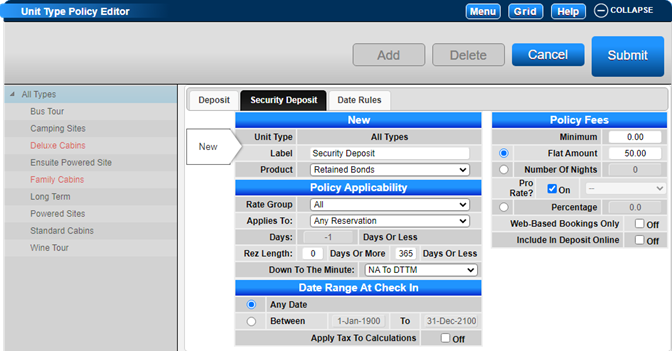
- Select the Security Deposit tab.
Security Deposit - All Unit Types
- If the Security Deposit applies to all unit types:
- Click Add.
- Enter the label: e.g., Key Bond.
- Select the product: Retained Security Deposit.
- Define Policy Applicability: e.g., Rate Group or Rez Length.
- Set Date Range at Check-In: select Between and enter date ranges.
- Apply Tax to Calculations if applicable.
- Enter Policy Fees: e.g., Flat Amount: $10.
- Select when the Deposit is due.
Security Deposit - Individual Unit Types
- If the Security Deposit is for selected unit types:
- Select the Unit Type.
- Click Add.
- Enter the label: e.g., Key Bond.
- Select the product: Retained Security Deposit.
- Define Policy Applicability: e.g., Rate Group or Rez Length.
- Set Date Range at Check-In: select Between and enter date ranges.
- Apply Tax to Calculations if applicable.
- Enter Policy Fees: e.g., Flat Amount: $10.
- Select when the Deposit is due.
- Press Submit to finalize the setup.
- Repeat for additional unit types if necessary.
Reservations with Security Deposit(s)
- After a new reservation is made, the system will direct the operator to the Charges/Payments tab to process the Security Deposit and any required deposits.

Handling Security Deposit(s) at Check Out
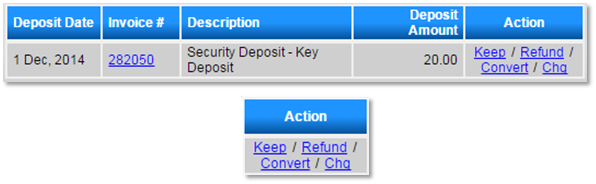
- Before checking out, handle the Security Deposit(s) by:
- Keeping: Select Keep. The amount is removed from the Security Deposit Ledger and applied to the product “Retained Security Deposit”.
- Refunding: Select Refund. Process the refund through the Payment box, select Payment Type, and click Post and Submit.
- Changing payment type: Select Chg and choose the correct Payment Type.
- Converting: Select Convert to apply the deposit as a payment to the Guest Folio balance. Ensure the balance is greater than the Security Bond amount.
Troubleshooting
- Ensure all steps are followed in sequence.
- Verify that the Security Deposits flag is enabled in Business Setup.
- Check if the correct product group and product are selected during setup.
- Confirm that the date ranges and policy applicability are correctly configured.
For further assistance, click here to print the Help Document.