Security Group Setup and Management Guide
Last modified on:
Overview
Easily create security groups and manage access to specific software panel features, such as Setup areas and reports for your employees based on the security group they are assigned to.
Prerequisites
- Access to the software's Menu
- Permissions to access Setup and Security Group Setup sections
Steps
Location
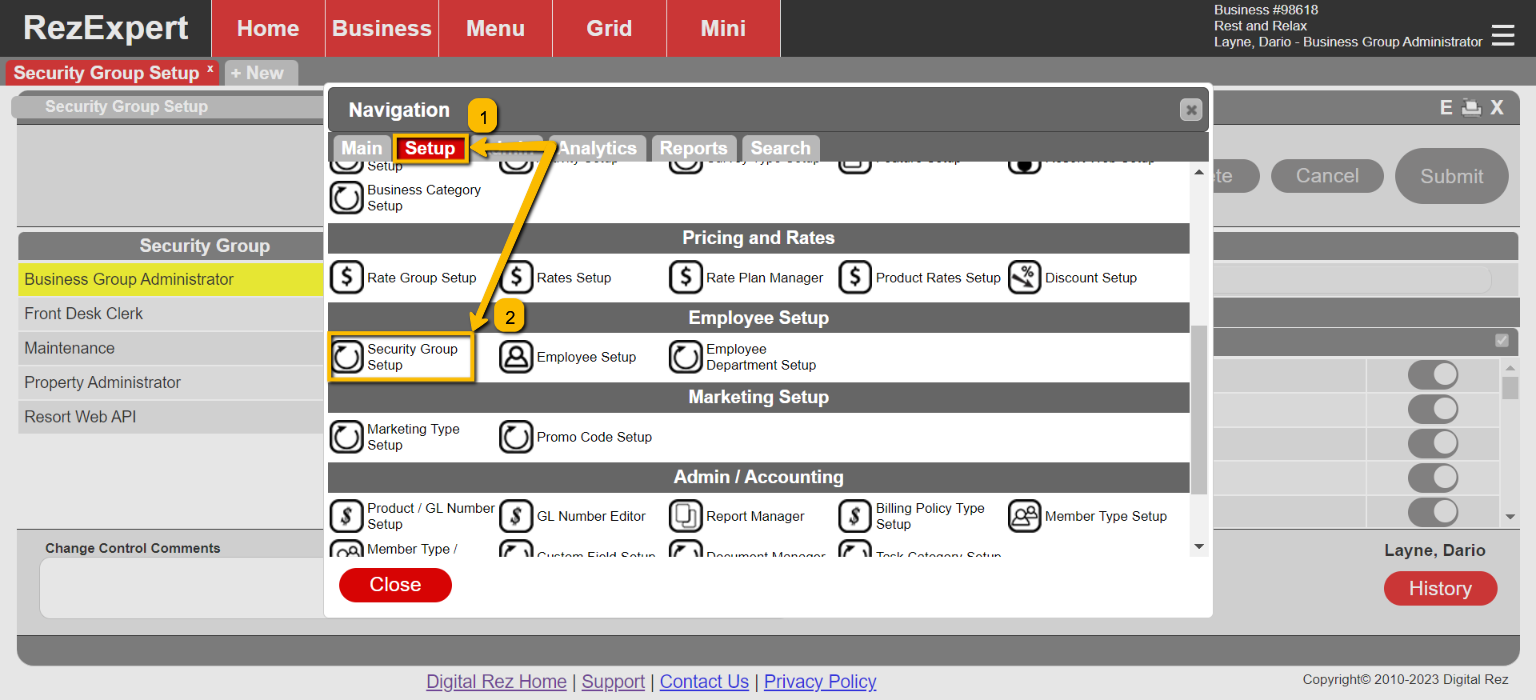
- Navigate to the Menu
- Go to Setup
- Select Security Group Setup (located below the Employee Setup section)
How to Create a Security Group
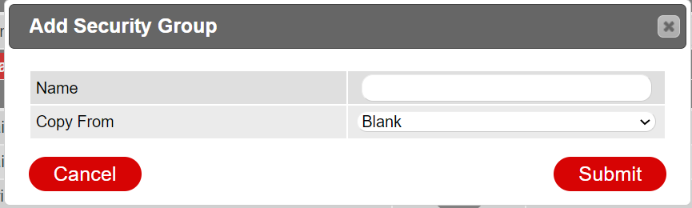
- Click on the Add Button.
- Enter the name of the new security group.
- Select one of the defaults to copy from or start fresh with a blank copy.
Security Group Categories
- Panels: Refer to specific sections of the software's user interface.
- Permissions: Determine what actions users can perform within the software.
- Reports: System default emails and reports.
- Contents: Manually created emails and reports.
- Grid Views: Control which grid view tabs are visible to users.
After reviewing each of the four categories and toggling the selector to allow/restrict access, click on the Submit Button to confirm these changes.
How to Assign a Security Group to an Employee
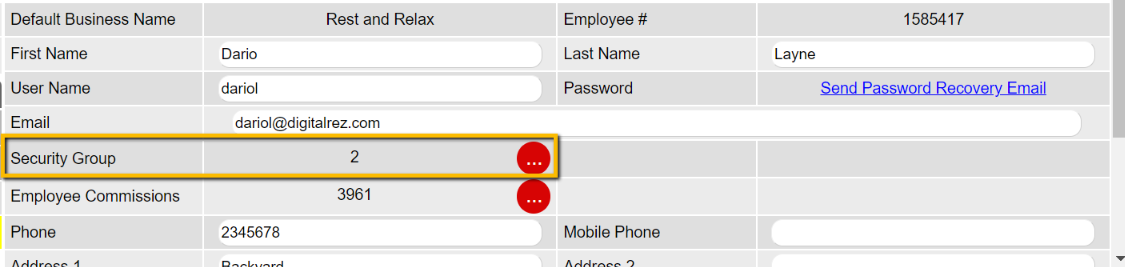
- Navigate to the Employee Setup panel.
- Click on the three-dot button for Security Group.
Location
- Menu
- Setup
- Employee Setup (below Employee Setup section)
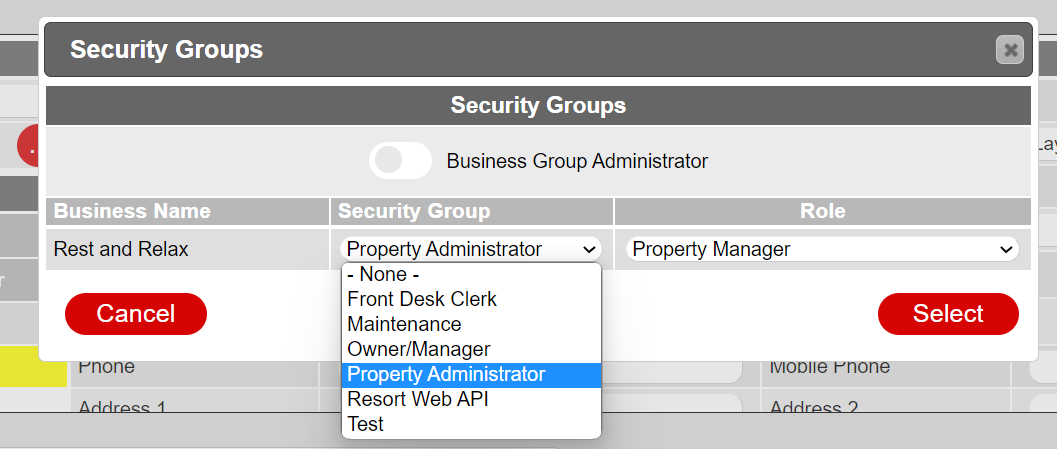
- Select the Security Group from the dropdown.
- Click on the Select button.
- After completing all other Employee configurations, click on the Submit button.
How to Delete a Security Group
- Unassign the Security group from all active employees within the Employee Setup.
- Go to the Security Group Setup panel.
- Click on the Security Group on the right.
- Once selected, click on the Delete button.
Troubleshooting
- Ensure all active employees are unassigned from the Security Group before attempting to delete it.
- Verify permissions if unable to access the Security Group Setup or Employee Setup sections.