Creating and Managing Promotion Codes
Last modified on:
Overview
Create Promo Codes for your different specials and promotions. Guests and operators can enter the provided Promo code to automatically receive the specific Promotion Rates/Special.
NOTE: This is a Paid additional module. To enable, please contact your Support Tech.
Prerequisites
- Access to the Promo Code Setup module (paid feature).
- Contact Support Tech to enable the module.
Steps
Location
- Click a Menu button within a panel.
- Click on the Setup tab.
- Select Promo Code Setup within the Marketing Setup section.
Creating a Promo Code
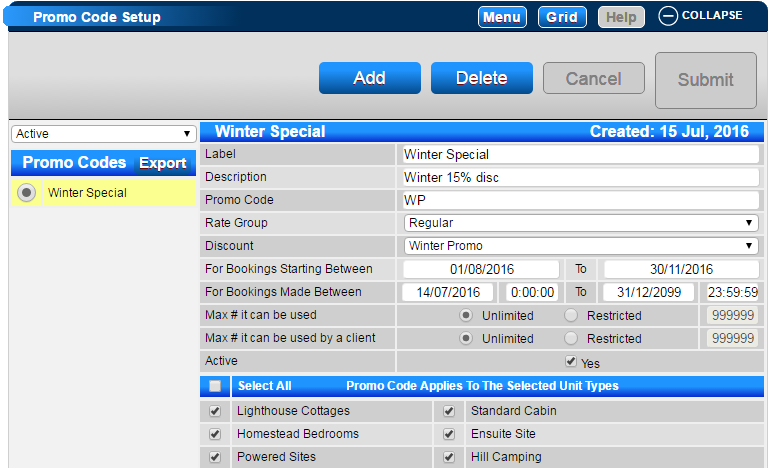
- Click Add.
- Label: Enter the name of the Promotion, e.g., Winter Special.
- Description: Enter a brief description of the Promotion, e.g., Winter 15% Discount.
- Promo Code: Enter the Promo Code. It can include letters, numbers, special characters, or a combination, e.g., WE#2.
- Rate Group: If promotion rates are entered into a Rate Group, select the appropriate rate group. If it's a discount option, select Regular.
- Discount: If the promotion is a discount, select the required Discount.
- For Bookings Starting Between: Select the Date Range the promotion runs for, e.g., all bookings arriving between 1st Oct to 30 Nov.
- For Bookings Made Between: Select the Date Range for when the bookings can be made.
- Max # it can be used: If the promotion is limited to a certain number of guests/bookings, select Restricted and enter the max number of uses. If unlimited, leave on Unlimited.
- Max # it can be used by a client: If a client can only use the promo code a certain number of times/bookings, select Restricted and enter the max number. If unlimited, leave on Unlimited.
- Active: Tick to make the Promo Code Active.
Selected Unit Types
- Select the Unit Types that the Promo Code is available for.
- Press Submit to finalize the Promo Code.
Promo Code available for Online Bookings
- Click on a Menu button, select the Setup tab, and click on Resort Web Setup.
- Within the Booking Details section, enable Resort Web Promo Codes.
Troubleshooting
- Additional Promo Code Information: Promo Codes are available to be Exported out.
- Wildcard: Rez_Promo_Code
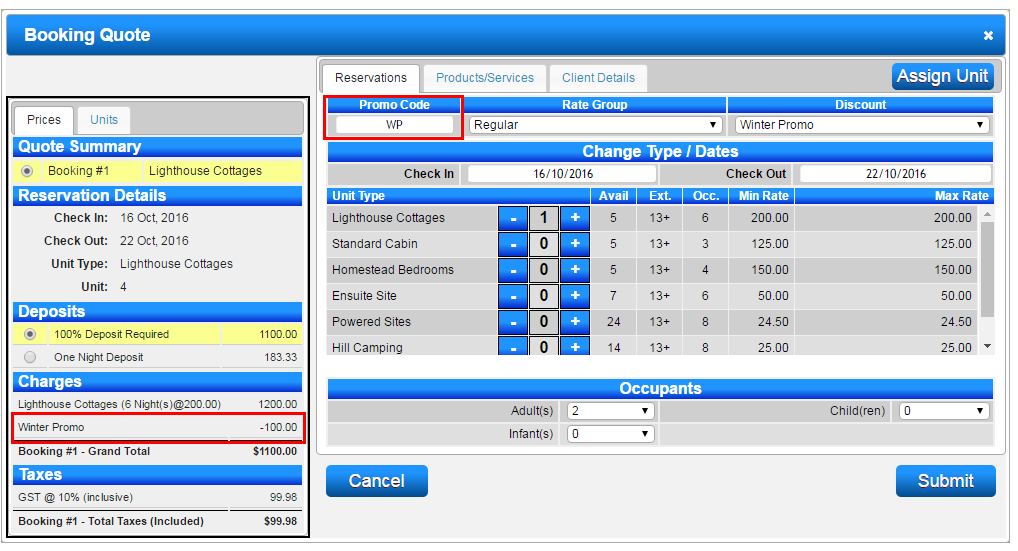
For more detailed instructions, Click here to print the Help Document.