Performing End-of-Day Cut-Off in RezExpert
Last modified on:
Overview
The cut-off is performed to ensure the payments taken match the payments entered into RezExpert.
Prerequisites
- Access to RezExpert system
- Necessary permissions to perform end-of-day operations
Steps
Location
- Click End of Day on the Menu Bar
- Select Staff End Of Shift
OR
- Click on a Menu button
- Under the main tab, select Perform Cut-Off
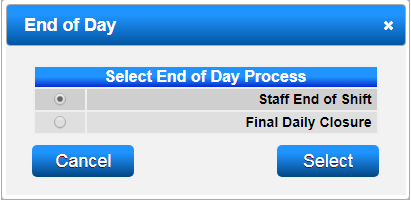
Staff End of Shift
The Perform Cut-Off panel will appear.
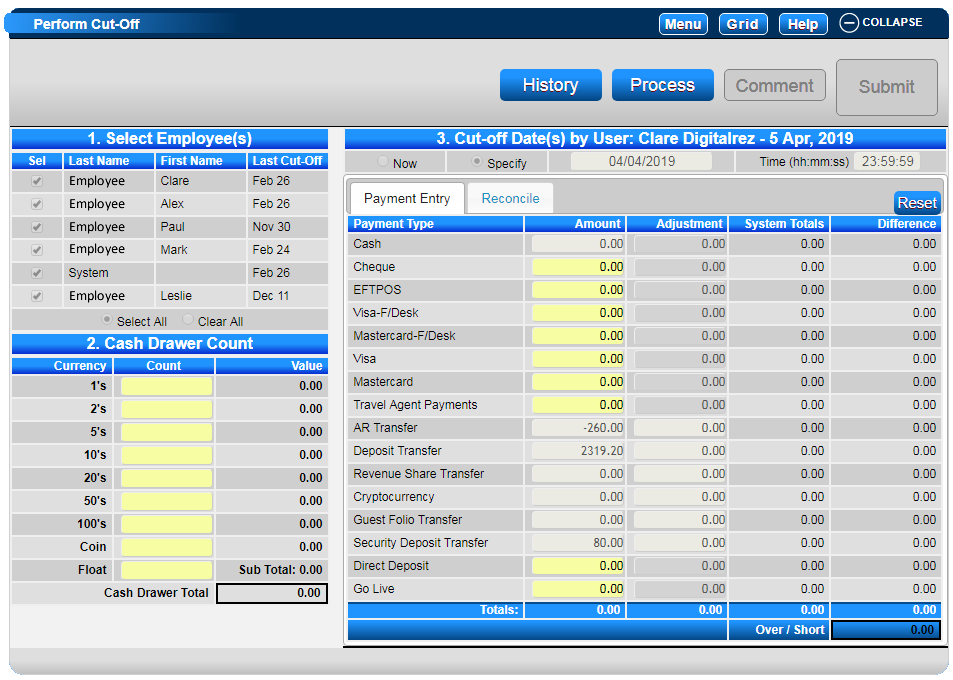
Section 1. Select Employee(s)
- Select the required Employees, as well as System, and click Continue.
- Note: System refers to all payments/settlements handled automatically or other than any employees (such as online payments from customers, deposit liability transfers, etc.)
Section 2. Cash Drawer Count
- Enter the count of the cash drawer. Each currency denomination count total can be entered into each Count field or the whole Cash amount entered into the Coin Field.
- If the till has a Float, enter the amount into the Float field. This amount will be deducted from the final Cash total.
Section 3. Cut-Off Date(s) by User
- Now - If the cut-off being performed is for the current date and time (all payments since last cut-off until current)
- Specify – If the cut-off is being performed from the last cut-off up to a specified date and time, e.g., Yesterday’s Payments until midnight.
- Click on the Specify radio button to select the required Date and Time.
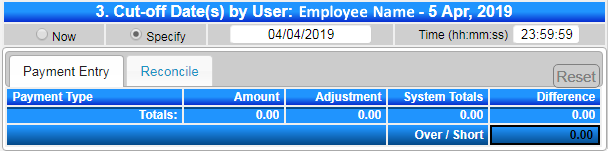
- In the Payment Entry tab, enter Payments next to each Payment Type. Once all the payments have been entered and checked, click Process.
- Click Yes to the displaying pop-up box.
Completing the Cut-Off
- After clicking Process, the RezExpert system will calculate the System Totals (the payments that have been entered into the system).
- Any differences will display.
- If the Over/Short amount is displaying 0.00, you have balanced and click Submit to finalize.
- If the Over/Short amount is not 0.00, you have not balanced:
- Click on the Reconcile tab to view all payments associated with the cut-off. Click on the Payment Type dropdown to select the required payment type that doesn’t balance.
- If the difference can be fixed, click on the Grid button to correct the mistake.
- If the difference cannot be fixed, click on the Comment tab to enter a comment explaining the difference. Click Submit to finalize.
Troubleshooting
Printing the Cut-Off Report
- To print off the report, click Print.
- Print Selector will appear displaying the available End of Day Reports:
- End of Day Cut off Report: Displays the Cash Drawer Count and amount total for each Payment Type, with a listing of all payments taken within the specified cutoff.
- Reconciliation Display: Displays the Cash Drawer Count and amount total for each Payment Type.