Recurring Billing for Guest Reservations
Last modified on:
Overview
This guide outlines how to apply recurring or future billing to a guest reservation using configured billing policies. This process is commonly used to automate charges for weekly, monthly, or custom billing cycles.
Prerequisites
- Access to the Availability Grid
- Configured billing policies for reservations
Steps
1. Open the Guest Folio
- From the Availability Grid, locate the desired reservation.
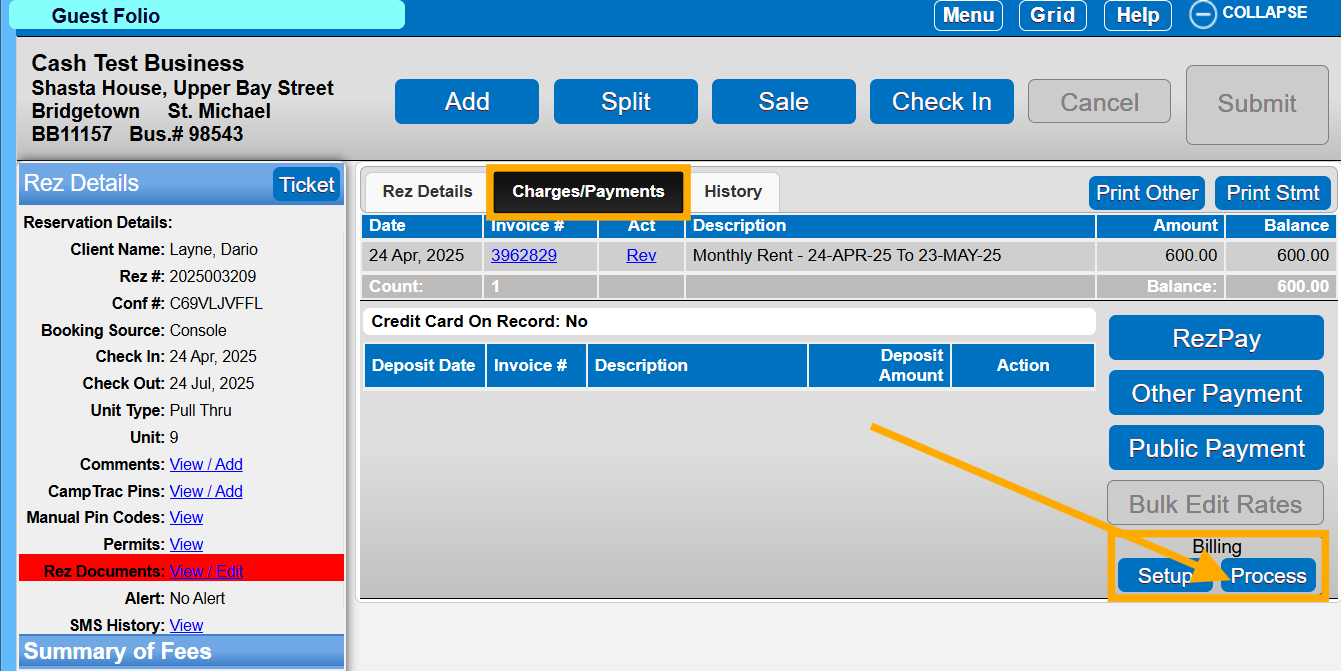
- Right-click on the reservation and select Charges/Payments.
2. Access the Billing Options
- Within the Charges/Payments tab:
- On the right-hand side, locate the Billing section below the payment options.
- Click Setup to view the billing policy settings associated with the reservation.
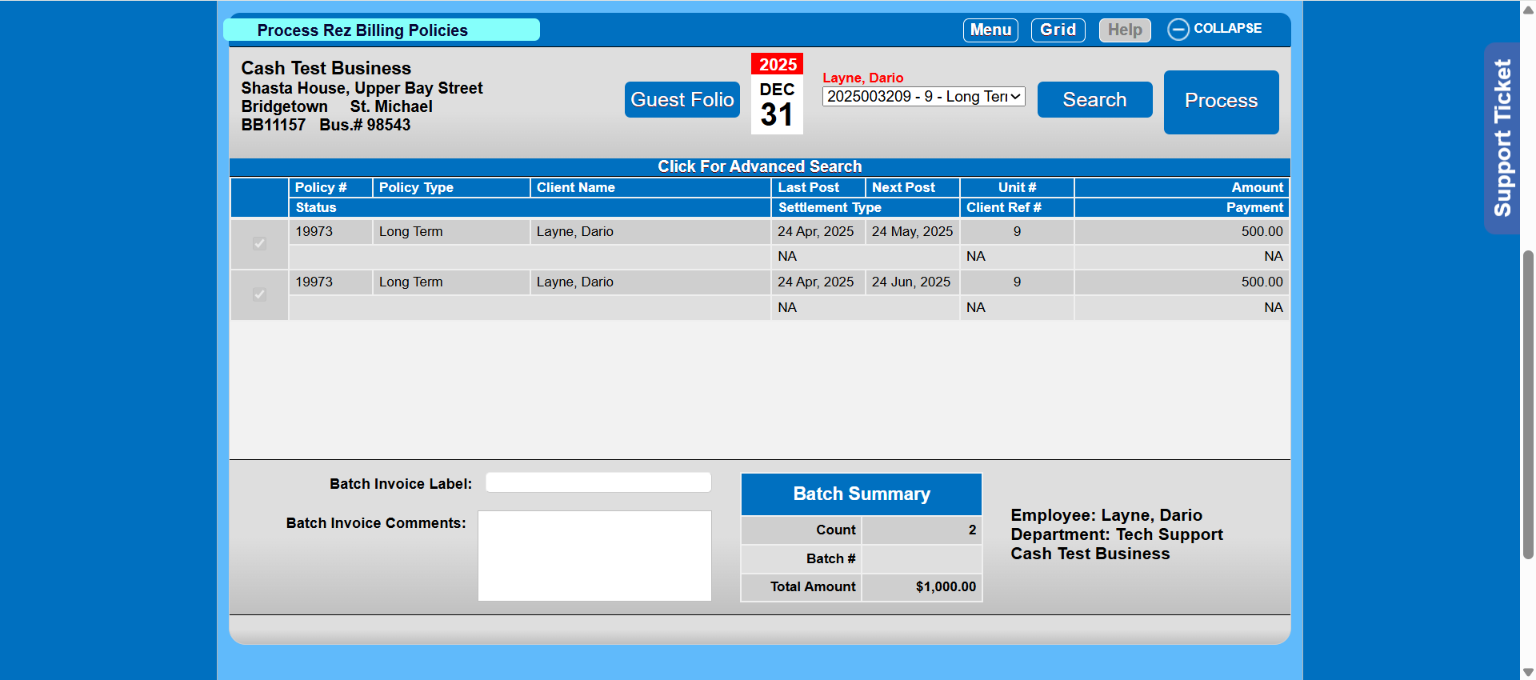
- Click Process to open the Process Rez Billing Policy panel.
3. Select the Billing Period
- In the Process Rez Billing Policies panel:
- Use the calendar or date selector to define how far forward you'd like to apply billing (e.g., next 4 weeks, next month, etc.).
- Click Search to display applicable billing events for the selected timeframe.
4. Review Billing Entries
- Review the dates shown in the Next Post column to confirm they align with the billing period you want to apply.
- If necessary, adjust the date range and search again to include more or fewer billing cycles.
5. Finalize Billing
- Once the billing entries are reviewed, click Process to post the selected charges.
Note: All generated invoices will be automatically confirmed. Be sure to verify the billing dates before processing.
Troubleshooting
This process can be repeated as needed whenever a guest needs to be billed for future periods based on the reservation’s billing policy. It's ideal for streamlining recurring charges such as rent, utilities, or membership fees.