Creating Client Accounts Receivable
Last modified on:
Overview
This document provides instructions on how to create an Accounts Receivable for a client.
Prerequisites
- Access to the Account Manager system.
- Client information for whom the account is being created.
Steps
Method 1
- Click Account from the Menu Bar.
- Navigate to Account Review Aging and click Add.
- Search for the client you wish to make the account for.
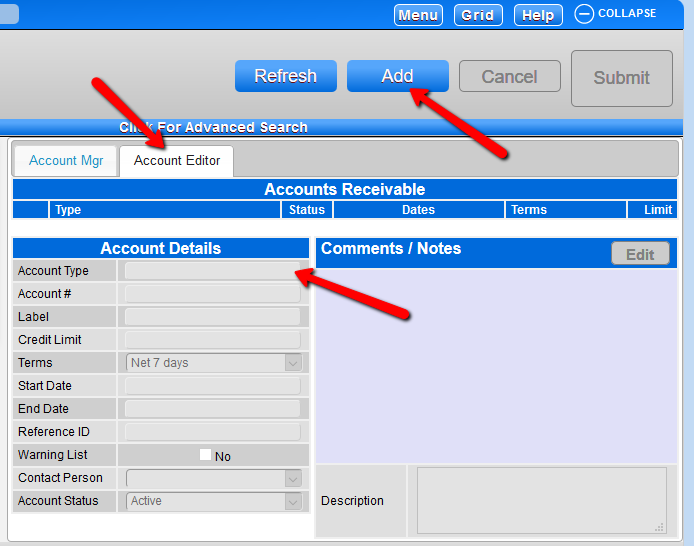
- On the Account Manager screen, go to the Account Editor tab and click Add.
- Under Account Type, select Accounts Receivable and click Submit.

Method 2
- From the Grid, click Search and search for the client.
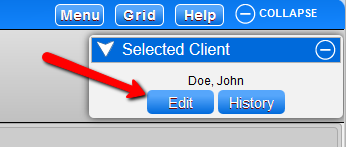
- Click Edit on the selected client slider to the right-hand side of the Grid.
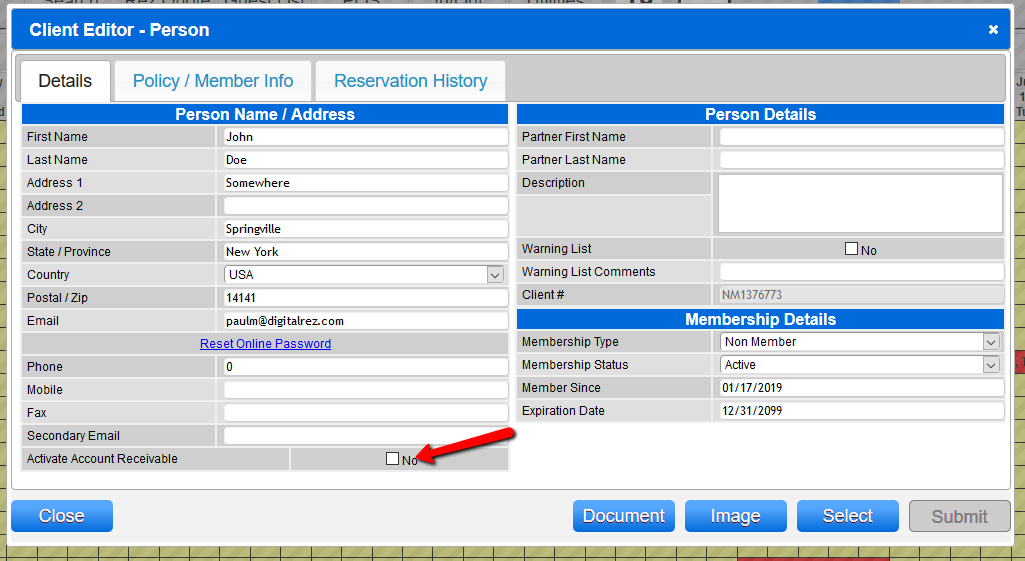
- Check the box for Activate Account Receivable and click Submit.
Troubleshooting
For further assistance, please call 888 777-0602 (Aust/NZ 61 7 4925 4400) or email us at support@digitalrez.com.