RezExpert Data Export to Excel Guide
Last modified on:
Overview
The export functionality in RezExpert allows operators to export searched data into an Excel Spreadsheet. Multiple areas within RezExpert support data export.
Prerequisites
- Access to RezExpert
- Appropriate permissions to access the Admin tab and other panels
Steps
Import/Export Utility
- Click on the Menu button.
- Select the Admin tab.
- Click on Import/Export Utility within the Administrative section.
- Click on the Export tab on the left.
- Click on the Select Option dropdown to choose the required option.
Available options include:
- QuickBooks TB - Daily Closure By Rate Group
- QuickBooks TB - Daily Closure
- QuickBooks TB - Daily Closure Extended
- QuickBooks Online TB - Daily Closure
- Marketing Opt-In - Client List
- Guest List - Postal/Zip & Charges
- Guest List - Charge Detail
- Guest List - Business Summary
- General Ledger Detail
- General Ledger Summary
- Guest Statistics By Unit Type Category
- Revenue/Occupancy By Unit Type Category
Note: For a full Client List export, contact your RezExpert Support Tech.
Arrivals/Departures Panel
- Click on the In/Out button on the Availability Grid.
- Create the desired search within the Arrivals/Departures panel.
- Select the appropriate tab, e.g., General.
- Choose the appropriate radio button for your search, e.g., Guest List.
- Adjust the date range as needed.
- Press Refresh to finalize the search.
- Once the panel is populated, the export button becomes enabled.
- Press Export to view the Export Preview.
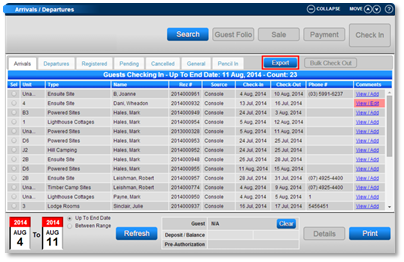
Export Preview
- The Export Preview displays information associated with the searched reservations.
- Custom fields (Client and Reservation) will also display if configured to export.
- To export data into an Excel Spreadsheet, press Export. The export will download onto your computer.
Account Review/Aging Panel
- The Export button is located within the Account Review/Aging Panel.
- Click on a Menu button and select Account Review/Aging to export account information.
Client Search
- The Export button is located within the Client Search Panel.
- Export client record information, including any custom fields.
Unit Setup Panel
- Click on a Menu button.
- Select the Setup tab.
- Click on Unit Setup.
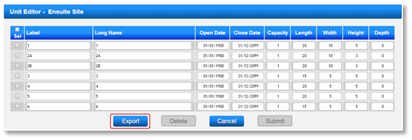
- Select the Unit Type from the Tree List and click Edit All.
- The Export button will export a list of all units with their dimensions.
Revenue Statistics
- The Export button is located within the Type Revenue & Occupancy panel and the Unit Revenue & Occupancy panel.
- Click on a Menu button, select the Admin tab, and click on Type Revenue & Occupancy.
Reservation Manager Panel
- Click on a Menu button and select Reservation Manager.
- The Export button allows exporting Occupancy information for the selected Unit Type.
Booking Conflicts List
- The Export button is located within the Booking Conflicts List.
- Access it by clicking on a Unit Type within the Unit Type column on the Availability Grid.
Upcoming Bookings & Pencil Ins List
- The Export button is located within the Upcoming Bookings & Pencil In list.
- Access it by clicking on a Unit # within the Unit # column on the Availability Grid.
Troubleshooting
For further assistance, refer to the Help Document.