Merging Duplicate Clients in RezExpert
Last modified on:
Overview
This document provides instructions on how to merge duplicate clients in RezExpert.
Prerequisites
- Access to the RezExpert system.
- Necessary permissions to manage client data.
Steps
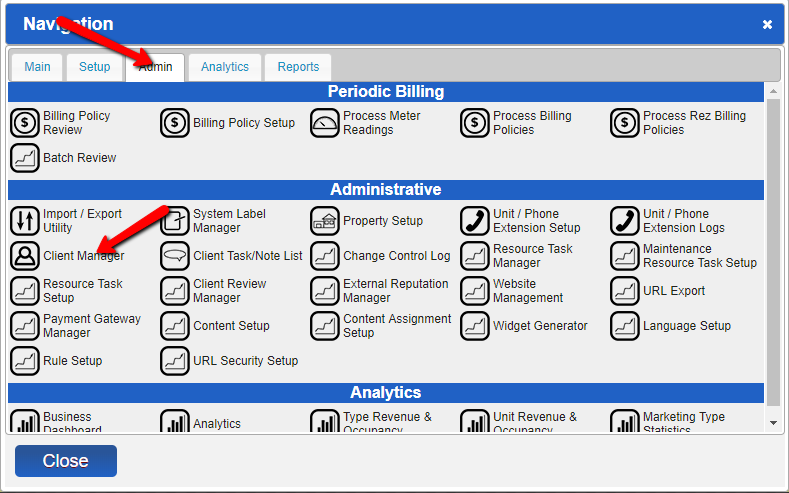
- Navigate to Client Manager:
- Go to the Menu.
- Select the Admin tab.
- Click on Client Manager.
- Options in Client Manager:
- You will see various options for managing clients.
- Handling Duplicates:
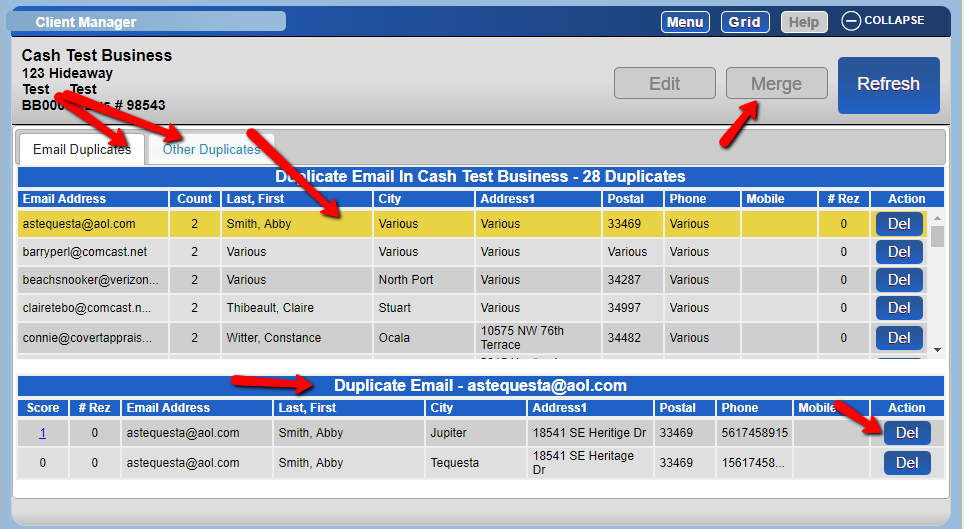
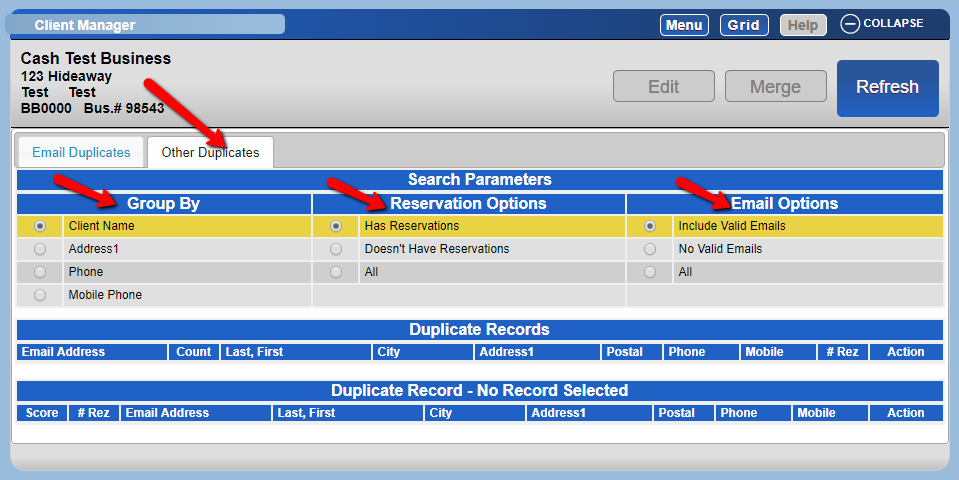
- Select "Other Duplicates" for additional options. The process remains the same.
- The selected client may have a count of 2, indicating the name and email address are duplicated in the database. This number can be higher.
- In the "Duplicate Email" section, verify that the client's name and email address match, although other fields may differ.
- The score column on the left provides information on whether the client previously had reservations, an account, or a credit card on file. This should be carefully considered when merging.
- Options available:
- Delete a client.
- Merge a client.
- Use "Other Duplicates" for different search parameters to find duplicates.
Troubleshooting
- Note: When clients are merged, and they had related reservations, they can now be searched under the new merged name only, as the other name will no longer exist in the database.
For further assistance, please contact us at 888 777-0602 or email support@digitalrez.com.