Searching Client History in the System
Last modified on:
Overview
This document provides instructions on how to search for client history within the system. It includes steps to perform a search, view client records, and access reservation history.
Prerequisites
- Access to the system with appropriate permissions to search client history.
- Client information available for search criteria.
Steps
- Initiate Search
- Click the Search button located above the Grid.
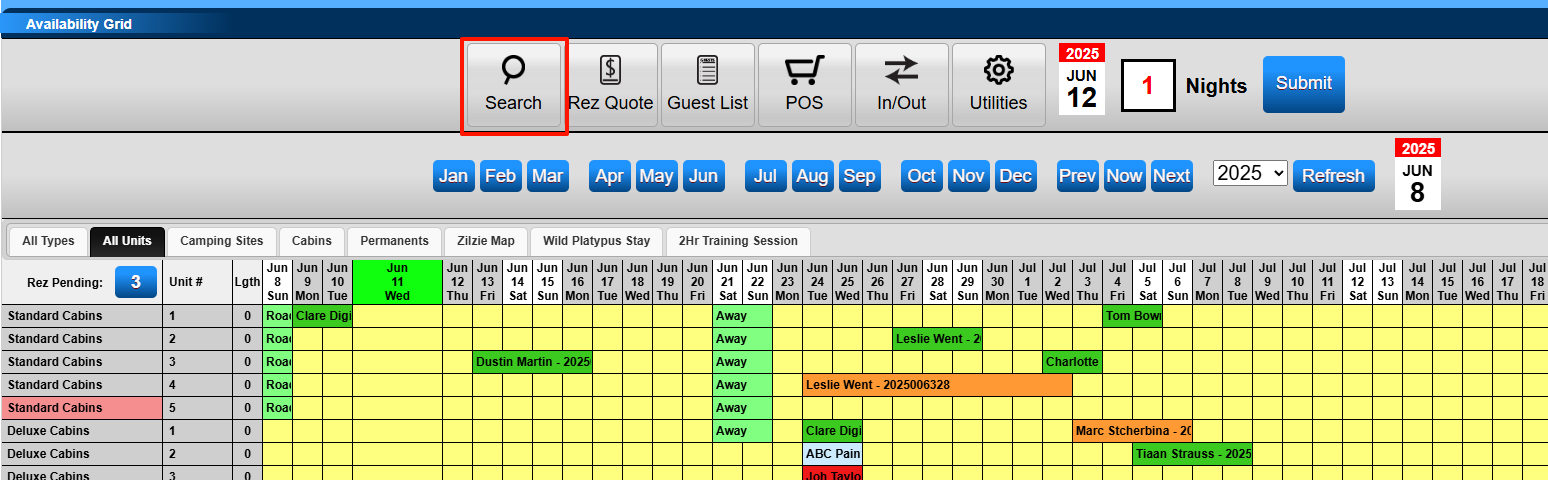
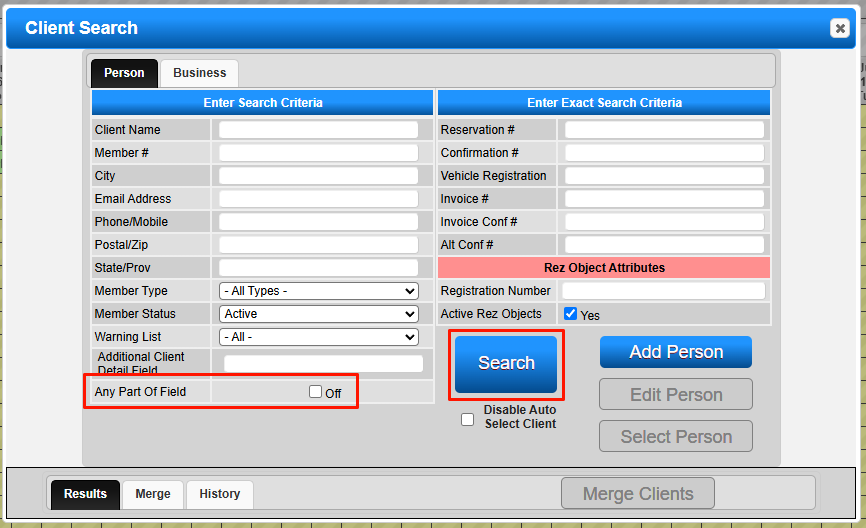
- Enter Search Criteria
- Input the client information that matches the search criteria.
- Click Search. - Widen Search Criteria
- Tick the Any Part of Field box at the bottom to broaden the search criteria to any part of the field.
- View Search Results
- If multiple records match, they will display in the Results tab. Select the required client record.
- If only one record matches, it will automatically load as a Selected Client on the top right of the Availability Grid.
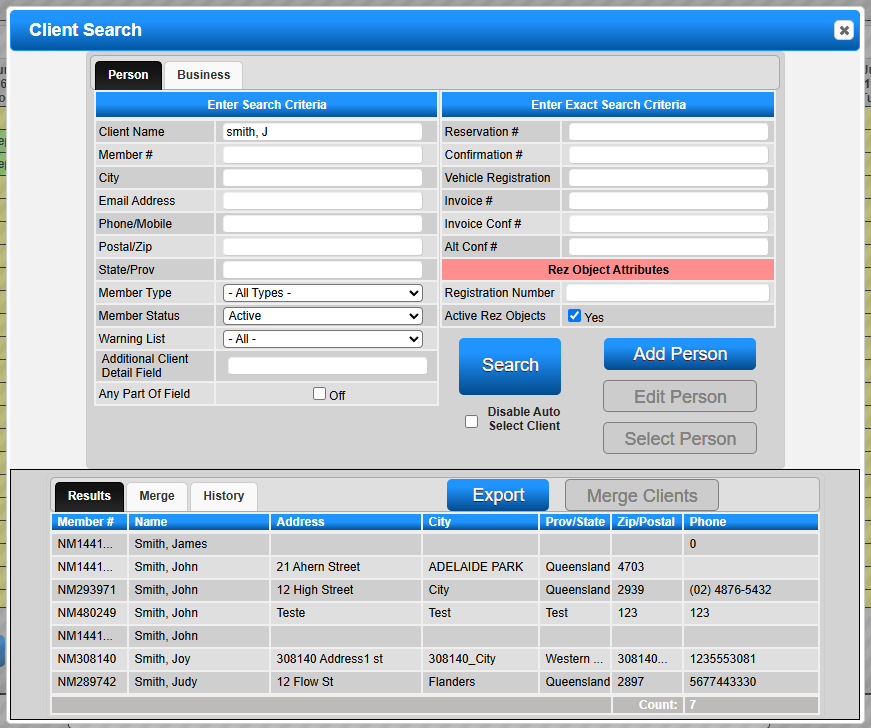
- Disable Auto Select
- Check the Disable Auto Select Client box to ensure all records display in the Results tab, even if only one record is found. - Access Client History
- Within the Select Client box, click the History button.
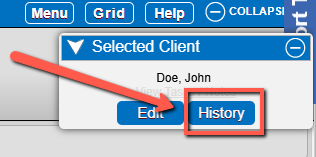
- View Reservation History
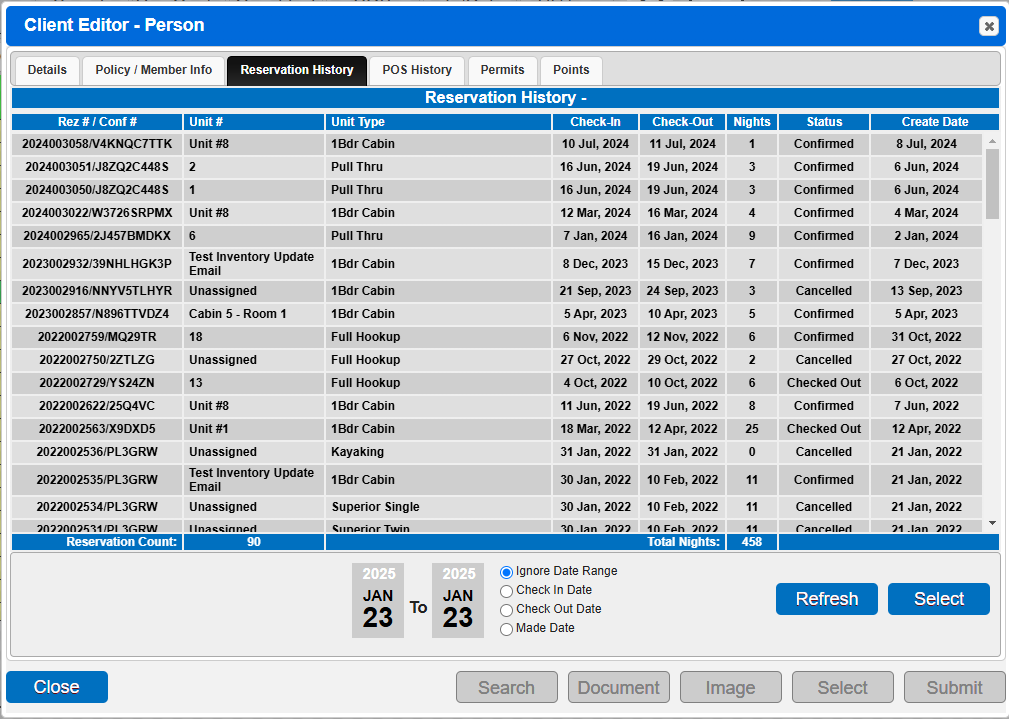
- This loads the Client Editor - Reservation History tab.
- If the client has any reservations linked to their account, they will show up on this panel.
- Select Reservation
- To view the guestfolio for a specific reservation, select a line item and click the Select button.
- Use filters to narrow the search if needed.

Troubleshooting
- Clients can view their own reservation history via the online portal:
- After logging in, click the Rez Activity tab in the menu bar.

- Click the Reservation History button.
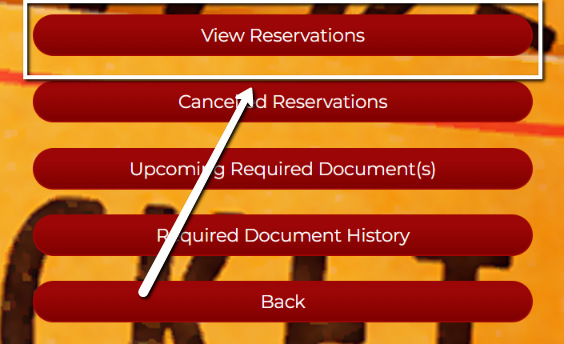
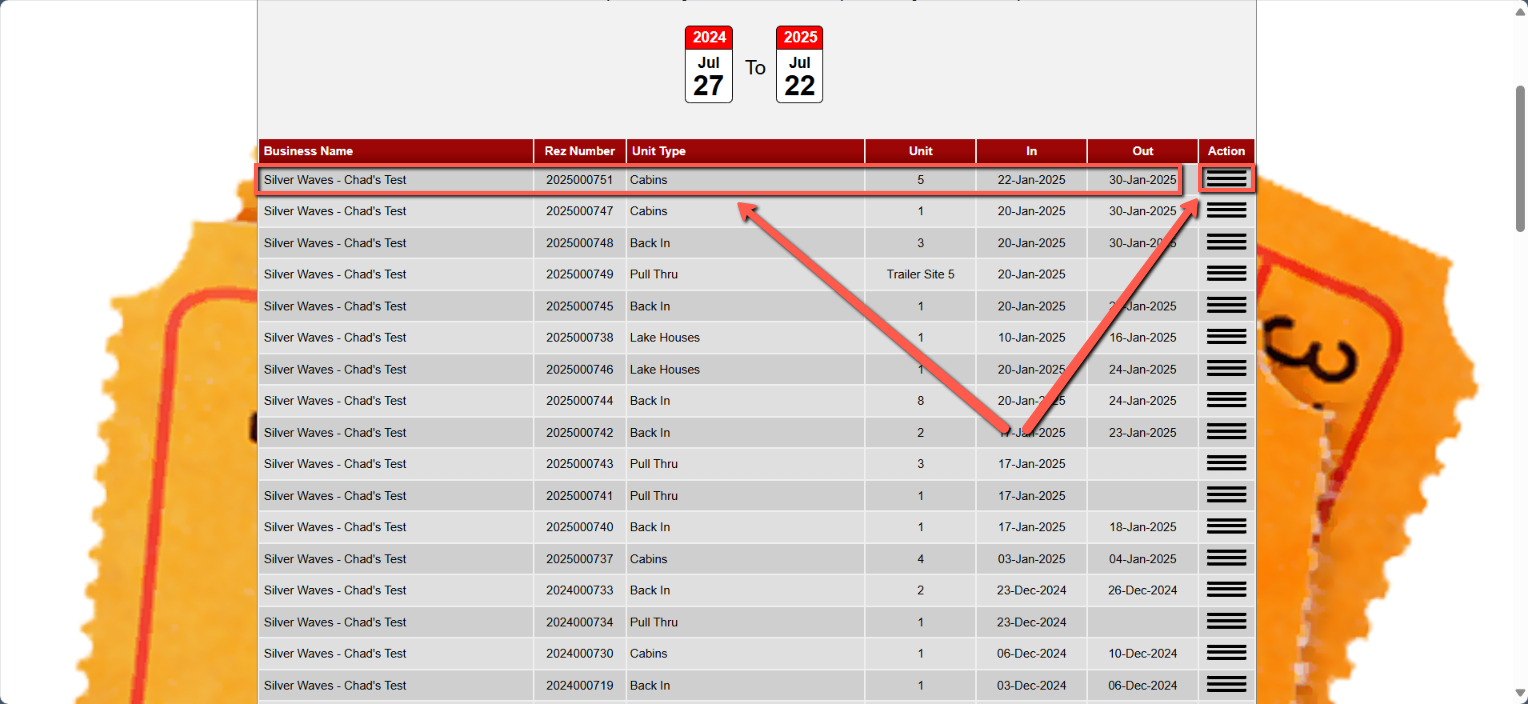
- This loads the client's Reservation/booking history.
- Each reservation line item has actions accessible via the hamburger icon on the right side.
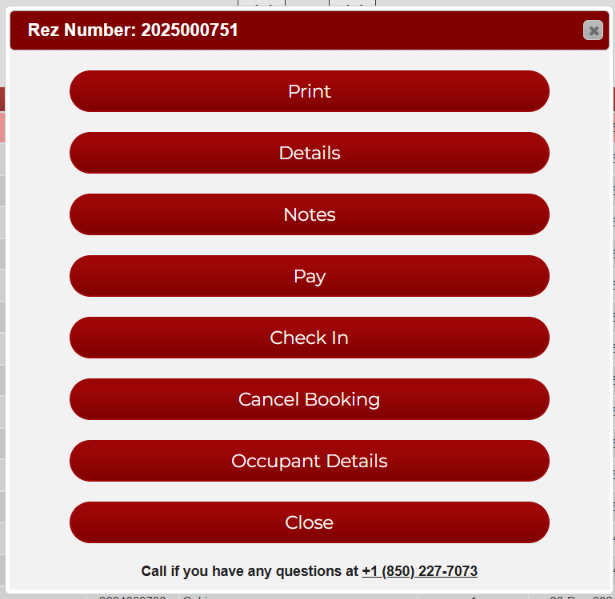
- Available Actions Based on Reservation Status:
- Print: Prints a reservation-related report.
- Details: Loads details about the reservation.
- Notes: Opens a window to add a note about the reservation.
- Pay: Allows the client to pay any outstanding balance.
- Check In: Allows the client to self-check-in if permitted.
- Cancel Booking: Allows the client to issue a cancel request.
- Occupant Details: Loads the client details page.
- Close: Closes the action window.
For a visual guide, refer to this video on how to search a client history within RezExpert.