Security Gates Setup in RezExpert
Last modified on:
Overview
RezExpert allows you to control vehicle access to the property by linking directly into your access system (Boom Gate systems) to issue PINs and proximity cards.
Prerequisites
- Access to the RezExpert system.
- Access Control Software for setting PIN lengths.
Steps
Location
- Click on a Menu button.
- Select the Setup tab.
- Click on Security Gates Setup.
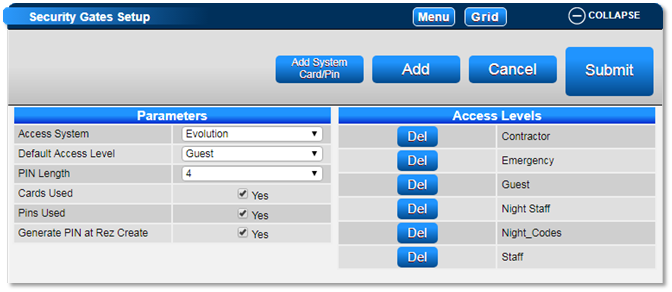
Parameters
- Access System: Displays the access control systems available to interface with RezExpert.
- Default Access Level: Select the access level, e.g., Guest.
- PIN Length: Enter the length of the PIN. This must match the length set in the Access Control Software.
- Cards Used: If using cards, tick "On."
- Pins Used: If using pins, tick "On."
- Generate PIN at Rez Create: Tick "On" if you wish the system to generate a PIN code when a reservation is made.
Add Button
- Click Add to add a new access level label.
- Press Submit.
- Access levels can include Emergency (for Police, Ambulance, etc.), Staff, Tradesman, etc.
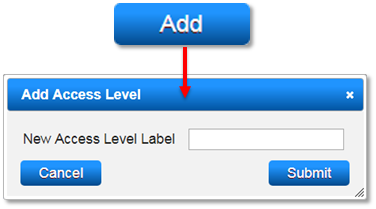
Access Level
- All current access levels will display.
- Note: Access levels cannot be deleted if a PIN/Card is currently active and being used.
Add System Card/Pin Button
- This button allows for entry of Staff, Contractors, and Emergency Services PINs (not attached to reservations).
- Enter the accepted Card #/PIN #.
- Select the access level for the Card #/PIN # and enter the Card #/PIN #.
- Enter who this Card/Pin is assigned to.
- Adjust the date range for when the Card/Pin is active, if required.
- Created system cards/PINs can be deleted. The Delete All button will delete all system cards/PINs, even if they are active.
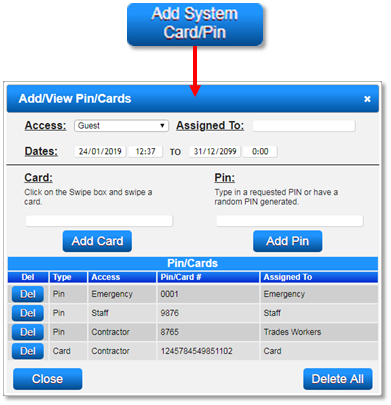
Troubleshooting
For additional help, click here to print the Help Document.