Meter Setup and Configuration Guide
Last modified on:
Overview
Create and configure multiple meters for billing purposes, such as electricity.
Location
- Click on the Menu button.
- Select the Setup tab.
- Click on Meter Setup within Business Setup.
Prerequisites
- Access to the Business Setup section.
- Understanding of the types of meters to be configured.
Steps
Meter Tabs
- Utility Meters: Create and configure meters based on intervals with standing charges (e.g., Power/Water).
- Other Meters: Create and configure basic meters (e.g., Gas).
Creating Utility Meters
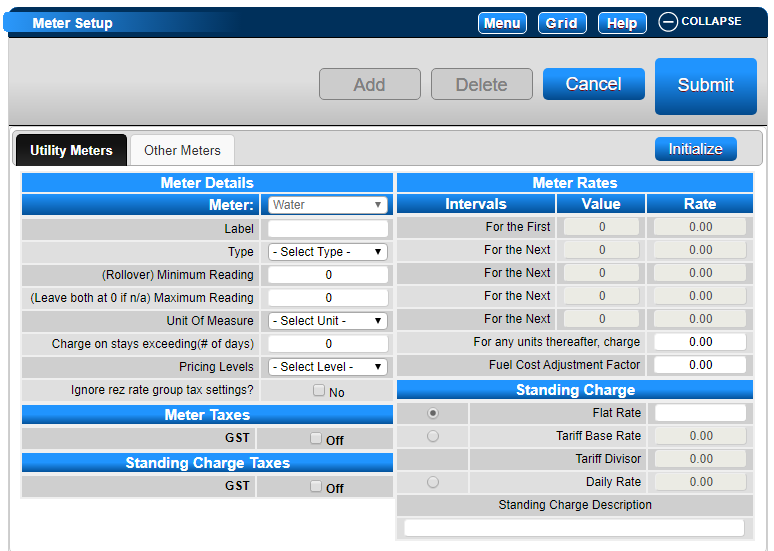
- Click Add.
- Select the meter from the dropdown.
- Label: Enter the name/label of the meter.
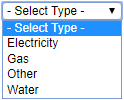
- Type: Select the type of meter.
- (Rollover) Minimum Reading: Set to 0, the value when the meter resets after reaching its maximum.
- Maximum Reading: Enter the maximum reading (e.g., 9999 for 4 digits, 99999 for 5 digits).
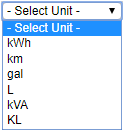
- Unit of Measure: Select the unit type for measurement.
- Charge on Stays exceeding (# of days): Set the number of days before charging for meter billing.
- Pricing Levels: Set tiers for meter billing rates.
- Taxes: Set applicable taxes for meter billing.
Creating Other Meters
- Basic Meter Setup:
- Included Units: Set units that can be consumed before charging.
- Per Day: Check if billed daily.
Meter Rates
- Set meter rates based on client usage for different intervals.
- Fuel Cost Adjustment Factor: Apply any retailer fuel cost charges.
Standing Charge Setup
- Flat Rate: Set a one-time fee for each processing run.
- Tariff Base Rate: Enter the base rate for standing charge.
- Tariff Divisor: Enter the divisor for the standing charge.
- Daily Rate: Set the daily rate for standing charges.
When a meter reading is processed, the standing charge defaults to "Meter Reading Fee." To customize:
- Standing Charge Description: Enter a custom label for the charge.
- Tick applicable standing charge taxes.
- Click Submit to finalize.
Assigning to Unit Types & Units
- Configure and initialize meters for Unit Types and Units within Inventory Setup.
- Navigate to Inventory Setup, select "Unit Type" tab, choose the desired unit type, and apply relevant meters.
- For specific units, expand the meter and toggle individual units as needed.
Initialize the Meters
- After assigning meters to Unit Types, click Initialize to set the opening reading for required units.
- Enter the current meter reading for each unit.
- Click Submit to finalize.
Troubleshooting
- Ensure all fields are correctly filled to avoid configuration errors.
- Verify meter types and units of measure are correctly selected.
- Check for any missing or incorrect meter assignments in Inventory Setup.