Recalc Button Usage in Guest Folio
Last modified on:
Overview
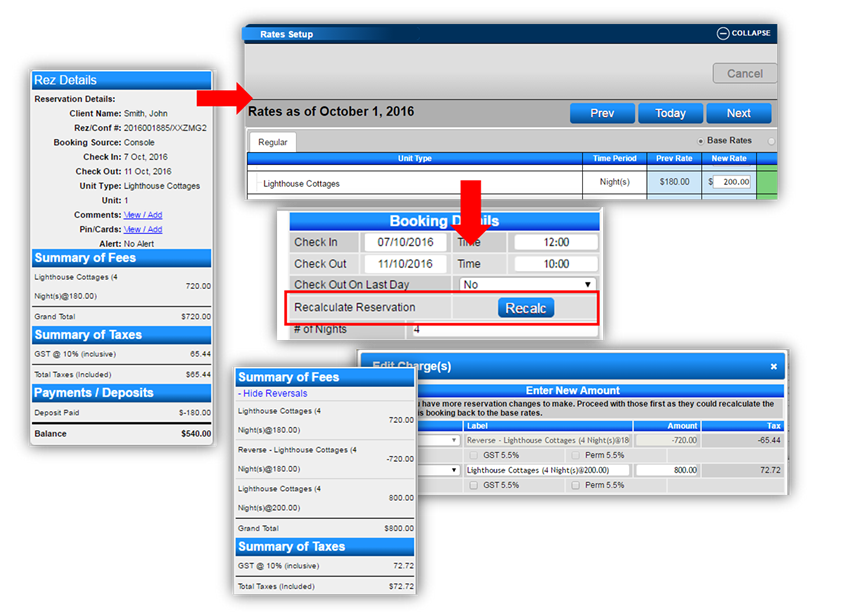
The Recalc button is designed to quickly recalculate charges on a reservation when there are changes in Unit Type rates, Occupant Rates, and/or Tax Values. Note: Contact RezExpert Tech Support to enable the Recalc button.
Prerequisites
- Ensure the Recalc button is enabled by RezExpert Tech Support.
Steps
Recalc Button Availability
- Cash Accounting: The Recalc button is available at any stage of the reservation.
- Accrual Accounting: The Recalc button is only available prior to Check-In.
Guest Folio
- If changes in rates and/or taxes occur and adjustments are needed for upcoming reservations on the Availability Grid, use the Recalc button.
- Open the reservation Guest Folio. Locate the Recalc button on the Booking Details side of the Guest Folio.
- Pressing the Recalc button allows RezExpert to reverse the original charges and recalculate the charges as if it were a "new reservation".
Troubleshooting
- Ensure the Recalc button is enabled by contacting RezExpert Tech Support if it is not visible or functional.