Credit Card Vault Usage and Management
Last modified on:
Overview
The Credit Card Vault allows users to securely store credit card details within the Vault, which can be retrieved later using a four-word combination. *Additional monthly fees apply. Note: IP Security is mandatory when using the credit card vault. Contact DigitalRez for more information and to apply for the Credit Card Vault.
Prerequisites
- IP Security is mandatory.
- Contact DigitalRez to apply for the Credit Card Vault.
Steps
Credit Card Vault in Guest Folios
- Access the Vault in the Charges and Payments screen of the Guest Folio.
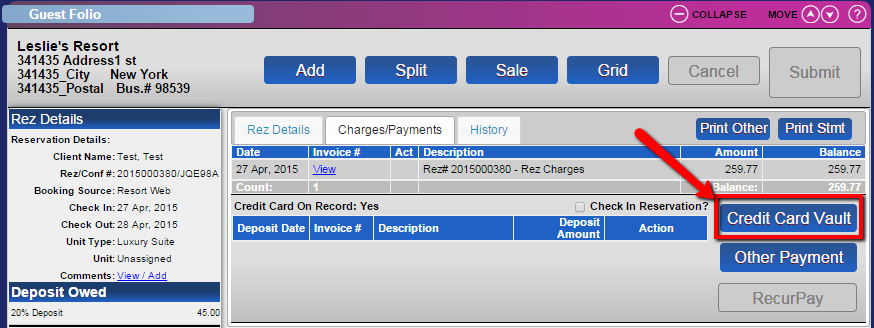
Create New Token
- If a new credit card is being entered:
- Select "New Credit Card" and the Payment Type.
- Click Proceed.
- Note: The vault is only for storing credit card information, so the amount value will always be $0.00.

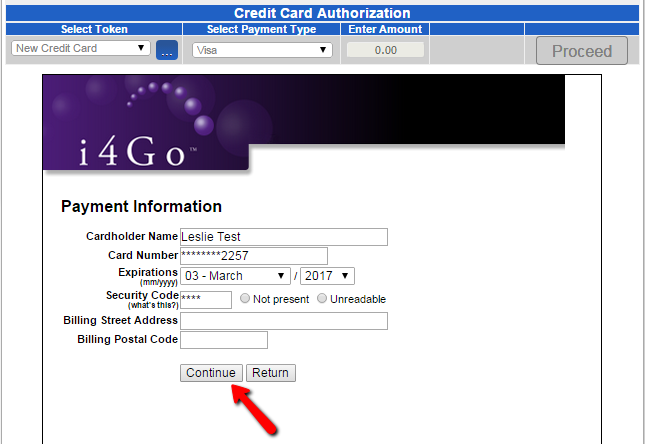
Enter Credit Card Details
- Enter the credit card details.
- Click Continue to save the credit card details.
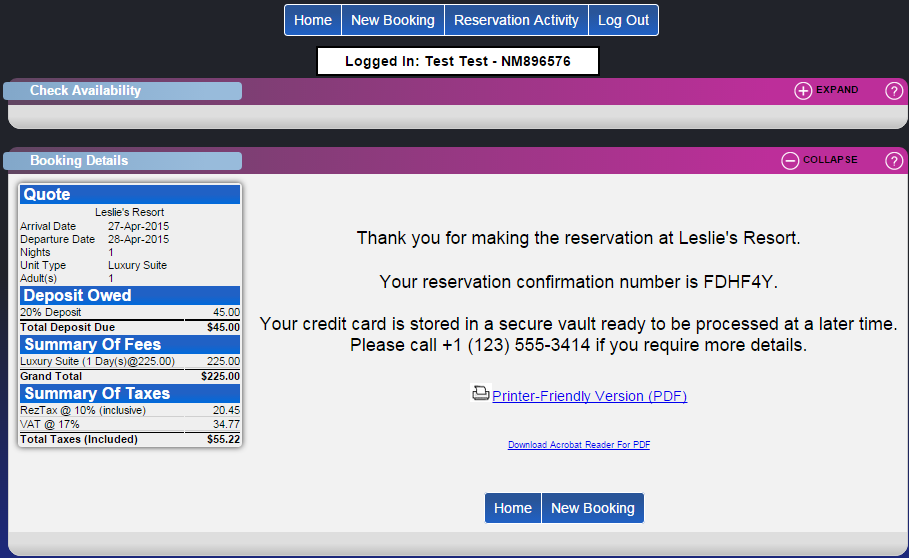
Online Booking Confirmation
- When the Credit Card Vault is activated and a reservation is created on the Online Booking Interface, the customer is notified that the card is stored in the secure vault.
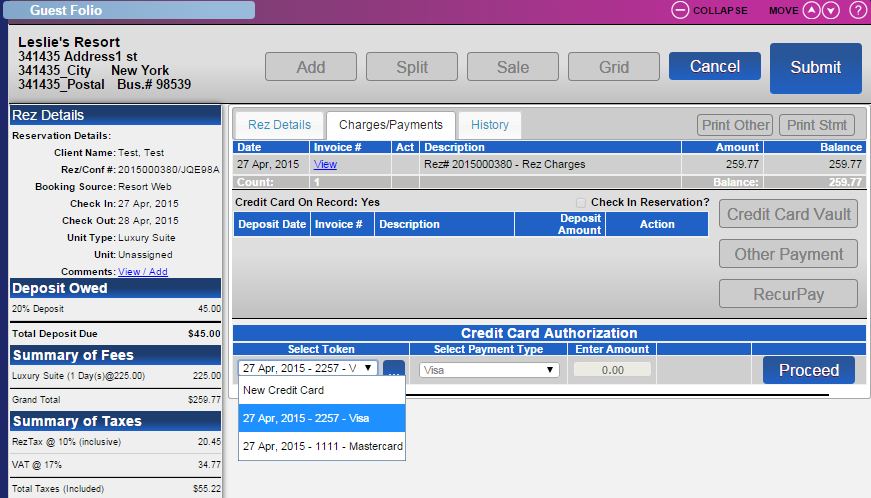
Retrieve Token
- Select the desired token to be retrieved from the Token Drop Down.
- The payment type will be already selected.
- Click Proceed.
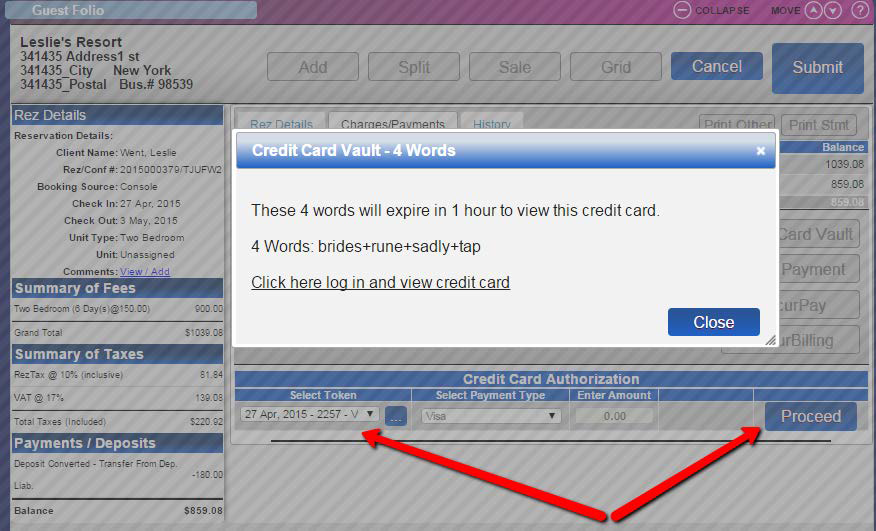
Credit Card Vault - 4 Words
- Select the desired Token and click Proceed.
- This will display the list of 4 Words, which are used to retrieve the credit card details.
- Note: These 4 Words are only available for 1 hour from the time proceed is clicked.
Delete Token
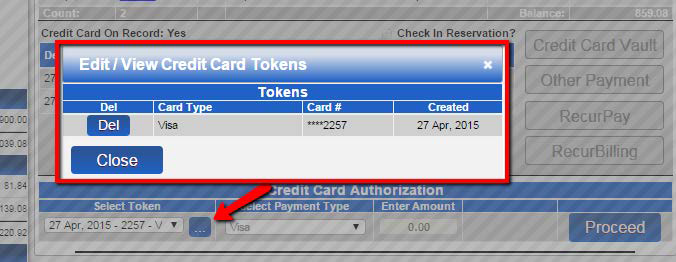
- At any stage, the token can be removed.
- Click on the “…” next to the Token drop down, which will list all tokens associated with the client.
- Click Del to remove the desired token.
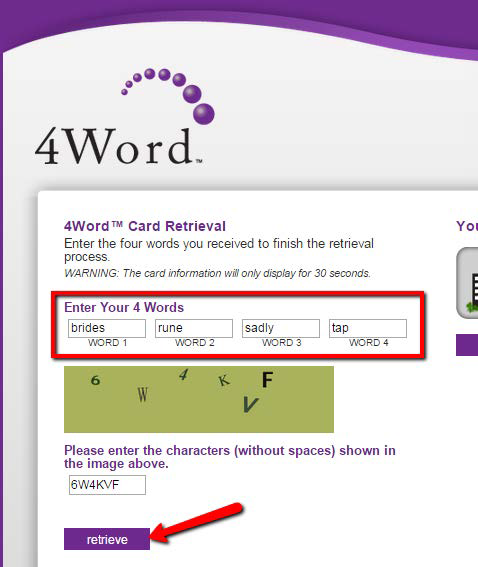
4Word Terminal
- Once logged into your 4Word terminal, enter the provided four (4) words from RezExpert.
- Enter the characters displayed in the image and click Retrieve.
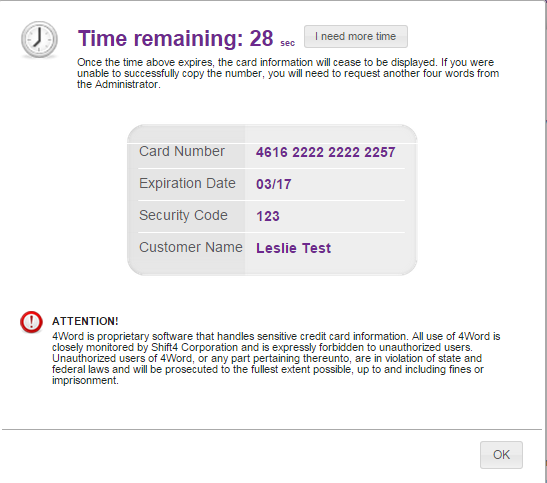
View Credit Card
- Once the retrieve button is clicked, the full card information is provided in a pop-up.
- This screen will only remain available for the listed time.
- If more time is needed, click on the “I need more time” button to reset the timer.
- When completed, click OK or let the timer end, and it will return to the 4Word entry screen.
Troubleshooting
- For additional information, refer to the following resources:
- How to Use Credit Card Vault help video
- Print the Overview