Setting Member Type Source Defaults
Last modified on:
Overview
This document provides guidance on setting the default inventory segment and rate group for each membership type. These settings are assigned based on the source of the reservation, such as Console or Resort Web.
Prerequisites
- Access to the system's menu and setup options.
Steps
Location
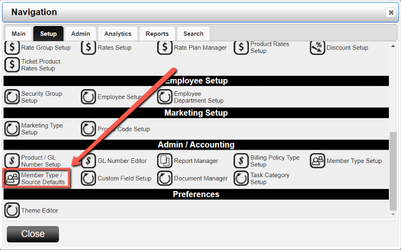
- Click any Menu button.
- Click the Setup tab.
- Select Member Type / Source Defaults in the Admin / Accounting Setup section.
Source
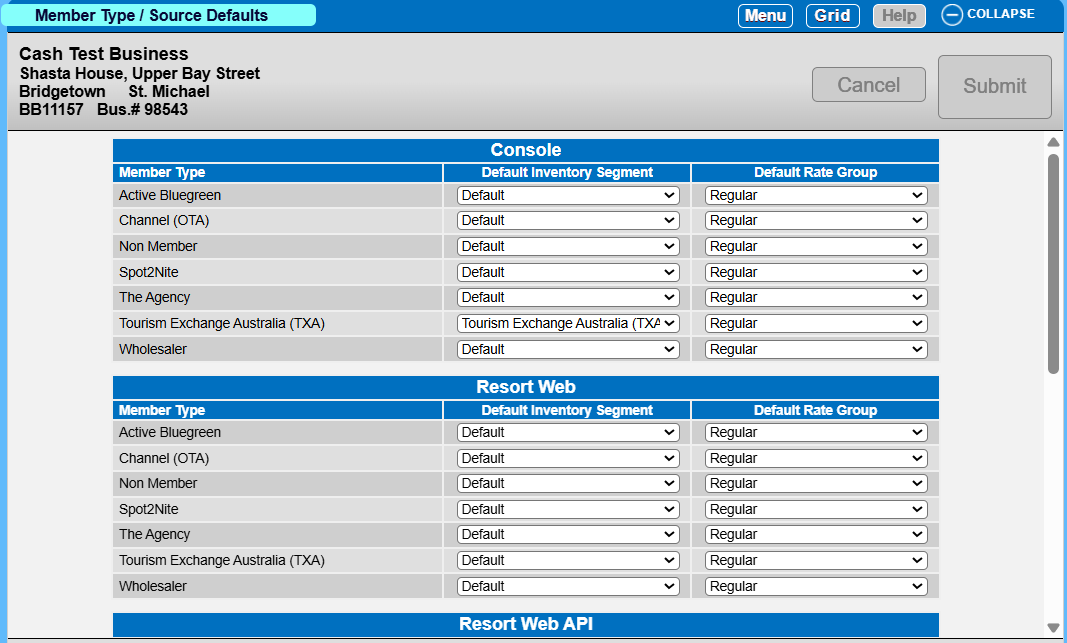
Each source can have its own unique configurations. Sources include:
- Console
- Resort Web
- Resort Web API
- SiteMinder
- RezExpert Channel
- Other OTAs
The different Member Types associated with your business are listed under the Member Type column. Each Member Type has Default Inventory Segment and Default Rate Group settings that can be adjusted.
Setting Inventory Segments
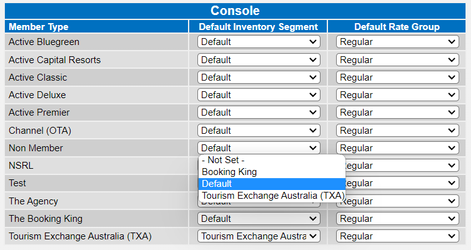
To set an Inventory Segment:
- Navigate to the desired Source section.
- Click the Default Inventory Segment dropdown.
- Select the desired segment (if multiple options are available).
- Add Change Control Comments and click Submit.
Setting Default Rate Groups
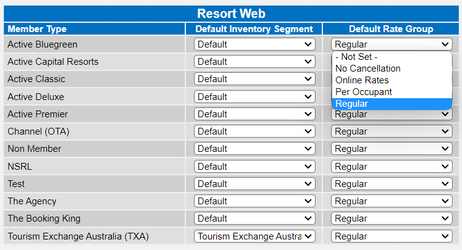
To set the Default Rate Group:
- Navigate to the desired Source section.
- Click the Default Rate Group dropdown.
- Select the desired rate group (if multiple options are available).
- Add Change Control Comments and click Submit.
Troubleshooting
For any issues encountered during the setup process, ensure that you have the necessary permissions to access the setup options and that the system is updated to the latest version. If problems persist, contact technical support for further assistance.