Add Button for Group Bookings in Guest Folio
Last modified on:
Overview
The Add Button allows users to:
- Add a new or existing reservation to a single reservation to create a Group Booking.
- Add a new or existing reservation to an existing Group Booking.
Prerequisites
- Access to the reservation’s Guest Folio.
Steps
Add Button
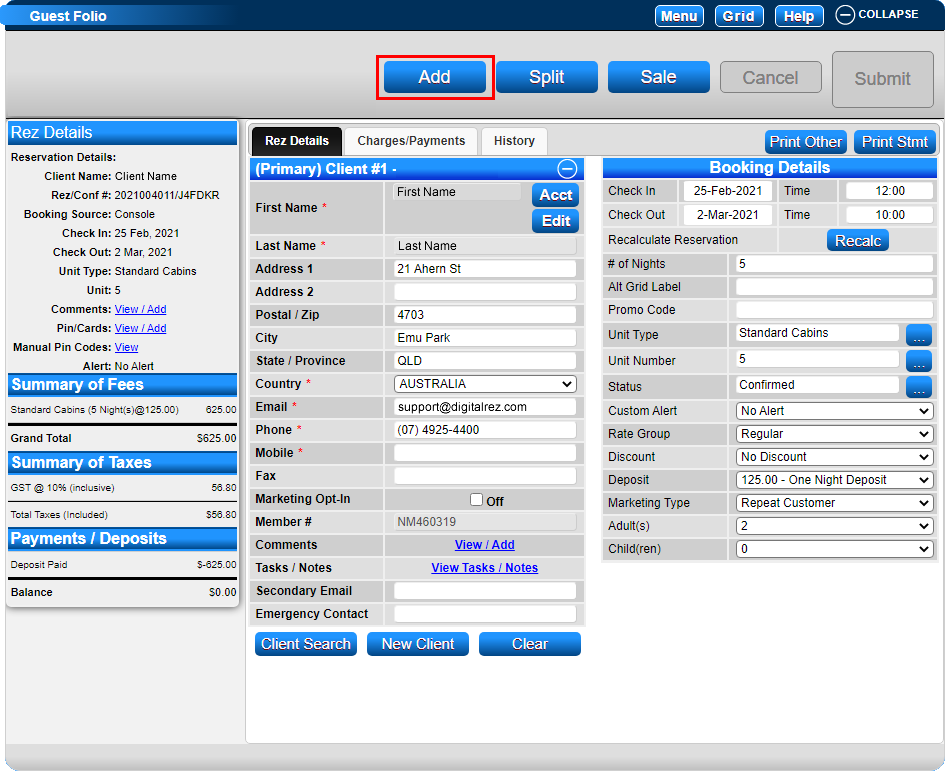
- Within a reservation’s Guest Folio, click Add to add a new or existing reservation to the selected reservation.
- Choose how you would like to add the booking:
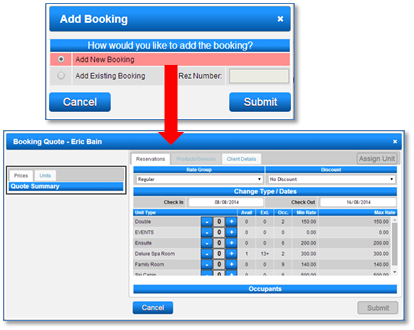
- Add New Booking
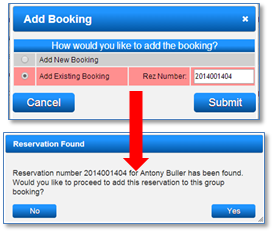
- Add Existing Booking
Add New Booking
- Clicking Add New Booking will open the Booking Quote Screen.
- Create the reservation for the desired dates and unit type.
- Press Submit to finalize the reservation.
- The original reservation will change from a Single Reservation into a Group Reservation.
Note: If reservation charges need to be edited for the new reservation, do not use the Add New Booking option. Instead, create the reservation (and make the required reservation charges prior to pressing Submit) and use the Add Existing Booking option to add the reservation.
Add Existing Reservation
- Select Add Existing Booking and enter the Rez Number of the existing reservation.
- The selected reservation will be found; click Yes to proceed with adding the selected reservation.
Note: Reservations can only be added if no payments have been previously made.
Troubleshooting
Additional Information
- The present setting for Group Reservations created by adding reservations together is Single Client/Multi-Account. This can be adjusted if required.
For more detailed information, click here to print the Help Document.