Creating Group Bookings in Availability Grid
Last modified on:
Overview
Group bookings are designed for groups of guests, such as school trips or sports teams, to manage reservations collectively. These bookings appear on the Availability Grid in a distinct color, either "Unit Assigned" or "Unit Not Assigned." Note that payment status colors are not reflected on group bookings. The group booking will display with the client name for each booking and the group booking summary client.
Prerequisites
- Access to the Availability Grid
- Client details for group booking
- Understanding of payment options
Steps
Multiple Ways to Make a Group Booking
- Calendar Quote Tool: Ideal for phone inquiries, allowing you to create quotes with different rate groups and dates.
- Unit Specific-Submit: Useful for bookings requiring specific units.
- Add Button: Combines single reservations into a group.
Payment Options
- Pay All Together: The group booking organizer pays for all reservations.
- Pay Separately: Each guest pays for their individual reservation.
Option A: Calendar Quote Tool
- Select the arrival date on the calendar.
- Enter the number of nights and press Submit.
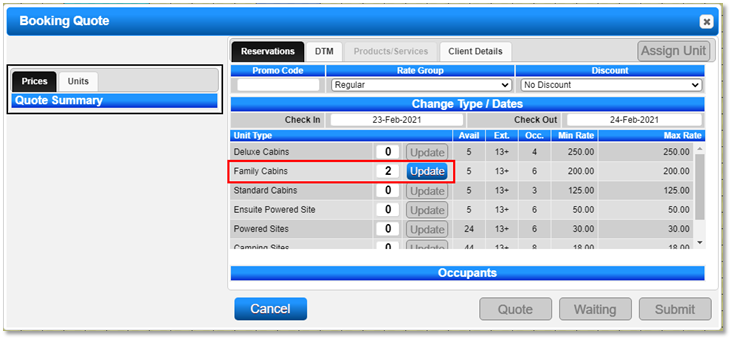
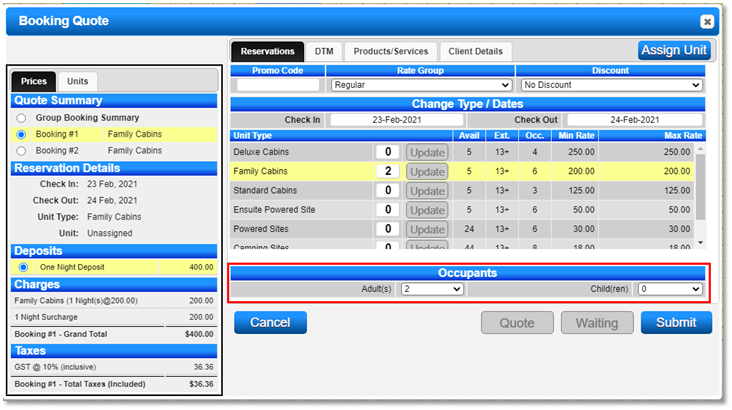
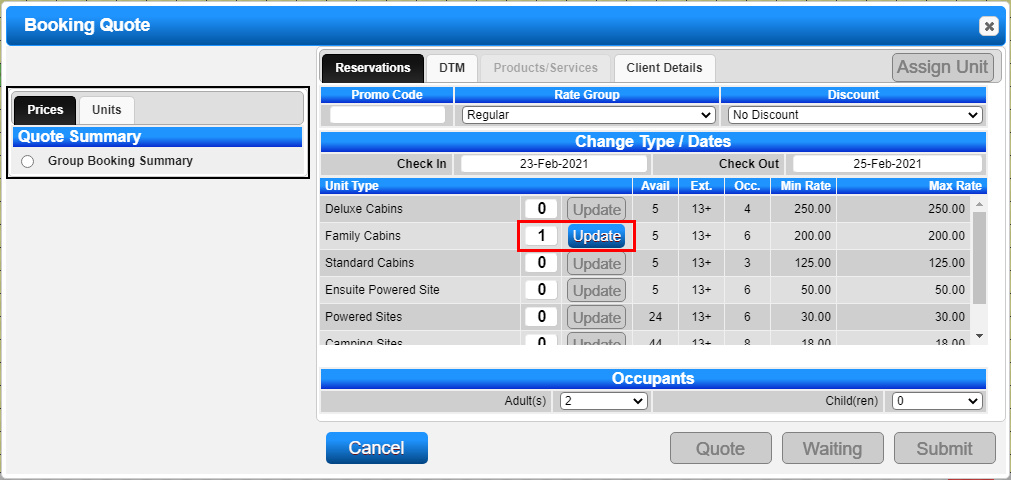
- Choose unit types and update as needed.
- Assign units if necessary.
- Click Submit to finalize.

Option B: Unit Specific - Submit
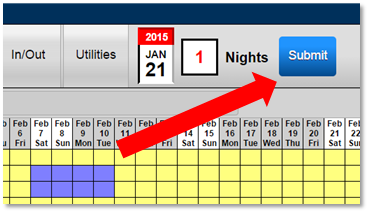
- On the Availability Grid, select the unit on the date of arrival.
- Expand the selection to include other required units.
- Press Submit to create the group booking.
- Assign units if needed.
Option C: Add Button
- Select the original reservation from the Availability Grid.
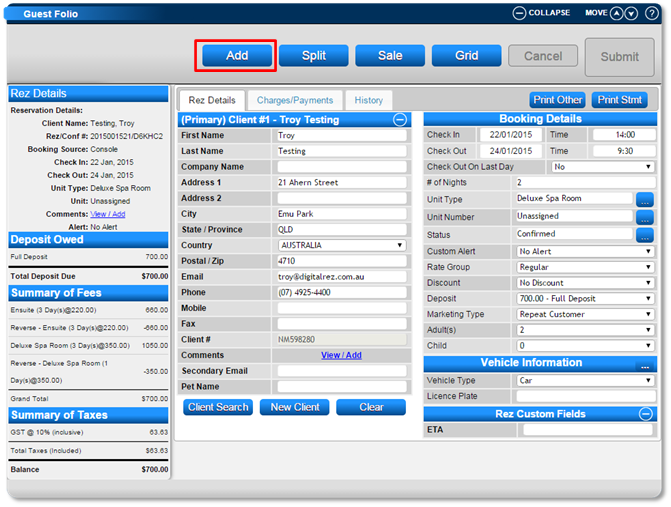
- Access the Guest Folio and click Add.
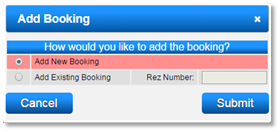
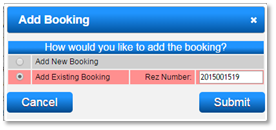
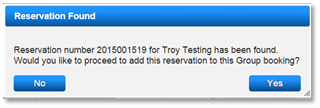
- Choose to add a new or existing booking.
Guest Folio - Client Details
- Enter client details at the group booking summary level.
- Optionally, add client details to individual reservations.
Payment Option - Single Client/Single Account
- Used when the group booking organizer pays for all reservations.
Payment Option - Single Client/Multi Account
- Used when each guest pays for their reservation.
Troubleshooting
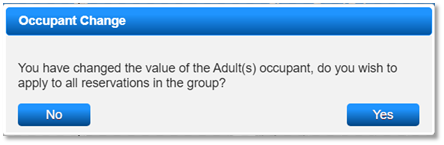
- If the Submit button is unavailable, ensure all reservations have occupants.
- Adjust the Single Client/Account setting before payment if needed.