Managing Booking Conflicts in Reservation Systems
Last modified on:
Overview
Booking Conflicts occur when there is no longer a continuous single unit available for the entire reservation length. The system allows the booking to be made, but the stay length is split across multiple unit numbers. The booking cannot be written on the grid, and you need to monitor for these occurrences.
Prerequisites
- Understanding of the Online Booking Interface
- Familiarity with the Console system
Steps
How Booking Conflicts Occur
- Online Booking Interface:
- Online availability is displayed as a Quantity by Day on relevant “Unit Type”.
- The online system is not aware of individual booking lengths or assigned unit numbers per site on your grid, only the quantity of available units on any given day.
- Console:
- A staff member can assign a reservation to a unit that would be better suited to another unassigned reservation.
- The second unassigned reservation will no longer display on the Availability Grid as there is no unit available for the whole reservation length.
Identifying Booking Conflicts
- To check and monitor for booking conflicts:
- Click on each Unit Type displayed on the left.
- A dropdown box labeled Booking Conflicts will display at the top of the grid each time you click a different unit type.
- If there is no Booking Conflict for the selected Unit Type, the box will display "No Conflicts Found".
- If there are Booking Conflicts for the Unit Type, the reservation will display.
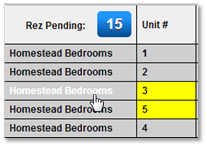

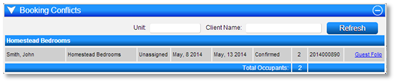
- Staff will also identify a booking conflict when attempting to make a booking on 'available' units and receive a message requesting additional inventory.
Resolving Booking Conflicts
- Option 1: Unassign all the Unit #s on existing reservations for the period of the booking conflict. The system will shuffle around the Unassigned reservations to find the best availability for all reservations, and the booking conflict will appear on the grid once all the bookings are un-assigned.
- Option 2: Split the booking across two available units.
No Solution
- If there is no solution to resolving the booking conflict, the guest will need to be contacted, and the reservation needs to be adjusted, shortened, or cancelled.
- Adjusted: Change the Unit Type of the reservation.
- Shorten: Before pressing submit, after shortening, change to the Charges/Payments Tab to change the amount to be charged. Enter the full amount for the length of stay. For the remaining day(s) of the reservation, place pencil ins on the available units.
- Cancel: Cancel the reservation and refund the guest payment.
Auto Assign Unit Flag
- To help stop future booking conflicts, enable the Auto Assign Unit flag.
- Click on a Menu button, select the Setup tab, and click on Business Setup.
- For Online Bookings: Click on the Resort Web Settings tab and enable the Auto Assign Unit flag.
- For Console Bookings: Click on the Preferences tab and enable the Auto Assign Unit on Grid flag.
Troubleshooting
- For further assistance, refer to the Help Document.
- Watch the video demonstration on how to deal with booking conflicts within RezExpert.