RezExpert Package Setup Instructions
Last modified on:
Overview
Creating Packages allows for products and unit types to be grouped together into a ‘Package’. Note: Packages cannot have a discount applied to the purchase. To enable Packages, please contact your RezExpert Support Tech.
Prerequisites
- Contact RezExpert Support Tech to enable Packages.
Steps
Location
- Click on a Menu button.
- Select the Setup tab.
- Click on Package Setup.
Creating a Package
- Click Add.
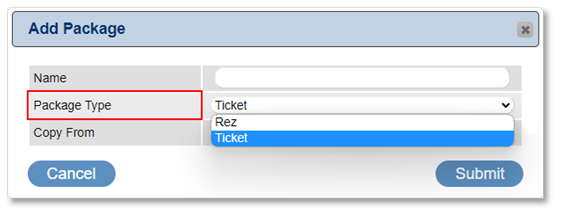
- Enter the Name (label) of the package in the Add Package box.
- Select the package type – Rez or Ticket.
- Use the Copy From dropdown to copy settings from an existing package or ensure "New" is selected for a new package.
Package Product Details
- Label: Enter the name of the Package, e.g., Family Tickets; Walk Package.
- Package Type: Select the package type.
- Start Date: Enter the date the package is available from.
- Last Date: Enter the last date the package is available for.
- Rate Groups: Select the rate groups.
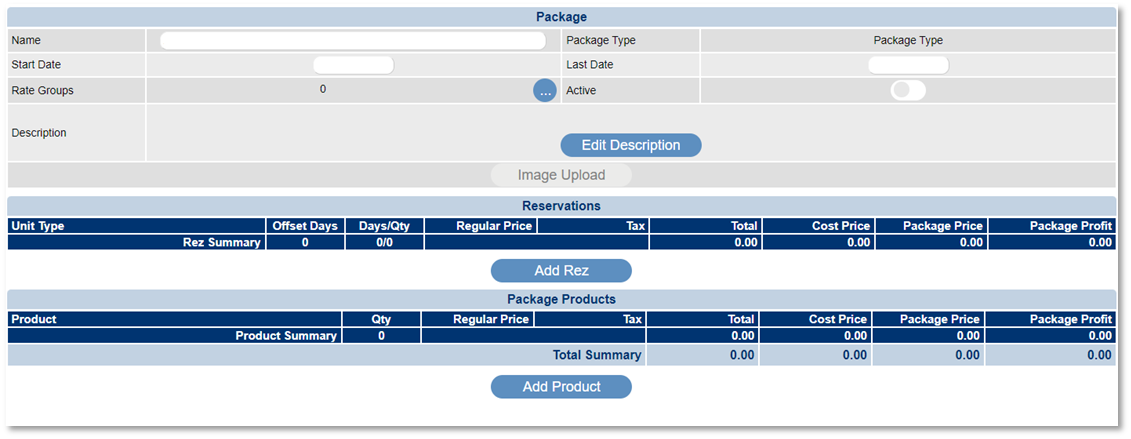
- Active: Tick when the package setup is complete and available for selection.

Submitting a Package
- After pressing Submit, only the following fields can be adjusted:
- Last Date
- Description
- Image
- Active
- To edit a Package, create a new package using the Copy From feature.
- To make a Reservation Package inactive, ensure it is unselected from the Resort Web Availability tab within Resort Web Setup.
Ticket Package Type
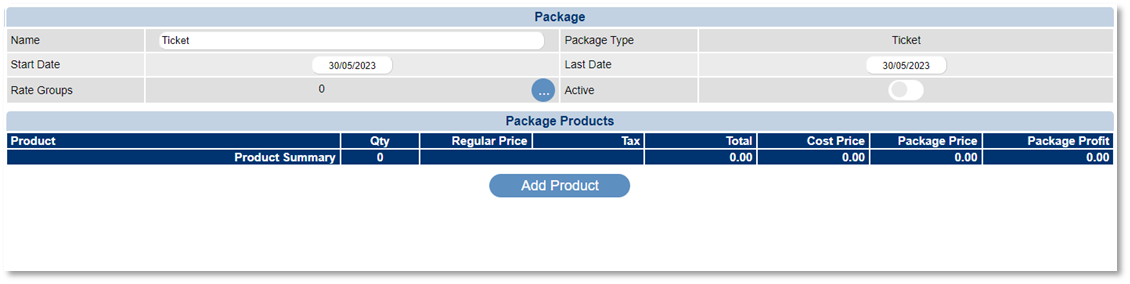
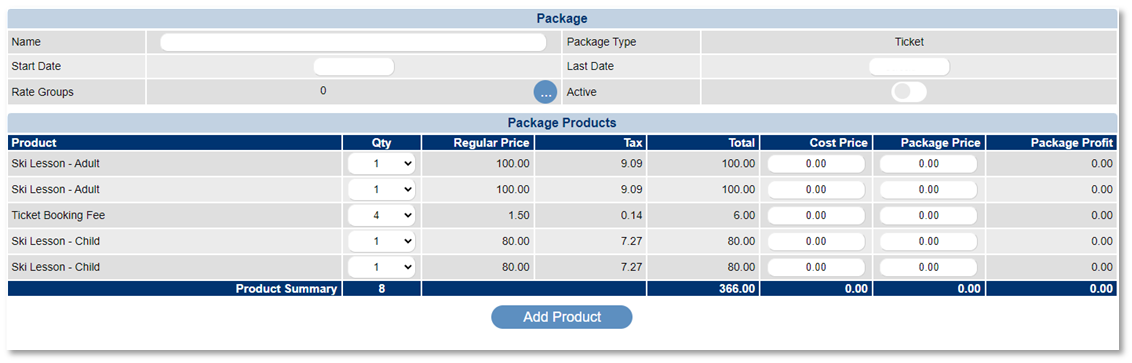
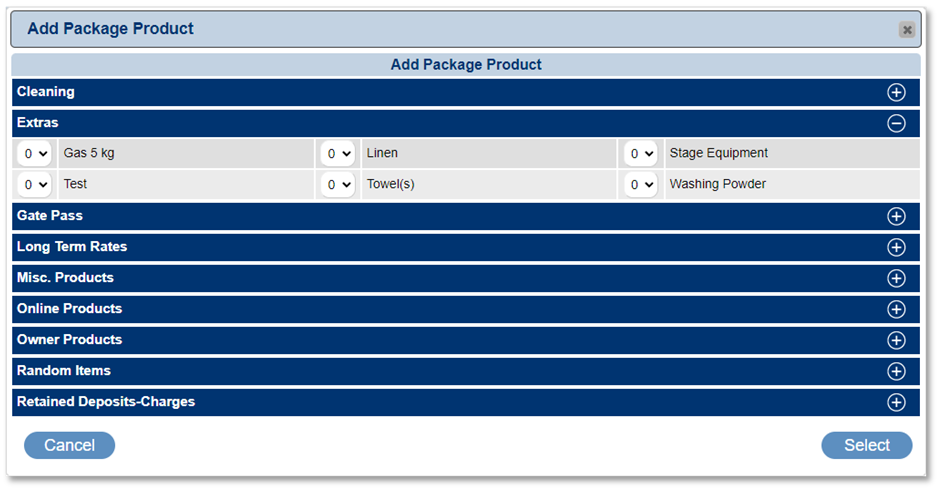
- Click on the Add Product button to add ticket products applicable for the package. Only tickets will display for selection.
- Select the required products in the Add Package Products box.
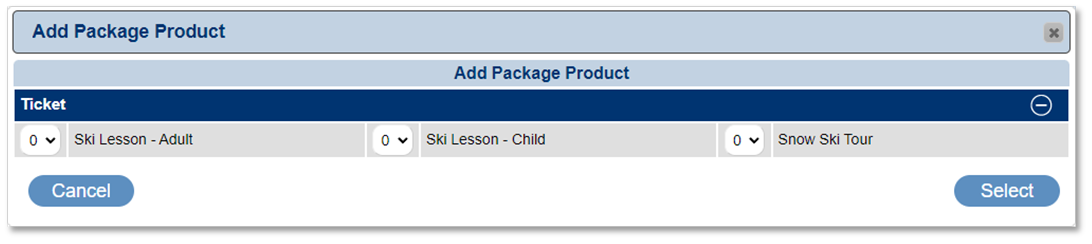
- For a Family Package, select the quantity of each ticket that makes up the Family Package.
- Adjust the quantity of tickets before pressing Submit.
- Regular Price, Tax, Total, Cost Price, Package Price, and Profit details are automatically calculated.
Rez Package Type
- Edit Description: Enter package text to display on the online booking interface.
- Image Upload: Upload package images in png or jpg format for the online booking interface.
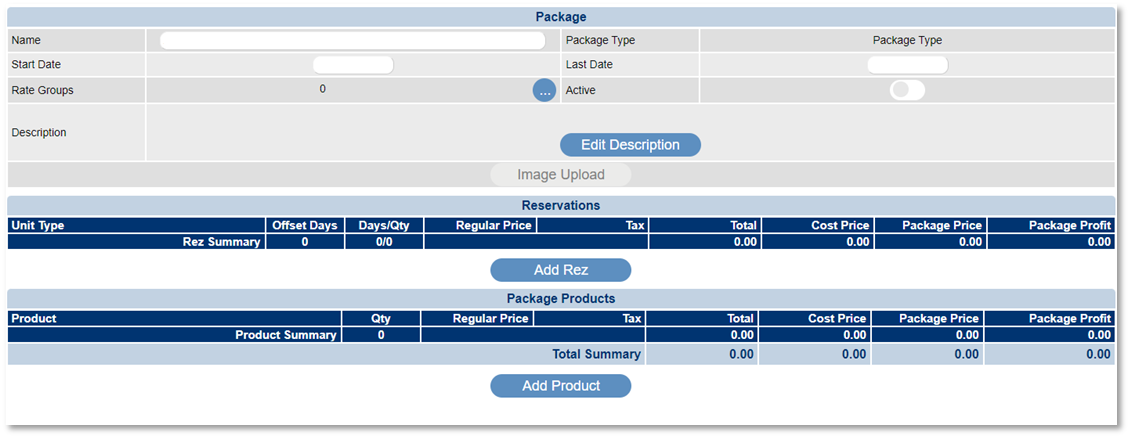
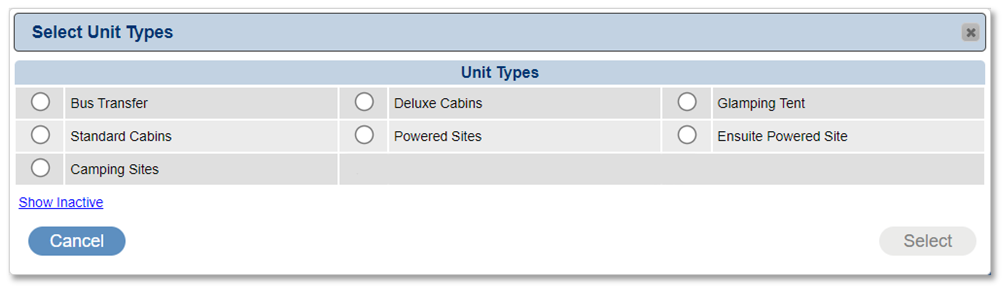
- Click on the Add Rez button to add applicable unit types for the package. Only unit types with Regular Inventory will display.
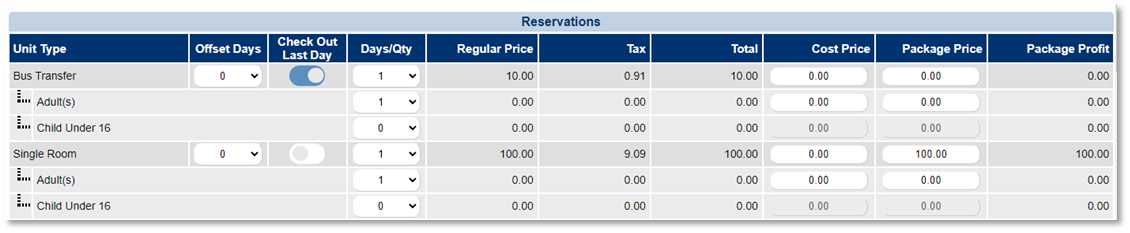
- Adjust Offset Days and Check Out Last Day settings as needed.

- Days/Qty, Regular Price, Tax, Total, Cost Price, Package Price, and Profit details are automatically calculated.
Reservation Package Online
- To make Packages available online:
- Click on a Menu button, select the Setup tab, and click on Resort Web Setup.
- Click on the Availability tab.
- Click Add.
- Enter the display name, availability type, and select reservation packages.
- Set the priority and enable the slider to make the tab available.
Reservation Package Additional Information
- Booking rules will apply if the selected Unit Types have a Booking Rule.
- Enable Auto Assign Unit settings for easy check-in/out.
- Purchased Reservation Packages display as a Group Booking on the Availability Grid.
Package Products
- Include additional products like Breakfast Included. Products created in Product Setup will display as options.
- Adjust the quantity of products before pressing Submit.
- Regular Price, Tax, Total, Cost Price, Package Price, and Profit details are automatically calculated.

Reporting
- The RezExpert Report Library contains Package Sales Summary and Package Sales Detail reports. These reports are also available as exports within the Import/Export Utility.