Integrating Google Analytics with RezExpert
Last modified on:
Overview
Google Analytics is a free online analytics service offered by Google that tracks and reports your website traffic, providing you with a wide variety of information about the activity that takes place. Introducing your Google Analytics code into RezExpert allows you to better track and report on your RezExpert Online Booking pages statistics such as website visits, booking conversion rates, etc.
Prerequisites
- Access to Google Analytics
- RezExpert account with Theme Editor access
Steps
Setting up Google Analytics
- Go to google.com/analytics.
- Create an account by clicking Start for Free.
- Enter the required information into the New Account section:
- Track: Website
- Account Name: Name of your Business
- Website Name: Enter your website URL address
- Select your Industry Category
- Select the required Reporting Time Zone - Once all information has been entered, click Get Tracking ID.
- The Tracking ID is your unique Google Analytics Code/ID.
Entering your Google Analytics Code/ID into RezExpert
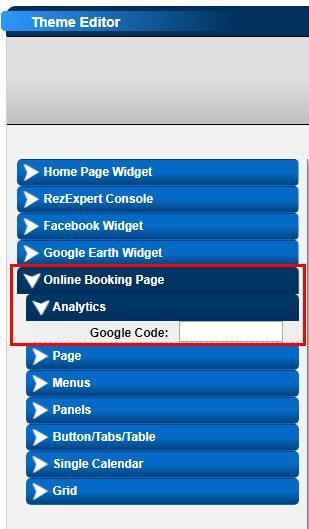
- Within Theme Editor, enter the Google Code:
- Click on a Menu button, select the Setup tab.
- Scroll down and click on Theme Editor.
- Alternatively, click on the Setup button from the Menu Bar.
- Expand the Preferences on the left to select 1.Theme Editor. - Within the Theme Editor panel:
- Expand the Online Booking Page side list.
- Click on Analytics.
- Enter your Google Code. - Google Analytics will now report on your RezExpert Online Booking pages. Please allow up to 48 hours after submitting for the collection of all data within your Google Analytics dashboard.
Troubleshooting
- For more information on Google Analytics reporting and dashboard, visit Google Analytics Support.
For a downloadable version of this guide, click here to download the Setting up Google Analytics in RezExpert PDF.