Clear Cache in Chrome and Firefox
Last modified on:
Overview
This document provides instructions on how to clear the cache for two popular web browsers: Google Chrome and Firefox.
Prerequisites
- Access to a computer with Google Chrome or Firefox installed.
Steps
Google Chrome Browser
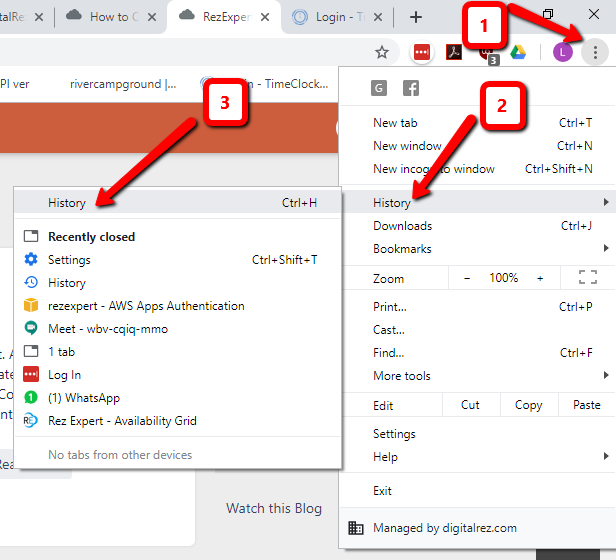
- Open Menu:
- Click the Menu icon in the top-right corner of the browser. - Access History:
- Expand the "History" option.
- Click on "History" again from the expanded menu.
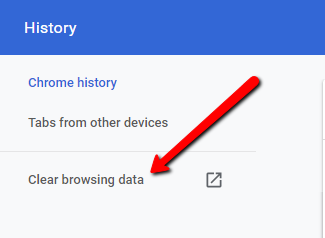
- Clear Browsing Data:
- On the left-hand side, click "Clear browsing data."
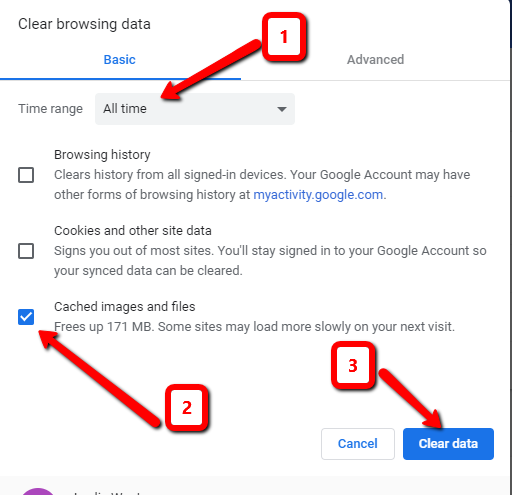
- Select Time Range:
- Choose "All Time" for the time range.
- Select "Cached images and files."
- Click "Clear data."
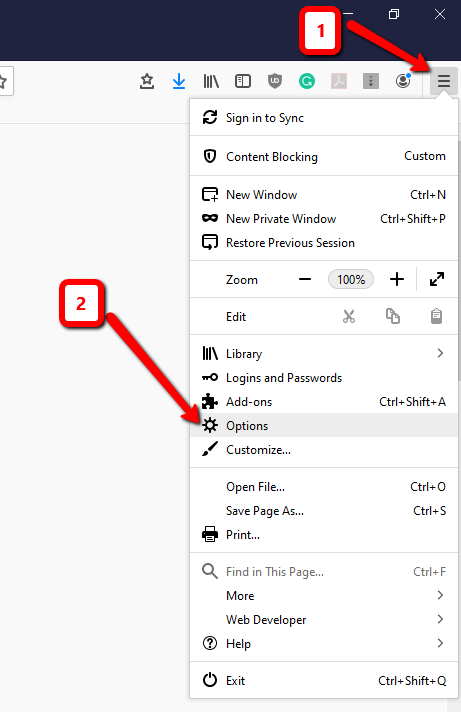
Firefox Browser
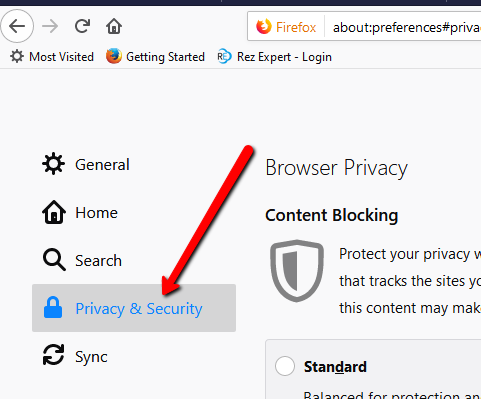
- Open Privacy Settings:
- On the left-hand side, select "Privacy & Security."
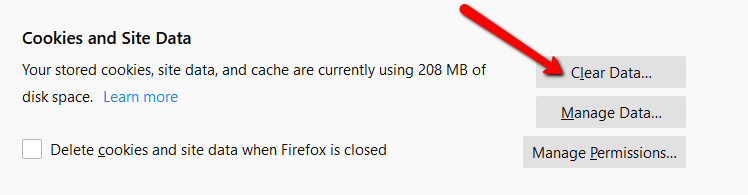
- Clear Data:
- Scroll down and select "Clear Data" under the "Cookies and Site Data" section.
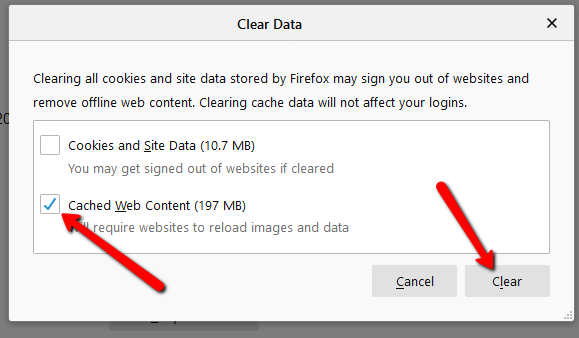
- Select Cached Content:
- Choose "Cached Web Content."
- Click "Clear."
Troubleshooting
If you encounter any issues while clearing the cache, ensure that your browser is up to date and that you have the necessary permissions to modify browser settings. If problems persist, consult the browser's help resources or technical support.